User guide
Getting started with Clock Clerk
Clock Clerk is where a team plans its work, talks about it, records the hours it took, gets them approved and bills them. This guide walks through each job step by step, and says who can do it.
The five steps
Work moves through Clock Clerk in the same order every month. Each step has its own part of this guide; the pages marked soon in the contents are being written.
1. Plan
Each project has a board: its tasks as cards, in stages you choose, and each task can carry a budget of hours. Tasks can be brought in from Jira, Azure DevOps, Trello or Notion. Covered in Plan work on a board.
2. Collaborate
Every project has a conversation under Messages, and every task has its own, opened from its card on the board. In them you mention people and refer to tasks. A project can share a conversation with the client's own people as guests. Covered in Talk with your team and clients.
3. Track
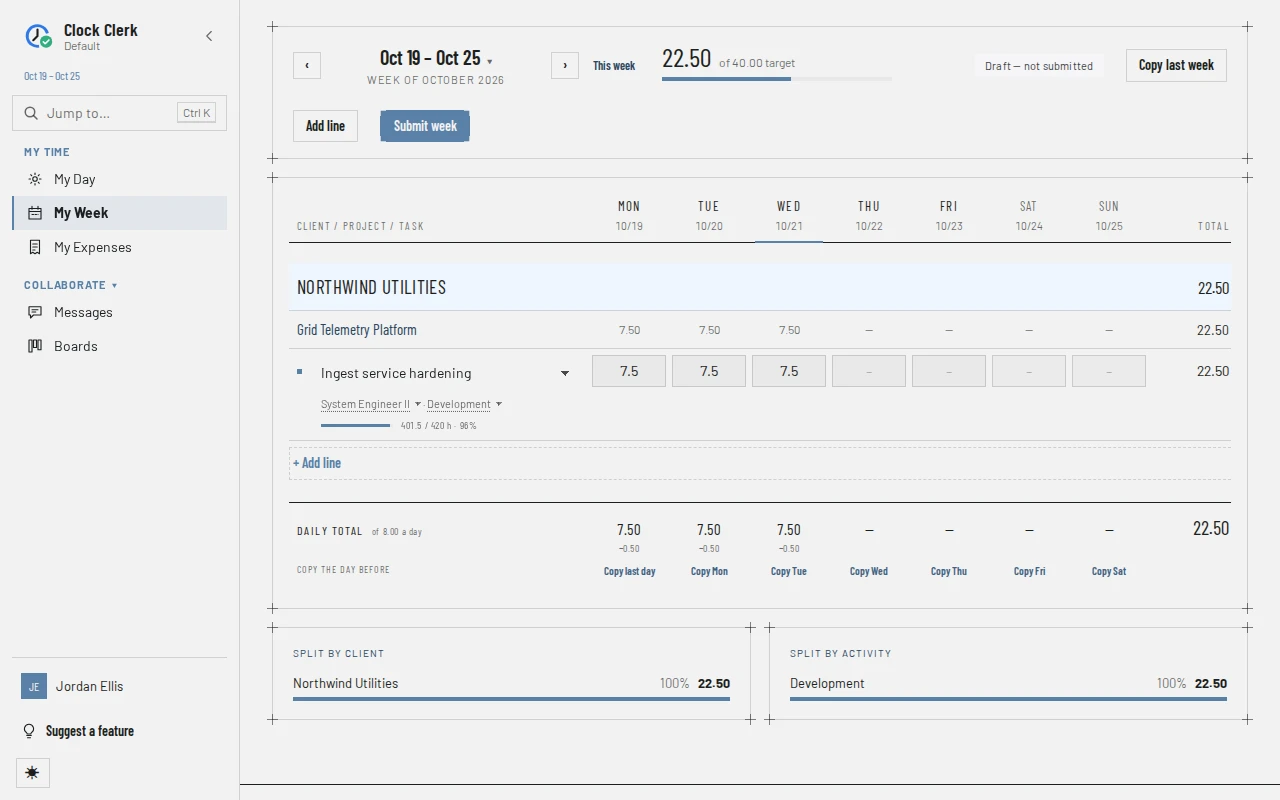
Everyone records their hours on My Week or My Day, one line per project and task, and submits the week when it is done. A week that runs into a new month is submitted month by month. Expenses go under My Expenses. Covered in Record and submit your week and Expenses and reimbursements.
4. Approve
Managers approve the weeks of the people on their projects under Approvals, or send one back with a reason. Approved hours are locked. Covered in Review and approve time.
5. Bill
Finance raises invoices from approved hours, pays contractors for their months, builds reports and exports to QuickBooks or another ERP. Covered in Bill a client, Pay contractors, Build and save reports and Export to an ERP or QuickBooks.
Where to start
What you see in Clock Clerk depends on your role, which an administrator of your organization sets. Roles explains each one.
-
You fill in your time
Sign in. Home shows how this week stands; open My Week and type your hours against the projects you are on. Submit the week when it is complete. Record and submit your week walks through it.
-
You approve other people's time
Read what a Manager reaches and how grants decide whose weeks come to you, then open Approvals. Review and approve time walks through it.
-
You run your organization
Start a trial from Start free trial, or read what an Admin does. Set up your organization walks through inviting people, setting their roles, and adding clients and projects.
-
You handle the money
Finance reviews everyone's time without grants, and keeps the rates, costs, invoices and contractor payments.
-
You are a client guest
You were invited into a conversation by email. Signing in as a guest explains the link, and Guest what you see.
-
You are a contractor
You log your hours like everyone else, and submit each month under My Month. Contractor says who signs it off and pays it.
Whatever your role, choose your name at the foot of the menu, then Account settings, for My profile, where you set your language, the look of the app and the email you get, and Feedback above your name to tell the team what is missing. Your account and your data covers both.
A few words
- Organization: your company's own space in Clock Clerk, with its people, clients and projects. Nothing in it is visible to another organization.
- Client and project: a project belongs to one client, and hours are booked to a project's tasks.
- Line: one row of your week, for one project and task.
- Submit: hand in a week. A submitted week is locked against edits while it is reviewed.
- Approve and send back: what a reviewer does with a submitted week. A week sent back is open again, with the reviewer's reason.
- Grant: the level of access an administrator gives someone on a client or a project.
Something the guide doesn't answer? Ask your organization's administrator, or write to Clock Clerk: see Contacting Clock Clerk.