Screens
Team
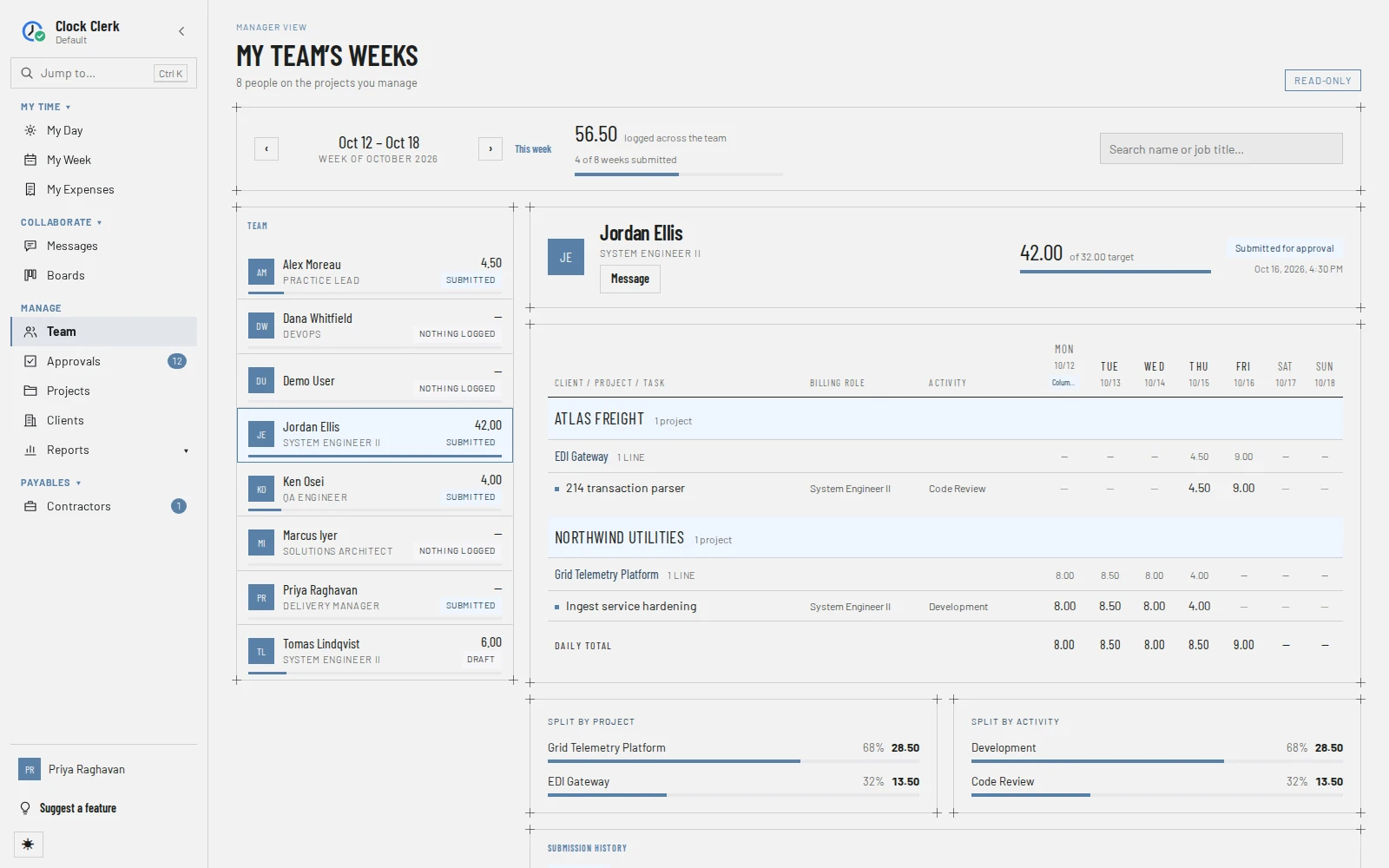
Your people's weeks, read-only: who has logged what, against which tasks, and whether they have submitted. It shows weeks still in draft too, so you can see how a week is going before anything reaches Approvals.
Who sees it
Managers, Finance users and administrators: it is Team in the menu. A User does not have it.
- A Manager sees the people on the teams of the projects they manage through their grants, themselves included if they are on one, and only the hours booked to those projects.
- Finance and an administrator see everyone, and all their hours.
The screen changes nothing: there is no approving or editing here. The address names the week by its Monday and the person you opened (/team/2026-10-12?person=2); /team on its own opens the current week.
The top bar
- How many people you reach, for example 8 people on the projects you manage, and the Read-only tag.
- ‹ and › step a week back or forward; This week comes back to the current one.
- The hours logged across the team that week, and how many weeks are submitted, for example 4 of 8 weeks submitted.
- Search name or job title… narrows the roster. Clear search appears when nobody matches.
The roster
One row per person: their name, job title, hours for the week, a bar against their target, and Submitted, Draft or Nothing logged. A week that runs into a new month says 2 filings, and its tag is the less advanced of the two. Choose a person to open their week. If you reach nobody yet, the screen says Nobody reports into you yet: an administrator has to add people to a project you manage, or grant you a client they work for.
A person's week
- Their name and job title, the week's hours against their target (their daily target times the working days, less paid holidays), and the billable and non-billable split where there is any.
- The status: Submitted for approval, with when, or Draft — not submitted. On a week that runs into a new month, one status per month instead: Draft, Awaiting review, Approved or Sent back. Whether a week in one month was approved or sent back is shown on Approvals.
- Partial week, for a Manager, when some of the person's lines are on projects you do not manage: they are not shown, and their hours are not in the totals.
- The week's lines by Client / Project / Task, with Billing role, Activity, the hours per day and the Daily total. A line whose project doesn't ask for an activity leaves Activity empty, and the column is left out when no line that week shows one (see Activities). Holidays and today are marked on the days. Lines not billed to the client say Not billed to client, and Billable and Non-billable rows split the totals.
- A day with a note has a small marker in the top corner of its cell. Rest the pointer on the cell, or reach it with Tab, to see the note beside it: the day, the project and task, the billing role and the activity, then the note. It goes away when the pointer or the focus moves on. Click or tap the cell, or press Enter, to keep it open while you read; Esc, a second click, a click elsewhere or scrolling puts it away. One note is open at a time, and a day without a note opens nothing.
- Day notes: every day's comment in one list, each with its day, project and task, billing role and activity, the same as its cell shows. Two lines on the same task, for example one per billing role, are told apart by the role and the activity. A line that doesn't show its activity gives only its role.
- Split by project and Split by activity: where the week's hours went. Split by activity counts only lines that show their activity, and is left out when the week has hours but none of its lines show one.
- Submission history: every submission, reopening and send-back, with the reasons.
Buttons and when they appear
| Button | What it does | When you have it |
|---|---|---|
| ‹, ›, This week | Change the week. | Always. |
| A day's hours | Shows that day's note on the cell, and keeps it open when clicked or tapped. | Only on a day with a note, marked in the corner of its cell. |
| Message | Opens a direct conversation with the person under Messages. | For anyone but yourself who has not left the organization, or with whom you already have a conversation. Not while an administrator has Messages turned off. |
| Try again | Reloads a week that could not be read. | Only after a week failed to load. |
To approve, send back or remind, open the same week in Approvals; Review and approve time walks through it.