Screens
My profile
Your own account: who Clock Clerk knows you as, how you signed in, the look of the app in this browser, the defaults your week starts from, your language and the email you get. Everyone who signs in has one. Going through the settings in order is covered in Your account and your data.
Who sees it
Everyone who signs in to an organization, whatever their role. Open it by choosing your name at the foot of the menu, then Account settings, or My profile in Jump to; its address is /profile. Client guests have no profile.
At the top are your name, your job title if you have one, a tag saying how you signed in (Signed in with Microsoft Entra ID (SSO), Okta (SSO) or Email and password), and Back to my week.
Your settings can be changed while the organization is read-only, too.
Account details
Your initials, the address you sign in with and Clock Clerk account · read-only, then a table:
- Full name.
- The address you sign in with, named as your sign-in names it: User principal name for Microsoft, Sign-in email for Okta, Email for a password.
- Job title, or a dash.
None of them can be changed here: Your name, title and role are maintained by an administrator on the People tab. (People).
Appearance
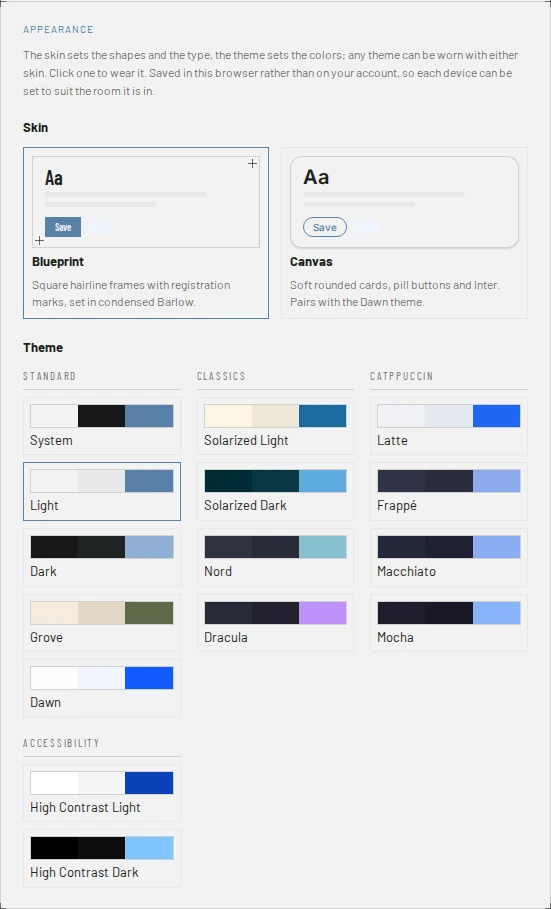
- Skin: Canvas, which you have until you choose, or Blueprint. Choosing a tile changes the app at once.
- Theme: the fifteen themes in four groups, each with its colors on the tile. System follows your computer's light or dark setting.
Both are kept in this browser rather than on your account, so another computer keeps its own. The theme can also be changed from Appearance, under your name at the foot of the menu.
Conversations shared with you
For somebody who is also a guest of another organization. Type The address you were invited at and choose Email me a link; open the link while you are signed in here, and the screen says Your guest address is linked. That organization's conversations then open from Shared with you on your Messages. While the link is waiting, the card offers Send it again and Cancel; once linked, Open Messages and Unlink. The card is not on the live demo, nor while an administrator has turned Messages off for your organization.
Session & security
A table of Signed in via and Account; with Microsoft, also your Directory tenant and Object ID, which your IT department may ask for. Below it, the buttons for your kind of sign-in:
- Manage in Microsoft account, with Microsoft, opens your Microsoft account in a new tab, where its password and security are kept.
- Change password, with a password, opens Current password, New password and Confirm new password. The hint under the new one gives the rule: At least 8 characters, with a number and a special character. Changing it signs you out everywhere else. (or more characters, where your organization's sign-in asks for more). The two passwords differ. shows until the two match. Each of the three fields has its own Show password, the eye at its right, which shows what you have typed there; Hide password hides it again. Forgot your current password? goes to the page that emails you a reset link.
- Sign out everywhere, with a password, ends your sessions in every browser. With Microsoft or Okta the button is Sign out and ends this browser's.
Okta has no button to manage the account here: its account is kept in your organization's Okta.
Two-step sign-in
Under Session & security, for somebody whose organization signs in with a password, not on the live demo. It says in a sentence whether two-step sign-in is on: Two-step sign-in is on, with the date it was turned on and how many recovery codes are left, or Two-step sign-in is off for your account. How it works at sign-in is in Signing in.
- Set up an authenticator app, while it is off, shows a QR code to scan with your app, the setup key to type instead, and a field for the first code. Turn on checks the code and turns it on; Cancel leaves it off.
- Then the card shows ten recovery codes, once, with Copy, Download (a text file) and I've saved them, which puts them away for good.
- Make new recovery codes, while it is on, asks for a code from your app or a recovery code, then shows ten new codes the same way. Every older one stops working.
- Turn off asks for the same and turns it off. Two-step sign-in is off. Every other browser you were signed in on has been signed out. You stay signed in on this one.
- Where your organization requires two-step sign-in, there is no Turn off: the card says to ask an administrator to reset it for a new or lost phone (see If you lose your phone).
- Passkeys, while it is on, lists each passkey by name with when it was last used, or added. Add a passkey asks for a name and a code from your app or a recovery code; Continue hands over to your browser, which makes the passkey. Remove beside one stops it working. Turning two-step sign-in off removes them all. See Passkeys.
A wrong code says That code is wrong, or has already been used., and five in a row lock it for 15 minutes (see the message).
Timesheet defaults
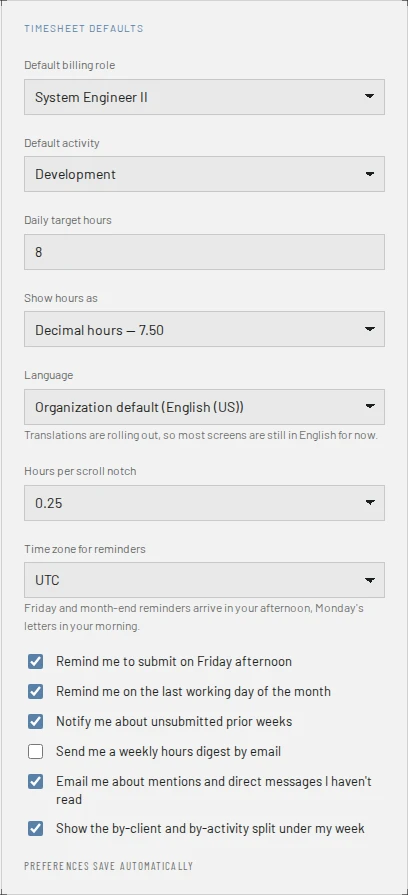
| Setting | What it does |
|---|---|
| Default billing role, Default activity | What a new line on My Week starts with. The lists hold your organization's billing roles and activities. Default activity is hidden while your organization doesn't ask for an activity, since nobody picks one; on a project that asks anyway, a new line starts on it if you set it earlier, or on the first activity in the list (see Activities). |
| Start each new week with last week's lines (no hours) | Off unless you tick it. When it's on, the first time you open an empty week, it fills once with the lines of your most recent week that has any, looking back up to four weeks: the same clients, projects, tasks, billing roles and activities, with no hours, comments or notes. If none of those four weeks has lines, the week stays empty. Lines you no longer can use, such as on an archived project, are left out. Weeks fill in the order you first open them, so jumping ahead to a later week leaves the weeks in between empty. Change or remove the lines as you like; a week you have cleared stays empty, and so do the weeks before the one you turned it on in. Add line and Copy last week work as before. |
| Daily target hours | What a full day is measured against, from 1 to 24 in half hours. |
| Show hours as | Decimal hours — 7.50 or Hours and minutes — 7h 30m. |
| Language | Organization default, naming your organization's language, or one of sixteen languages in its own name. The page reloads in it. Translations are rolling out, so most screens are still in English for now. |
| Hours per scroll notch | 0.1, 0.25, 0.5 or 1: what one turn of the mouse wheel adds to an hour cell. |
| Time zone for reminders | When reminders arrive: Friday and month-end reminders arrive in your afternoon, Monday's letters in your morning. Filled in from your browser when you sign in, until you or the app set one; Not set — reminders follow UTC until then. |
| Remind me to submit on Friday afternoon Remind me on the last working day of the month Notify me about unsubmitted prior weeks Send me a weekly hours digest by email | The reminders and the Monday digest. Only on plans that send them: Team, Enterprise and a trial. Elsewhere a note says the plan doesn't send reminders or the weekly digest. |
| Email me when the organization's free trial is ending | Administrators only, since nobody else is sent the notice. |
| Email me about mentions and direct messages I haven't read | One email once such a message has waited about ten minutes unread. On every plan. |
| Show the by-client and by-activity split under my week | The split under My Week. |
Under the boxes, Preferences save automatically turns into Saving…, then Saved and the time, or Not saved — your last change did not stick. Which email each box stops, and what the Unsubscribe link in an email does, is in Your account and your data.
Buttons and when they appear
| Button | What it does | When you have it |
|---|---|---|
| Back to my week | Opens My Week. | Always. |
| A skin or theme tile | Changes the look of the app in this browser. | Always. |
| Email me a link, Send it again, Cancel, Open Messages, Unlink | Link a guest address, as above. | Not on the live demo, nor while Messages is turned off; each in its state of the link. |
| Manage in Microsoft account | Opens your Microsoft account. | Signed in with Microsoft. |
| Change password | Opens the form, and in it, changes the password. | Signed in with a password, not on the live demo. |
| Set up an authenticator app, Turn on | Enrolls an authenticator app for two-step sign-in, as above. | Signed in with a password, in an organization that signs in with one, while two-step sign-in is off; not on the live demo. |
| Copy, Download, I've saved them | Keep the recovery codes just shown, then put them away. | Right after turning two-step sign-in on or making new codes. |
| Make new recovery codes, Turn off | Replace the recovery codes, or turn two-step sign-in off, with a code. | Signed in with a password while two-step sign-in is on; not on the live demo. Turn off not where your organization requires it. |
| Add a passkey, Continue, Remove | Add a passkey with a code, or remove one, as above. | Signed in with a password while two-step sign-in is on, where this Clock Clerk has a public address; not on the live demo. Add a passkey only in a browser that can make one. |
| Sign out everywhere | Ends every session you have. | Signed in with a password, not on the live demo. |
| Sign out | Ends this browser's session. | Signed in with Microsoft or Okta, and on the live demo. |