Screens
Boards
The list of boards you can open, and each project's board: its columns, a card for each task, and a panel for each card with its details and its conversation. How a team plans with it, and how tasks are imported onto it, is in Plan work on a board.
Who sees it
Everyone who books time: Boards is in the menu under Collaborate, beside Messages, for every role. What a board shows depends on how you stand on its project:
- The project's managers, meaning administrators and the Manager and Finance users whose grant gives them Manager access to the project, see every card and have every control on this page.
- Members, the people ticked on the project's team, see the cards of the tasks they can book time to: those open to all members, and the restricted ones they have been selected for. They can move those cards, open them and comment. A member an administrator has given Can create tasks can also add cards and rename and describe the ones they see.
- Anybody else is refused the board: opening its address says You don't have access to this area.
A User with Manager access to a project is a member on its board, not a manager: managing a board takes the Manager, Finance or Admin role as well as the grant. Client guests do not have boards.
The list of boards
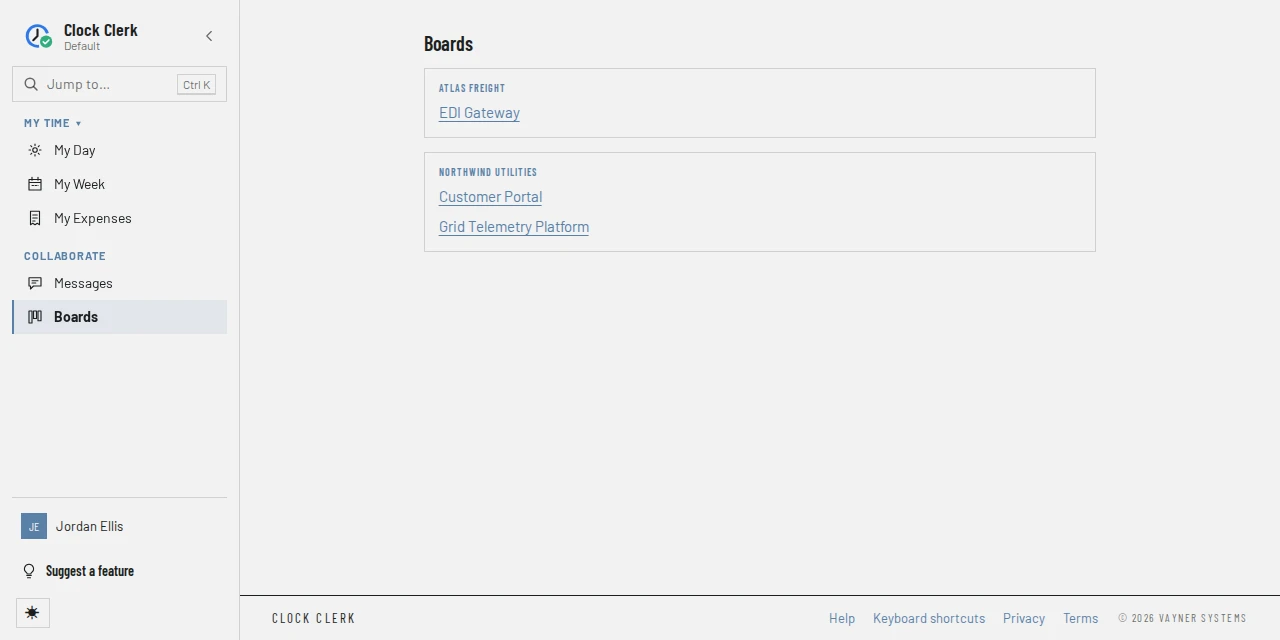
Grouped by client, in alphabetical order: the projects you are on and, for a Manager, Finance user or administrator, the active projects you manage. Choose a project to open its board. With none, the page says You aren't on any projects yet. A project's board appears here once you are added to it.
A project's board
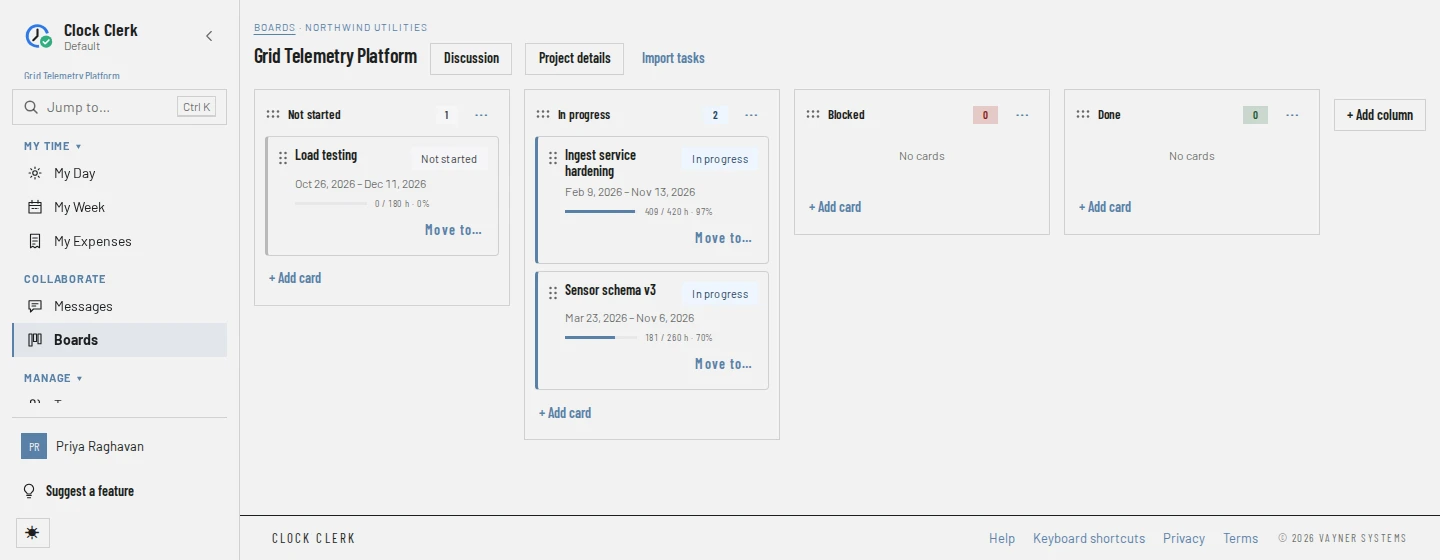
- The head: Boards, back to the list, the client's name, and the project's name. Discussion opens the project's conversation in Messages. Its managers also have Project details, the project's page, and, where the plan includes integrations, Import tasks.
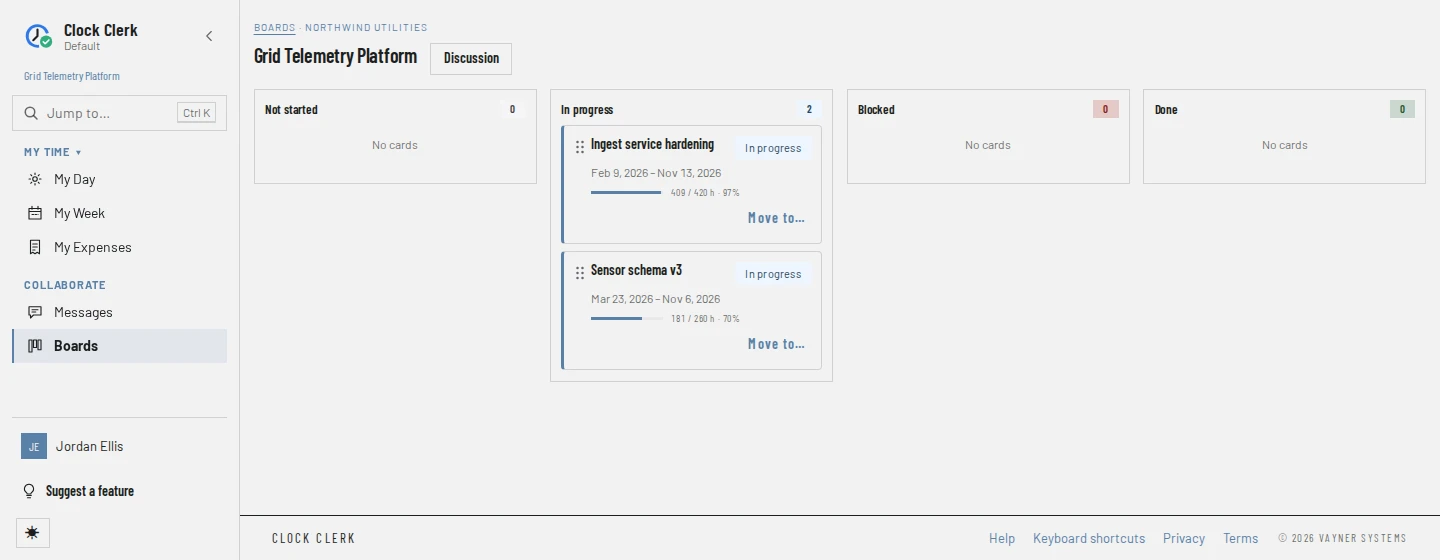
- Columns, one per stage, left to right. Each head has the column's name and how many cards it holds, colored by its category: Not started, In progress, Blocked or Done. A card's status is its column's category. An empty column says No cards.
- For the project's managers, each column also has a drag handle and a ⋯ menu with Rename…, Change category…, Move left, Move right and Delete…, and the row ends in + Add column.
On a narrow screen the row of columns scrolls sideways.
A card
Each card shows the task's name, its status, its Owner if it has one, its dates, and the hours logged, as a bar against the task's estimate where it has one. A card with a conversation says how many comments it has. Where you can move cards, a card has a dotted drag handle on its left and a Move to… menu listing Top and Bottom for every column, the keyboard's way of doing what a drag does. A move changes the card's column and so its status, and nothing else. The card's name opens its panel.
A card's panel
The panel opens down the right of the board, which stays in view behind it:
- The column, the name, and the facts: Stage, Owner, Dates and Hours, logged and estimated.
- Description, as plain text, or No description.
- Edit name and description turns them into a form with Name, Description (up to 4,000 characters), Cancel and Save. Ctrl + Enter (⌘ + Enter on a Mac) saves too; Enter in the description starts a new line.
- Edit dates, estimate and owner opens the task's form on the project's page, where its visibility is set too.
- Discussed in: the other conversations you can read whose messages reference this card. It is not there while an administrator has Messages turned off, when the card's comments still work.
- Comments: the card's conversation, with a box to write in and Send. Type # to reference a task or @ to mention somebody. A message's own Edit and Remove appear where you may use them.
Close, Esc or a click on the board closes the panel. A card's address can also be shared: the Imported tab of Import tasks links to each imported card that way. Deleting a task keeps its comments: they move into the project's conversation, marked with the task's name.
Import tasks
For the project's managers, on the Team and Enterprise plans and during the trial. The first time it opens Link a source: a connection, a board or project in that source, and how its columns and people map onto this board, saved with Save link. Once linked, it opens the source's items, with Available and Imported tabs, Change link and Unlink. The steps are in Plan work on a board. The connections themselves are added by an administrator on Integrations.
Buttons and when they appear
| Button | What it does | When you have it |
|---|---|---|
| Discussion | Opens the project's conversation in Messages. | On every board you can open, unless Messages is turned off. |
| Project details | Opens the project's page. | The project's managers. |
| Import tasks | Links the project to a source, or picks items to import from it. | The project's managers, on the Team plan and up and during the trial. Not on the live demo. While your organization is read-only, every change in it is disabled: Save link, Change link, Unlink, Restore, importing the ticked items and marking them as not for timesheets. |
| Drag handle, Move to… | Moves a card to another column or place, and so changes its status. | On every card you can see. |
| + Add card | Adds a card, by name, at the bottom of the column. | The project's managers, and members with Can create tasks. |
| Edit name and description | In a card's panel: renames the task or changes its description. | The project's managers, and members with Can create tasks, on the cards they see. |
| Edit dates, estimate and owner | In a card's panel: opens the task's form on the project's page. | The project's managers. |
| Send | In a card's panel: adds your message to the card's conversation. | Everybody who can see the card. |
| Remove (on a comment) | Removes the message, after a second press, leaving a note of who removed it and when. | Its author, and the project's managers. Only the author can Edit it. |
| Column handle, ⋯ menu, + Add column | Reorder, rename, recategorize, move and delete columns; add one at the end. | The project's managers. |
Deleting a card is done on the project's page, with Delete beside the task, and is refused once time is logged to it. While your organization is read-only, the board can still be read, and any change is refused.
When Boards is turned off
An administrator can turn Boards off for the whole organization, when it only tracks time. While they are off, Boards is gone from the menu, from Jump to, from Home and from a project's page, and opening /boards or a board's address takes you to Home. On Messages a conversation has no Open board or Open card, and a task referenced in a message is its name alone. A card's conversation is still there to read, but takes no new messages. Trying anyway is refused with An administrator has turned Boards off for this organization. Everything already in it is kept, and comes back when it is turned on again.
The tasks stay: you still book time to them, and their managers still add, edit, delete and import them on the project's page. Nothing is deleted. When Boards is turned on again, every card is in the column it was in, a task added meanwhile is in the first column of its status, and every comment is where it was.