Screens
Clients
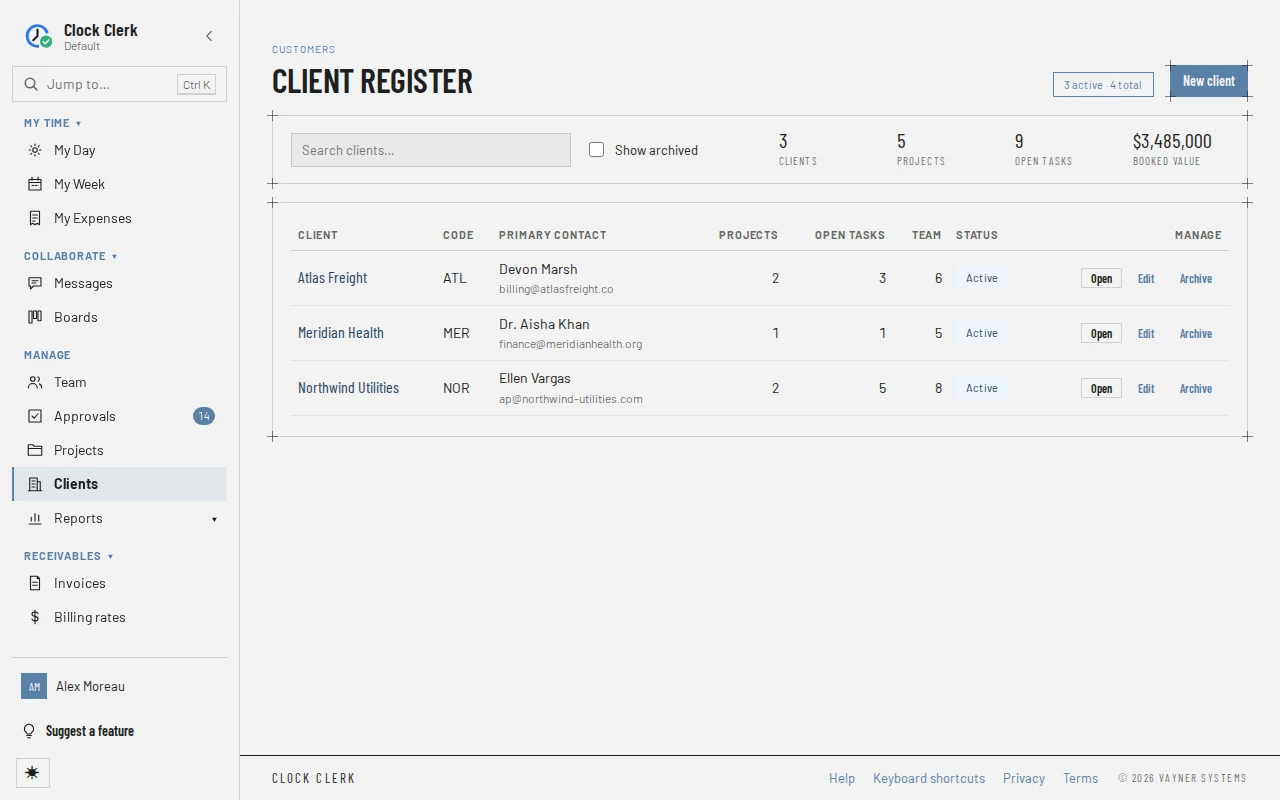
The client register: who you do the work for, with each client's contact, billing email and invoice language, and the projects under it. Open a client to see its projects and, if you handle money, its contract rates. Setting clients up for the first time is in Set up your organization.
Who sees it
Managers, Finance users and administrators: it is Clients in the menu, under Manage, beside Projects. A User does not have it; opening its address says You don't have access to this area.
- An administrator sees every client and every project under it.
- A Finance user sees every client and every project under it, granted or not, because they invoice and price all of them. They can still edit, delete or add projects only where a grant lets them manage.
- A Manager sees the clients their grants let them manage, and only the projects they manage under each. A client where they manage only one project, through an override, is listed with that one project. With no grants the register is empty.
Creating, editing, archiving and restoring a client are the administrator's alone. Everybody who sees the register can open a client and work on the projects under it that they manage. On a client's page, a Finance user sees Edit and Delete only on the projects they manage, and, like a Manager, New project only on a client they manage as a whole. Without it, a client with no projects says just No projects yet for this client.
The register
- How many clients are active, and how many there are in all, for example 3 active · 4 total.
- Search clients… narrows the list by name, code or contact. Show archived adds the archived clients back in.
- Figures for what you reach: Clients, Projects, Open tasks (tasks not Done) and Booked value, the projects' cost estimates added up.
- A row per client: Client, Code, Primary contact with the billing email under it, the number of Projects, Open tasks and people on their teams (Team), and the status, Active or Archived.
A client's page
Choose a client's name or Open. The page heads with the client's code and name, and a line with the primary contact, the billing email (or no billing email) and the status.
- Projects: each project you manage under the client, with its Code, Start and End, cost Estimate, number of Tasks, the number of people on its team (Access), its Billing type and its Status. Choose one to open its project page.
- Contract rate card, for Finance users and administrators only: what each billing role bills at for this client today, the next change, and where today's rate comes from: the client's own, tagged with its contract reference (or Imported or Manual), or the Global standard. Rates are covered in Billing rates and team costs.
The address is /clients/ and the client's number. A client opens for anyone who sees it on the register, including one reached through a single project, which then shows only that project. Any other client, or one that does not exist, says That client no longer exists.
The client's details
New client and Edit client open the same form:
- Client name, the only field you must fill in, and a Code.
- Primary contact and Billing email.
- Language for invoices: the language invoices to this client, and their email, are written in. Organization default follows your organization's. An invoice already issued keeps the language it went out in.
- Status: Active or Archived.
Create or Save changes saves it, and the app says Client created. or Client updated.
Archiving a client
Archive takes a client out of the way without deleting anything: it leaves the register until Show archived is ticked, its projects leave the project register until Show completed and archived is ticked, its projects are no longer offered when people add a line to their week, it is not offered as a client when somebody creates a project from the project register or copies one, and New project on its own page adds none. Its hours, invoices and reports stay as they are. Restore makes it active again. Archiving is how to retire a client that has any history.
On the Free plan an organization holds up to 20 active clients. Creating or restoring one past that is refused with The Free plan holds up to 20 clients, and your organization has 20. Archive one to make room, or move to the Team plan.
Deleting a client
An administrator can delete a client that was never used, such as one added by mistake, with Delete client on its page. It asks first: Delete Northwind Utilities?, says that this can't be undone and that the client's rates and invoice settings go with it. Cancel or Escape leaves everything as it was. Once it is deleted, the app goes back to the register and says Northwind Utilities deleted. Archived or not makes no difference.
Two things stop a delete:
- Projects. While the client's page lists any project, Delete client is disabled, and pointing at it says Delete its projects first. Nothing is deleted along with the client, so delete each project first; a project that can't be deleted, because it has history of its own, means the client has history too, so archive the client instead. If a project you cannot see on the page is still under the client, the delete is refused and the message says how many there are; see the message.
- History. A client that time has been logged against, that has been invoiced, whose contractor hours have been protocolled, or whose people have been guests in a conversation or been sent mail, cannot be deleted. The client stays as it was, and the message says which, for example This client has been invoiced. Archive it instead, so its history stays on the record. (see the message). Archive it instead: that keeps it out of the way and its history on the record.
Buttons and when they appear
| Button | What it does | When you have it |
|---|---|---|
| New client | Opens New client to add one. | Administrators. Disabled while your organization is read-only. |
| Open | Opens the client's page. | Everyone who sees the register. |
| Edit, Edit client | Opens the client's details to change them. | Administrators. |
| Archive, Archive client | Archives the client at once, without asking. Reads Restore or Restore client on an archived one. | Administrators. |
| Delete client | Asks first, then deletes the client and goes back to the register. Disabled while the page lists any project; refused for a client with history. See Deleting a client. | Administrators, on a client's page. Disabled while your organization is read-only. |
| New project | Opens New project for the client. The fields are on Projects. On an archived client it opens nothing and says the client takes no new projects; an administrator gets Restore client on that message, which restores the client and then opens the form. | On a client's page, for an administrator or someone who manages the whole client, not one project of it. Disabled while your organization is read-only. |
| Edit, Delete (on a project) | Edit the project's details, or delete it, after confirming. A project with anything on the record against it, such as logged time, an invoice or a contractor's protocol, is not deleted, and the message says which: This project has time logged against one of its tasks. Mark it Complete instead, so its history stays on the record. | On every project you manage. For a Manager that is every project the page lists; Finance sees the others too, without these buttons. |
| Import rates, Add rate change, Full history | Paste a client's rate card in, one role and hourly rate per line; add one dated rate change; or open the full rate card on this client. | Finance users and administrators. |
While your organization is read-only, the forms still open so you can read them, but their save button is disabled, and the app refuses any other change.