Screens
Approvals
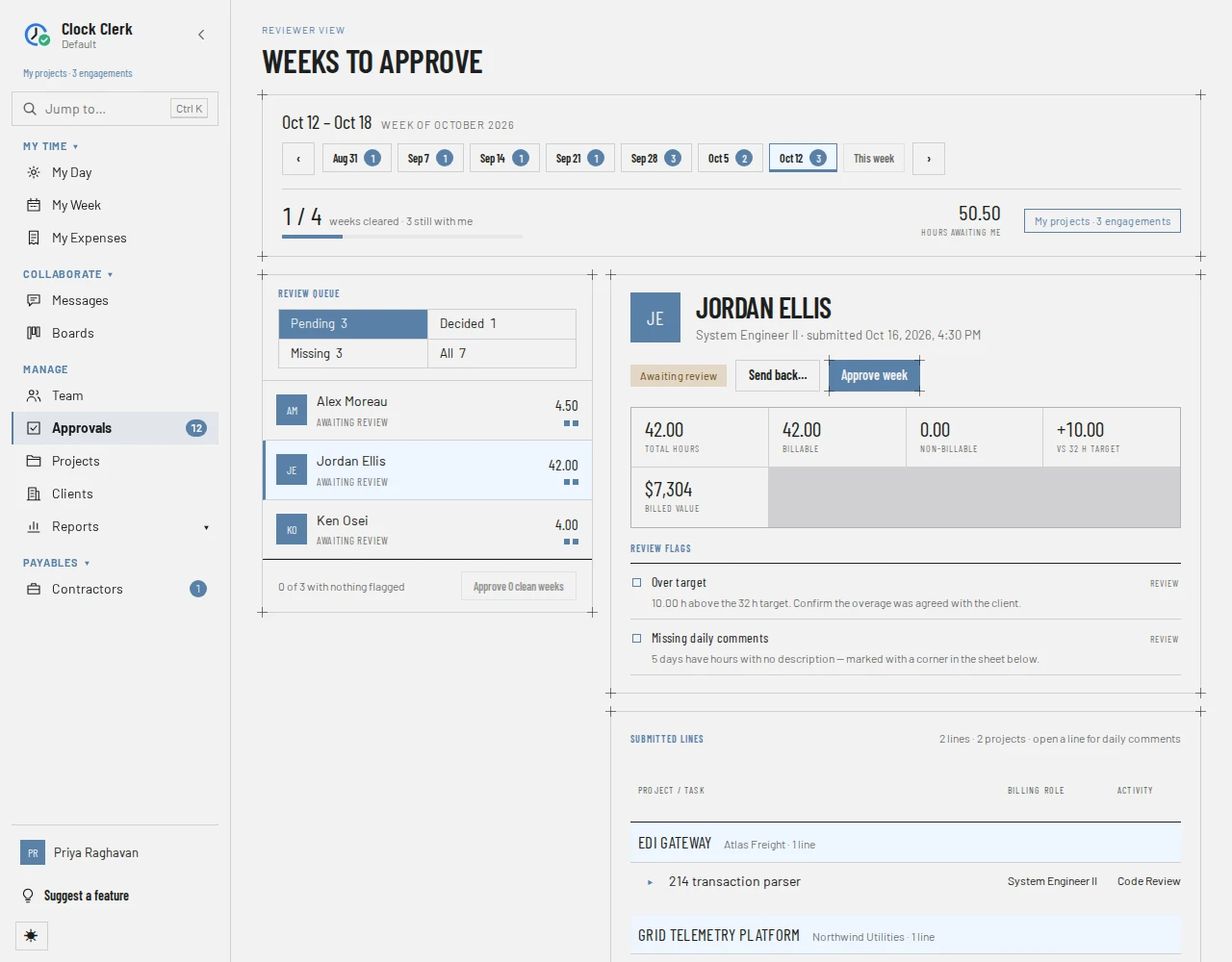
The reviewer's queue: the submitted weeks waiting on you, the ones you have decided, and the people who have not submitted, one week at a time. The steps for deciding a week are in Review and approve time.
Who sees it
Managers, Finance users and administrators: it is Approvals in the menu, with the number of submitted weeks waiting on you over the last eight weeks beside it. A User does not have it; opening its address says You don't have access to this area.
- A Manager sees the people on the teams of the projects their grants let them manage, and only those people's hours on those projects. Their own week is not in their queue.
- Finance and an administrator see everyone. Their own week is in the queue, marked Your week; only an administrator can approve it.
The address names the week by its Monday, and the person you opened (/approvals/2026-10-12?person=2), so a link opens on the same week and person. /approvals on its own opens the most recent week that still has something waiting, or last week.
The top bar
- The week's dates, and a row of recent weeks: the last eight, each with the number of submitted weeks still waiting on you, the week on screen marked. ‹ and › step along it and beyond.
- How many of the week's submissions are cleared, for example 1 / 4 weeks cleared · 3 still with me, with a bar. A week that runs into a new month counts filings instead.
- Hours awaiting me: the hours on the weeks still waiting.
- Your reach: Every project for an administrator, My projects for everyone else, and how many projects it covers.
The review queue
- Tabs, with a count each: Pending, submitted and waiting on you; Decided, approved or sent back; Missing, people who have not submitted (counted as people); and All.
- A row per person, with their hours for the week and a status: Awaiting review (with · late when submitted after the following Monday), Approval blocked, Approved, Sent back, Not submitted (with · reminded once reminded) or Not signed in yet. Small marks beside the hours count the week's review flags.
- Expenses dated in the week, as a count and a total, with Receipt missing and … declined tags where they apply.
- A week that runs into a new month has a row for each month under the person's name, with the month's dates on each.
- At the foot of Pending, how many weeks have nothing flagged and Approve … clean weeks. At the foot of Missing, how many people have not been reminded yet and Remind all.
The arrow keys move up and down the rows. On a narrow screen the queue folds behind a Review queue · … pending button above the week.
The open week
- The person: name, job title and when they submitted, the status, and the buttons for deciding. Where they submitted two months of a week, a switch picks which month you are deciding.
- Approval blocked: on a week with billable hours that have no billing rate, which projects and billing roles need one, and who can add it.
- The reason, with who sent the week back and when, on a week that was sent back.
- A note when some of the person's lines are on projects you do not manage, which are not shown or counted.
- Figures: Total hours, Billable, Non-billable, the difference from their target, and Billed value.
- Review flags, each marked Blocking, Review or Note. The list is in Read the week.
- Submitted lines, grouped by project: task, Billing role, Activity, the hours per day and the Total. Choose a line to show its daily comments. A line whose project doesn't ask for an activity leaves Activity empty, as the person's own week does, and the column is left out when no line in the filing shows one (see Activities).
- Expenses: the claims dated in the week, with their receipts. See Review the claims.
- Submission history.
- On the Missing tab, Nothing submitted instead of the figures and lines, with whether the person was reminded and what became of the email.
Buttons and when they appear
| Button | What it does | When you have it |
|---|---|---|
| Approve week | Approves the week. Reads Approve and the month's dates on one month of a week that runs into a new month. | On a week awaiting review. Disabled while it has a Billing rate missing flag. Shown on your own week too, but only an administrator's own approval goes through. |
| Send back… | Opens Send back for changes, for a reason the person is sent. The dialog's Send back is disabled until there is one. | On a week awaiting review that is not yours. |
| Edit reason | Changes the reason on a week you sent back. | On a sent-back week that is not yours. |
| Reopen week | Undoes the decision: an approved week waits on you again, and a sent-back week is submitted again. | On an approved or sent-back week. On your own week, only an administrator's goes through. |
| Email reminder | Emails the person to submit the week. Becomes Reminder emailed, disabled. Reads Mark as reminded (then Reminder recorded) where your deployment cannot send email. | On a missing week, except your own and that of someone who has not signed in yet. |
| Remind all | Reminds everyone on the Missing tab who has not been reminded about this week, leaving out you and anyone who has not signed in yet. | On the Missing tab. Disabled when there is nobody left to remind. |
| Approve … clean weeks | Approves, after a confirmation that lists them, every waiting week with no review flag at all. | On the Pending tab when anything is waiting. Disabled when no week is clean. |
| Edit billing rate, Price for this project, Client contract | Open the rate to add for a week blocked by a missing billing rate: Edit billing rate opens the person's rates on the project's page, Price for this project its Billing rates, and Client contract the client's rates under Billing rates. | Finance and administrators only, on any project, whether or not they manage it. A manager is told to ask one of them. |
| Decline, Allow | Decline one expense claim with a reason, or allow it again. | On claims the app lets you decide: not on one already on an invoice, a contractor's protocol, a reimbursement or in your ERP, nor while your organization is read-only. |
Whether the button goes through is checked again when you press it: the week has to be yours to decide (see Who reviews whose time), and nobody but an administrator decides their own week. Nobody can send back or remind themselves at any role.