Screens
Organization
Your organization's own settings: its name, plan and billing, the language and mail it sends, its logo and brand color, and how its people sign in, and a download of everything it holds. Administrators only.
Who sees it
Administrators: it is Organization under Settings in the menu, at /admin/organisation. Nobody else has the Settings group, and the server refuses everything on this tab to anyone but an administrator.
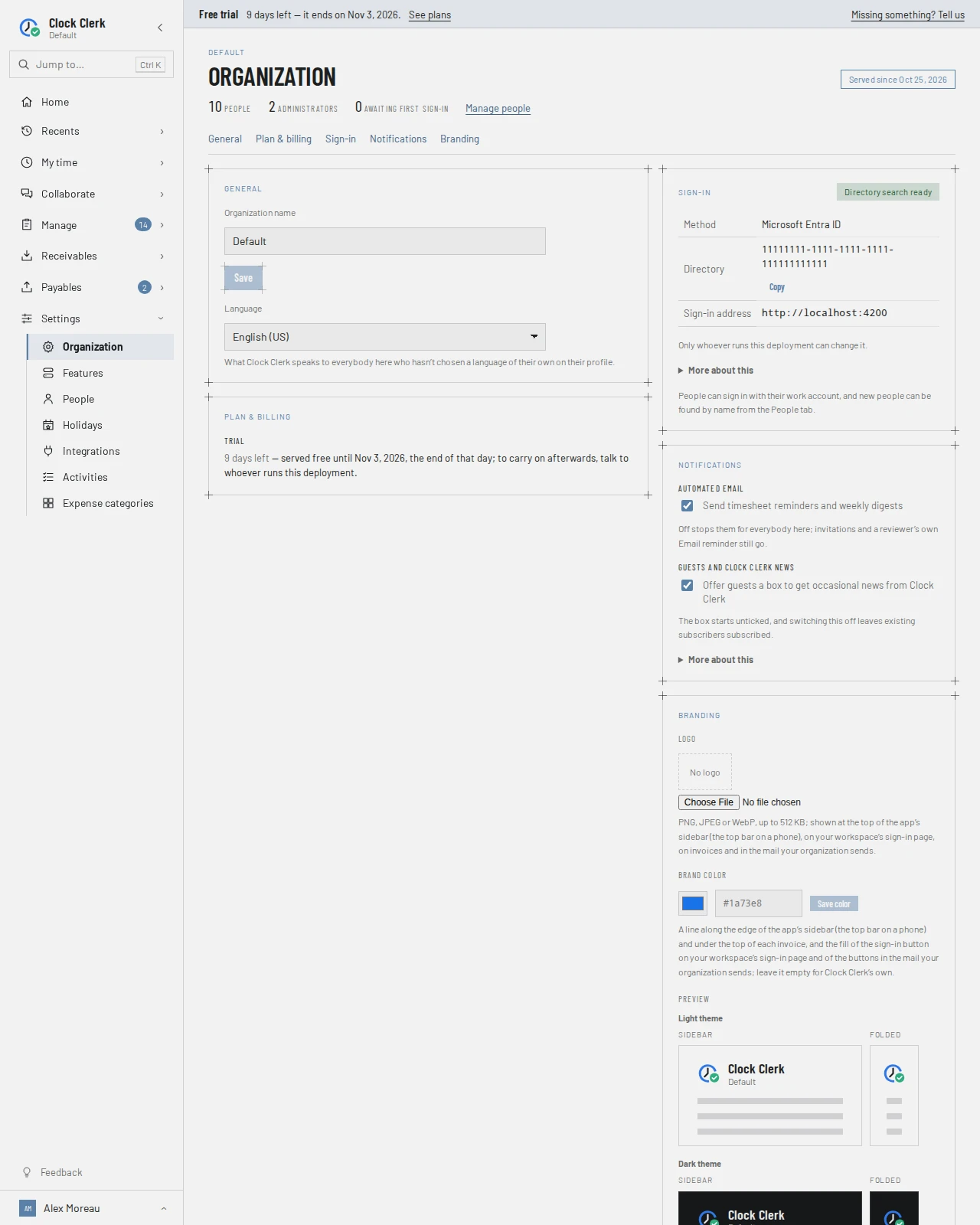
Above the title is your organization's name; to the right, a tag says since when Clock Clerk has served it. Under the title, a line counts People, Administrators and those Awaiting first sign-in, with Manage people, which opens People. Below it, an index takes you straight to General, Plan & billing (when that card shows), Sign-in, Notifications, Email sent, Branding or Your data.
On the live demo, which everybody shares, the name, the language and the branding cannot be changed. A note under the name says so; the language list is simply disabled, and the branding card shows no controls.
Name and language
The General card holds the two settings for the whole organization:
- Organization name: type a new one and press Enter or choose Save, just under it. Discard appears once you have typed, and puts the saved one back. It is the name at the top of the app's sidebar and in your organization's mail.
- Language: what Clock Clerk speaks to everybody who has not chosen a language on their own profile. The list shows each language in its own name, and a new choice is saved as soon as you pick it.
Plan and billing
Everything about what your organization pays is on one card, Plan & billing, under General. It shows whichever of these apply:
- The subscription's status, beside the card's title: Active, Past due (a payment failed and Stripe will try again), or Ended, when your organization is read-only. Under a past-due or ended status, a line says what to do about it; an ended subscription also links to Choose a plan.
- Trial, during a free trial: how many days are left and the day it ends, for example 9 days left — served free until Nov 3, 2026, the end of that day. Where your organization can pay through Stripe, a Choose a plan button follows it, and opens Trial and plans to subscribe; otherwise the line says to talk to whoever runs Clock Clerk. The Plan row reads Free trial until a plan is chosen.
- Plan, with its price per filer per month where you subscribe through Stripe. On the Free plan it counts what the plan holds instead, for example 3 of 3 people, 4 of 10 active projects, 2 of 20 clients, with a link to Move to the Team plan for no limits, plus invoices, contractors and cost reporting. A full count is one more the People, Clients or Projects screens will refuse.
- More billing settings in Stripe, at the foot of the card, which opens Stripe's own page for tax ids and addresses.
Where your organization pays through Stripe, the card also holds its account. If it never has, the card stops at the plan, and plans are chosen on Trial and plans. If Stripe can't be reached, the card says so where the account would be; try again in a moment. Where there is nothing about a plan to show, as on a deployment of Clock Clerk run without plans, there is no card, and the index has no link to it.
- Filers (the people who have filed hours this billing period), the Next invoice so far, what your organization Pays by (a card, or whatever was chosen at checkout, such as Amazon Pay or a bank account), and your Invoices with View and PDF links.
- Switch to Team applies at once. Switch to Starter applies at the end of the billing period and lists what turns off then; while it waits, Keep Team undoes it.
- Cancel subscription asks first: Your organization becomes read-only on the period's last day, and that period's filers are still billed. Until then, Keep my subscription undoes it.
- When an invoice is overdue, a banner says how much, with a button to pay it on the card on file and Use another card. A Link account is paid the same way as a card. Where your organization pays by anything else, such as Amazon Pay or a bank account, the button opens Stripe's own page for the oldest invoice in a new tab, which takes it, and Pay by card instead pays with a card. Stripe's page pays one invoice at a time, so with more than one overdue the button says which, as in (1 of 2); when you come back to the tab, the card shows what is still owed. Paying lifts the read-only lock once Stripe confirms it.
Billing usage
The number under Filers is a link to Billing usage: who each billing period charges for. Pick a Billing period to see each person's name, email and when they were Counted on; somebody who filed late in the period before is marked Carried from previous period. Download CSV saves the list, and a closed period links to its invoice. It is there for administrators of an organization billed by Stripe with a billing period running; a subscription that has lapsed counts the calendar month instead, and has no link.
Sign-in
The Sign-in card, at the top of the right-hand column, names the Method: Microsoft Entra ID, Microsoft, Okta, Google Workspace, Your own identity provider, or Email and password. Only whoever runs Clock Clerk can change it, but you can ask from here, and an administrator can move email and password to your own Okta, Google Workspace or other OpenID Connect provider with a test sign-in, and back.
- Microsoft Entra ID: the Directory, the id of the Microsoft Entra directory every sign-in is matched on, with Copy. Only whoever runs Clock Clerk can change it. The Sign-in address shows under it, where one is set. A tag says whether new people can be found by name from the People tab: Directory search ready, Search needs consent, Search not set up or Search unavailable. Unless it is ready, the card lists the steps for your Microsoft administrator, usually to grant admin consent, with Copy these instructions, Email these steps, Copy a link for your IT administrator and Check again. The link shows the steps for a week to whoever opens it, without signing in, for an IT administrator at another company who cannot be emailed them. People can sign in either way; without search they are added by hand.
- Microsoft, for an organization whose people sign in with their Microsoft work accounts without Microsoft Entra ID being connected: the Directory they sign in from, with Copy, and the Sign-in address, which is Clock Clerk's own. There is nothing of an identity provider's to set up or change. Anybody in that directory joins as a user the first time they sign in, and there is no directory search, so you can also add people by name and email. Where offered, Connect your Microsoft directory takes you to Microsoft, where an administrator of that same directory approves Clock Clerk; your organization then signs in with Microsoft Entra ID at once, with directory search, and nobody loses their account or what they have recorded (see Admin consent). Otherwise only whoever runs Clock Clerk can change how it signs in.
- Any other method: the Sign-in address your people sign in at, and only there, with Copy sign-in address, which Microsoft Entra ID alone does not get. For Google Workspace, the Google Workspace domain shows above it: only that Workspace's accounts can sign in. New people are added by name and email.
- With email and password, where offered: Connect Microsoft Entra ID takes you to Microsoft to connect your directory, or Email your IT administrator sends them the steps, to an address at your organization's own domain. Once it is connected, support switches your organization over, and nobody loses what they have recorded. Until then the card says the directory is connected and waiting.
- With email and password, for an administrator, not while read-only or on the live demo: Set up single sign-on opens the switch to your own identity provider. Choose Okta, Google Workspace or Another OpenID Connect provider; it shows the Redirect URI to register, the steps at Okta or Google Cloud console for those two, the fields for the provider's details, and what switching on does: passwords stop working and everybody signs in through the provider at the workspace address, matched by email address, with your administrators' addresses listed so a mismatch is caught first. Test sign-in runs a sign-in through your provider; to pass, it has to sign in one of your organization's administrators, with their Clock Clerk address on your organization's own domain. You come back here either way: a pass says whom it signed in, and for Google Workspace which Workspace, which is the one your organization switches to, and enables Switch on, which switches your organization and takes you to sign in through the provider; a failure changes nothing and says what to fix. Where self-serve is not available, the switch says why and offers Send the setup pack to your IT administrator instead, for support to make the switch to Okta. See Set up single sign-on.
- With email and password: Two-step sign-in, a switch to Require everybody to sign in with a code from an authenticator app, with how many people have not set it up yet. With it on, anybody who has not set it up is asked to the next time they sign in, before they get in, and nobody can turn their own off. Nobody is signed out when you switch it on, you included: people already signed in are asked only once they sign out, or are away long enough to be signed out, so the count of those who have not set it up can take a while to reach zero. Not on the live demo. Somebody who loses their phone and recovery codes is reset on the People tab. See When your organization requires it.
- With Okta, Google Workspace or another provider your organization switched itself to here: Switch back to passwords, then Switch back now, signs everybody out, and people sign in with their Clock Clerk password again. Where support set up your sign-in, only support can change it.
Every method but email and password is single sign-on, which comes with the Starter, Team and Enterprise plans and the trial, not with Free. On Free, the ways to a provider are closed: Test sign-in, Switch on and the setup pack are refused with a message naming any paid plan, and support does not switch a Free organization to a provider either. An organization already signing in through one keeps it on any plan and can always Switch back to passwords, but it cannot choose Free until it does (see the message). Two-step sign-in and passkeys are on every plan.
Signing in covers what your people see.
Notifications
The Notifications card holds two switches. Each one's checkbox shows whether it is on.
- Automated email: Send timesheet reminders and weekly digests. Off stops Friday's and the month end's reminders, the weekly list of unsubmitted weeks, the Monday digest and the email about unread messages, for everybody at once. Invitations and a reviewer's own reminder still go. The reminders and digests come with the Team and Enterprise plans and during a trial; on Free and Starter they are not sent whatever the switch says.
- Guests and Clock Clerk news: Offer guests a box to get occasional news from Clock Clerk. The guests you invite into a shared conversation see an unticked box beside the "Powered by Clock Clerk" line. Off hides it; anybody who already said yes stays subscribed until they unsubscribe.
Email sent
The Email sent card, under Notifications, counts the email Clock Clerk sent for your organization this month and last month, by kind: invitations, reminders, digests, invoices, security notices, guest invitations and the rest, with a Total for each month. The kind sent most comes first. Only administrators see it.
- What counts is every message the mail provider accepted. A message that later bounced, or that its reader marked as spam, still counts, because it was sent. One that never reached the provider doesn't.
- Months are UTC calendar months, whatever your time zone, so a message sent late on the last day of a month in the Americas can count in the next month.
- Mail for your guests, such as a guest's invitation or sign-in link, counts against the organization that invited them.
- Clock Clerk's own mail, such as the sign-up link, notices to support and Clock Clerk's news, counts against no organization and isn't on this card. A sign-in or plan request your organization sends to support does count, because it's your organization's request.
When nothing was sent in either month, the card says so instead of showing a table.
Branding
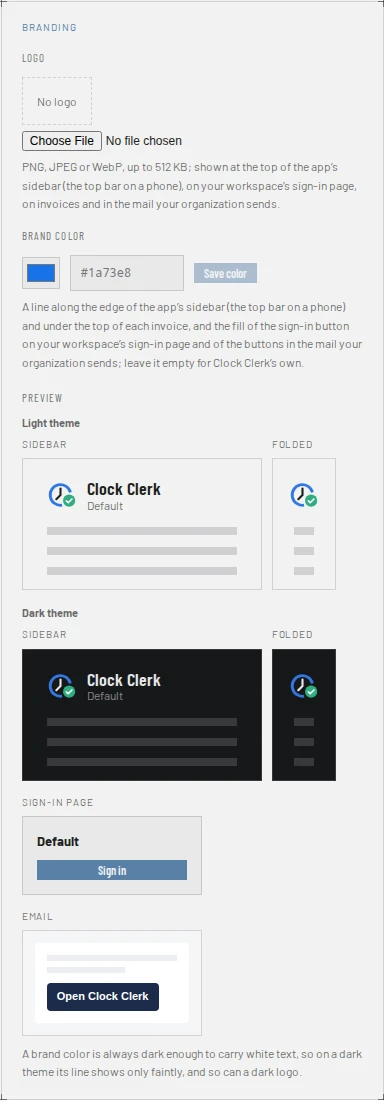
Your own logo and brand color come with the Team and Enterprise plans, and with a trial. On Free or Starter the card says so and links to Move to the Team plan.
- Logo: a PNG, JPEG or WebP file up to 512 KB. It shows at the top of the app's sidebar (the top bar on a phone), on your workspace's sign-in page, on invoices and in your organization's mail. A new file replaces the old one; Remove logo takes it away. An SVG is refused: A logo is a PNG, JPEG or WebP image. SVG isn’t accepted: export it as a PNG instead.
- Brand color: pick one or type a hex value, then Save color. It draws a line along the edge of the app's sidebar (the top bar on a phone) and under the top of each invoice, and fills the sign-in button on your sign-in page and the buttons in your mail. A color white text cannot be read on is refused: Too light: white text on it would be hard to read (needs 4.5:1). Clear goes back to Clock Clerk's own.
- Preview sketches each place the brand appears, with the color you have typed even before you save it. The Sidebar shows your logo, the organization's name and a small Clock Clerk line, with the color down its right edge; Folded beside it shows the logo at the 36px it shrinks to when the sidebar is folded, which is where a wide logo gets hard to read. Both are drawn on a Light theme and a Dark theme: a brand color is always dark enough to carry white text, so on a dark theme its line shows only faintly, and so can a dark logo. The Sign-in page shows the logo above the name and a filled Sign in button, and the Email shows the logo above a filled button. Those two buttons are the only things the color fills: no button inside the app takes it.
- Open your sign-in page, under the sign-in sketch, opens your workspace's real sign-in page in a new tab. Changes can take up to a minute to appear there. Organizations that sign in with Microsoft Entra ID sign in on Clock Clerk's own page, which is never branded, so they have no link.
When your organization is read-only, or on the live demo, the card shows the logo and color without the controls. The set-up walk-through has the steps.
Your data
The Your data card, last in the right-hand column, has one button: Download your data. It saves everything your organization holds as one JSON file, named for the organization and the day, for example acme-export-2026-11-02.json. Only administrators see it.
- What is in it is the same file Clock Clerk's support would send you: your people, clients, projects, hours, expenses, invoices, settings and the rest, table by table. Your account and your data lists it all.
- What is left out is anything that would let the file's holder sign in or reach another system: password hashes, two-step sign-in secrets and recovery codes, and the keys to your integrations. Where the data goes, people set their passwords again and you enter the keys again. Clock Clerk's support appears as "Clock Clerk support", as on the Audit log.
- It works while your organization is read-only, after a trial or a subscription ends, because downloading changes nothing.
- Each download is recorded on the Audit log, under your name.
A large organization's file can take a minute; the button says Downloading… until it is saved.
Delete organization
The Delete organization card, under Your data, removes your organization and everything it holds, 30 days after you ask. Only administrators see it. An organization already due to be removed sooner, because its trial or subscription ended without payment (Removal after 90 days), keeps that earlier day: the card and the dialog name it instead of 30 days.
- Cancel any subscription first. While your organization still has a subscription, or owes a payment on one, the deletion is refused and the dialog links to Plan & billing. Cancel subscription ends it with the period already paid for; ask again once it has ended.
- Choose Delete organization… and type your organization's name exactly as it is shown. The Delete organization button stays off until the name matches.
- Until the day, 30 days on or the earlier day it was already due, your organization is read-only for everybody in it, and a strip at the top of every screen says Your organization is being deleted and the day. Everybody can still sign in and read everything, and you can still download your data. No plan can be chosen or subscription kept meanwhile: Choose a plan is gone, and the Plans page says to undo the deletion first. Every administrator is emailed, and the request is recorded on the Audit log.
- Any administrator can choose Undo deletion on the card, or on the strip, until that day. Your organization then works as before; every administrator is emailed again, and the undo is recorded too.
- On the day, your organization and everything in it are removed for good: its people, clients, projects, hours, invoices, conversations and settings. That cannot be undone. Its data leaves Clock Clerk's backups within 30 days after that.
Your account and your data says what is kept after removal.
What is not on this tab
Suspending your organization, so that nobody can sign in, is done by Clock Clerk's support, not from a screen. Your subscription isn't billed while it is suspended: Clock Clerk pauses its payments and lifts the pause when it reopens your organization. Holidays, activities and expense categories have tabs of their own under Settings.
Buttons and when they appear
| Button | What it does | When you have it |
|---|---|---|
| Save, Discard | Rename the organization, or undo the typing. | Not on the live demo. Save, or Enter in the field, once the name has changed; Discard shows only then. |
| Language, the two Notifications switches | Change the default language on the General card, and the automated email and the guests' news box on the Notifications card. | Always; the language is fixed on the live demo or while read-only. |
| Choose a plan | Opens Trial and plans, to subscribe. | During a trial, where your organization can pay through Stripe, and once a subscription has ended; never while the organization is being deleted. |
| More billing settings in Stripe | Opens Stripe's billing page. | Once your organization has bought a plan through Stripe. |
| Switch to Team, Switch to Starter, Keep Team | Change the plan, or keep Team after a move to Starter was asked for. | With a Starter or Team subscription that is not set to end. |
| Cancel subscription, Keep my subscription | End the subscription at the period's end, or undo that. | With a live subscription; Keep only while it is set to end. |
| Update card, Add a card, Pay by card instead | Saves a card with Stripe, and makes it what your organization pays by from then on, in place of any other method. | Once your organization has a Stripe account. |
| Pay | Pays an overdue invoice, or all of them. | While Stripe holds an invoice unpaid. |
| Remove logo, Save color, Clear | Change the branding. | On Team, Enterprise or a trial, not read-only, not on the live demo. |
| Download your data | Saves everything your organization holds as one JSON file, and records that on the Audit log. | Administrators, always, read-only included. |
| Delete organization…, Delete organization | Asks for your organization to be removed 30 days from now, or on the earlier day it is already due to be removed, once its name is typed; read-only until then. | Administrators, read-only included, not on the live demo. Refused while a subscription is still open. |
| Undo deletion | Keeps your organization after all, and makes it writable again. | Administrators, while a deletion is pending. |
| Copy | Copies the directory id. | With Microsoft sign-in, once the directory is named. |
| Require everybody to sign in with a code from an authenticator app | Makes two-step sign-in a requirement for everybody, or stops requiring it. | Administrators, with email and password, not on the live demo. |
| Copy sign-in address | Copies your workspace's sign-in address. | With Okta or email and password. |
| Connect Microsoft Entra ID, Email your IT administrator | Start moving to Microsoft sign-in. | With email and password, no directory waiting, not read-only or on the live demo, where this deployment offers it. |
| Connect your Microsoft directory | Moves your organization to Microsoft Entra ID once an administrator of its directory approves Clock Clerk. | With Microsoft sign-in without Microsoft Entra ID, not read-only or on the live demo, where this deployment offers it. |
| Set up single sign-on, Test sign-in | Open the switch to your own identity provider, then run a test sign-in through it. A test changes nothing. | Administrators, with email and password, not read-only or on the live demo. The test only where self-serve is available, once the fields are filled in. |
| Switch on | Switches your organization to the provider the test passed through, ending everybody's sessions. | For an hour after a test passes, for the settings it tested. |
| Switch back to passwords | Moves your organization back to email and password, after Switch back now. | Administrators of an organization that switched itself to the provider it signs in with now. |
| Send the setup pack | Emails your IT administrator the Okta steps and tells support, who makes the switch. | In the switch, beneath the test, or in its place where self-serve is not available. |
| Copy these instructions, Email these steps, Copy a link for your IT administrator, Check again | Pass on, or check, the directory search set-up. | With Microsoft sign-in, until search is ready. Email and the link not while read-only or on the live demo. |
While your organization is read-only, the name, the language, the two switches and the branding cannot be changed: the server refuses with Clock Clerk is read-only for your organization until a plan is chosen, or, when a subscription has ended, until the subscription is paid for again. Paying, the card, the plan and Stripe's page stay open, so you can lift the lock.