Workflows
Talk with your team and clients
Every project has a conversation, every card has one, and any two people in your organization can message each other. A project's managers can also open a thread with the client and invite the client's people into it as guests. Messages stay as a record: an edit keeps the earlier text, and a removed message leaves a note of who removed it.
Who reads and writes where
Everybody who signs in has Messages in the menu, under Collaborate. What it holds depends on how you stand on each project. A project's manager here is an administrator, or a Manager or Finance user whose grant gives them Manager access to the project (see Grants and project teams). A member is someone ticked on the project's team.
| Conversation | Who reads it and writes in it | Who can remove somebody else's message |
|---|---|---|
| A project's own | Its members and its managers. | The project's managers. |
| A card's (its Comments) | Whoever can see the card: the project's managers, and the members the task is open to. | The project's managers. |
| Direct, between two people | Those two, and nobody else. Not even an administrator can open it. | Nobody: each removes only their own. |
| Shared with the client | Inside your organization, the same people as the project's own. Outside it, the guests invited into that one thread. | The project's managers. |
Nobody, at any role, can edit somebody else's message, because a message carries its author's name. Only the project's managers share a thread with the client and invite guests. A User who has been given Manager access to a project is still a member here, as on its board. Taking somebody off a project takes them out of its conversations at once, an open screen included.
1. Open a conversation
- Choose Messages in the menu. The number beside it is how many messages are waiting for you.
- The list has a section for Direct messages and one for Projects. Under Projects is each project you are on or manage, its threads shared with the client (tagged Shared with and the client's name), and each card whose conversation you have written in. Each row shows the latest message and how many you haven't read, the newest first.
- Choose a conversation. It opens beside the list, or on its own on a phone, where All conversations takes you back. Its head has Open board, or Open card for a card's.
A project's Discussion button on its board opens the same conversation. A finished project's conversation is listed only once somebody has written in it. If the list says You aren't on any projects yet. A project's discussion appears here once you are added to it, and a conversation with a colleague once one of you writes., ask whoever runs the project to put you on its team. Messages describes each part of the screen.
2. Message one person
- On Messages, choose New message. It lists everybody else in your organization who hasn't left.
- Type in Find a person… to narrow it by name or job title, and choose the person. Your conversation with them opens; there is only ever one per pair, so it holds everything the two of you have said.
- Write your message and choose Send.
A conversation the two of you haven't written in yet is not listed, by either of you. Your first message puts it in both lists. On Team, a manager can also choose Message on the person whose week is open. Once somebody has left the organization, your conversation with them can still be read, but it says This person has left the organization, so new messages can't be sent to them.
3. Write, edit and remove
- Write in the box under the messages and choose Send. Enter starts a new line; Ctrl + Enter (⌘ + Enter on a Mac) sends. A message is plain text, up to 4,000 characters. It shows as Sending… until it arrives; one that could not be sent says Not sent. with Retry and Discard, and a retry never sends it twice.
- Edit is on your own messages. Change the text and choose Save, or press Ctrl + Enter (⌘ + Enter on a Mac); or choose Cancel. The message is then marked (edited); choosing that shows each earlier version and when it was replaced.
- Remove is on your own messages, and, for the project's managers, on everybody's in the project's conversations. Choose it, then Confirm removal. The text disappears for everybody and the message says Removed by … at …. The text is still in your organization's data export.
New messages, edits and removals appear for everybody reading the conversation as they happen, along with who is typing. If the connection drops, the conversation says Reconnecting… New messages will appear when the connection is back. and catches up when it is.
4. Talk about a card
- Open the project's board and choose the card's name. Its panel opens with Comments, the card's conversation, at the foot.
- Write and choose Send, as in any conversation. The card's face then counts its comments.
Once you have written on a card, its conversation is also listed under Projects in Messages. Discussed in, in the panel, lists the other conversations you can read that reference the card, unless Messages is turned off. When a task is deleted, its conversation is kept: its messages move into the project's own, each marked From task: and the task's name. Plan work on a board covers the rest of the card.
5. Mention people and reference tasks
- In the box, type @ at the start of a word to mention somebody, or # to reference a task. A list opens.
- Keep typing to narrow it. ↑ and ↓ move through it; Enter, Tab or a click picks one, and so does Ctrl + Enter while the list is open, so it never sends a half-typed name; Esc closes it. A space ends the word.
- The pick is written into your message as @Dana Whitfield or #Load testing. Two people or tasks with the same name are told apart as #Design (2). Send as usual.
- @ offers the people who can read this conversation, apart from you and anybody who has left. In a shared thread it offers its guests too, marked Guest.
- # offers the cards you can see, on any of your projects, this one's first. In the message, a task reads by its current name and links to its card, for each reader who can see it. Somebody who can't see the task reads a task you can't see.
- In a thread shared with a client, a referenced task keeps the name it had when the message was sent, so both sides read the same words, and only people who can see the card get a link.
Typing over a picked name turns it back into plain text. If the list says Nobody who can read this discussion matches., the person you want can't read this conversation: put them on the project, or message them directly.
Who is told
- The number on Messages counts the messages waiting for you in the conversations listed there: written by somebody else, not removed, and newer than what you last read or wrote there. Opening a conversation, or writing in it, reads it.
- An email goes when somebody mentions you, or messages you directly, and you haven't read it ten minutes later. It names who wrote and where, never what they wrote, and links to the conversation. You get one per conversation until you open it. Switch it off on your profile with Email me about mentions and direct messages I haven't read, or with the unsubscribe link at the foot of the email. It is also not sent while your organization has automatic email, or Messages, turned off.
- Nothing else sends email: a message in a project's or a card's conversation that doesn't mention you only adds to the number. Guests are never emailed about messages; they see the count on their own screen.
6. Share a thread with the client
For the project's managers, on any paid plan. Not during the free trial, not on the live demo, and not while your organization is read-only. A shared thread is a new conversation beside the project's own. Nothing already said in the project's own conversation, or on its cards, is ever shown to a guest.
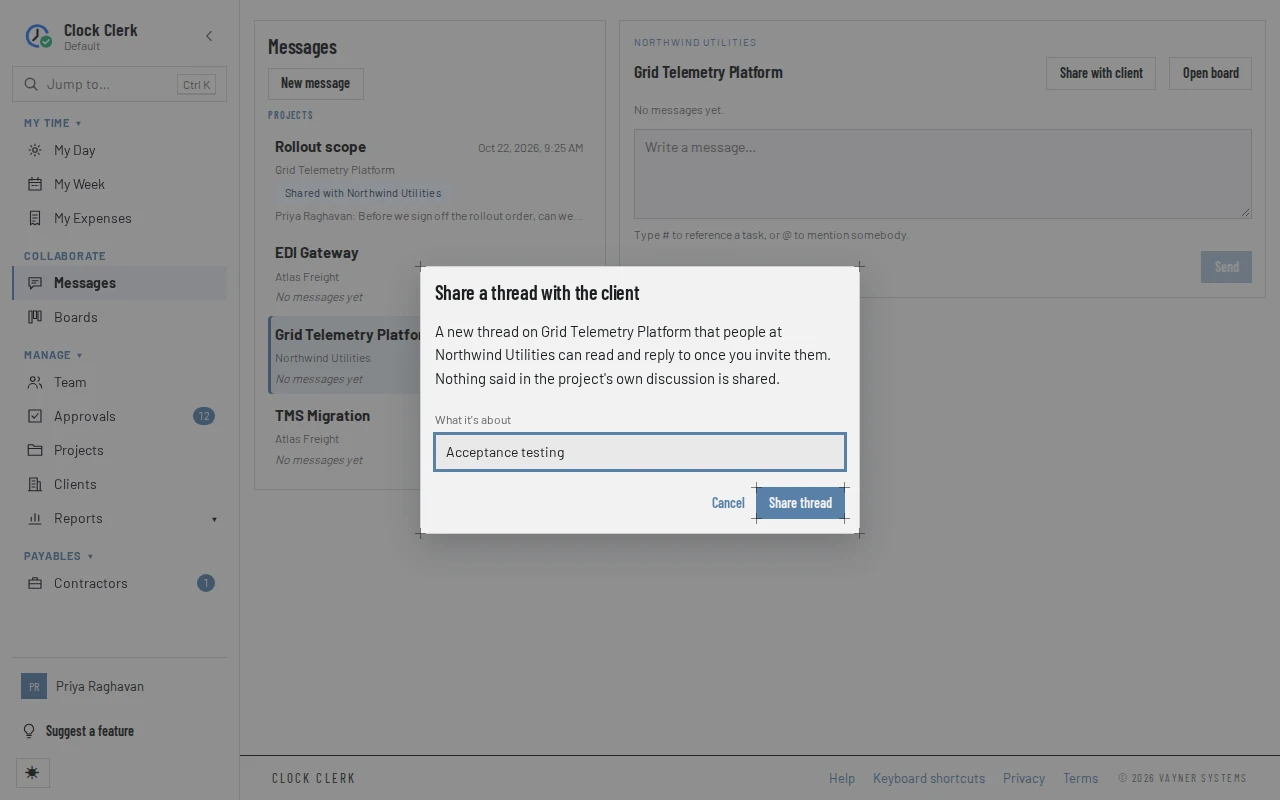
- On Messages, open the project's own conversation and choose Share with client.
- Under What it's about, give the thread a title the client will recognize, up to 120 characters, such as Rollout scope. Choose Share thread.
- The new thread opens. Above its messages it says The client's invited guests read everything in this thread. Its Guests panel is open, because nobody is in it yet.
A project can have as many shared threads as it needs, one per subject. Everybody on the project reads and writes in them as in the project's own, so the team can answer the client.
7. Invite a guest
- In the shared thread's Guests panel, choose Invite a guest.
- The Name and Email start as the client's contact and address. Change them to whoever should be invited, and choose Send invitation.
- The guest is listed with Invited by … and how the email fared: Invitation sending, Invitation sent, Invitation couldn't be sent, Invitation bounced or Invitation marked as spam.
They get an email from your organization, in its branding, with the subject … invited you to a conversation with … and an Open the conversation button. Its link works once, for 14 days. Inviting somebody again sends a new link only once their last one has been used, has run out or couldn't be sent. A guest belongs to the project's client, is only ever in the threads they are invited into, and is not charged for: guests enter no hours.
To take somebody out, choose Remove beside them, then Confirm removal. They lose the thread at once, even with it open, and the panel keeps them as Removed with the date. Inviting them again brings them back. Their messages stay.
If a guest later joins your organization, an administrator adds them on People with their address: the dialog recognizes them and its button reads Convert guest. Their messages then show as theirs as a member, and they keep the threads they were in.
For guests
If someone working with your company invited you, this is for you. You don't need an account.
- Open the invitation. Choose Open the conversation in the email. On the page that opens, choose Open the conversation again.
- Read and reply. You see the conversations shared with you, under Shared with you, and nothing else of that organization's. Write in the box and choose Send. Type @ to mention somebody in the conversation: the people who have written in it or invited a guest into it, and its other guests.
- Edit or remove your own messages, with Edit and Remove under them, while the organization's plan includes guests and it has Messages on.
- Come back later. You stay signed in on that device for twelve hours. After that, or on another device, go to the guest sign-in page, enter the address you were invited at, and choose Email me a link. The link works once, for 30 minutes.
Choose Sign out at the top when you are done on a shared computer. If your own company also uses Clock Clerk, you can link your guest address on your profile and open these conversations from Shared with you in your own Messages, with no emailed link. The guest screens describes each page.
At the foot of the screen is Powered by Clock Clerk, with Try it free. Beside it, the organization may offer an unticked box asking whether you would like occasional news from Clock Clerk. Nothing is sent unless you tick it, and Unsubscribe takes it back. An administrator can stop offering the box with Offer guests a box to get occasional news from Clock Clerk on the Organization tab; anybody who already said yes stays subscribed until they unsubscribe.
When Messages is turned off
An administrator can turn Messages off for the whole organization, when it only tracks time. While they are off:
- Messages and the number beside it are gone from the menu and from Jump to. Opening /messages or a conversation's address takes you to Home. There is no Message on Team, no Discussion on a board, no Discussed in on a card, and no Share with client.
- Nobody can message a person, write in a project's, direct or shared conversation, share a thread with the client, or invite a guest. Trying anyway is refused with An administrator has turned Messages off for this organization. Everything already in it is kept, and comes back when it is turned on again.
- A card's Comments carry on while Boards is on: they belong to the board, not to Messages.
- Guests can still sign in and read the threads shared with them, but cannot send, edit or remove a message. Their screen says the organization has paused messages.
- No email about unread messages goes out, including about a mention on a card, and none waiting from before is sent.
Nothing is deleted. When Messages is turned on again, every conversation, message and guest is back as it was.
When something goes wrong
- Only the person who wrote a message can change it. Nobody edits somebody else's words. Reply instead.
- Only the person who wrote a message, or a manager of the project, can remove it. Ask its author, or a manager of the project.
- This message has been removed. It was removed while you were editing it, or before you asked for its earlier versions.
- You can no longer read this discussion. You were taken off the project, or out of the card's task, while it was open.
- You can read this discussion but not post to it. A thread shared with a client, once your plan no longer includes guests.
- That person has left the organization, so they can't be sent new messages. Their end date has passed.
- Threads shared with your clients are not part of the … plan. An administrator can move the organization to any paid plan to use them. Sharing and inviting need a paid plan; see Plans and your trial. After a downgrade, shared threads and their guests are still there to read, and nothing new can be said in them.
- … is already a guest for …, so they can't be invited for another client. A guest belongs to one client. Invite somebody else at this client, or use another address.
- … is one of this organization's people now, so add them to the project instead of inviting them as a guest. Put them on the project's team.
- This deployment cannot send mail, so guests can't be invited. Whoever runs your deployment needs to set up email.
- Invitations from this organization are limited to … a minute and … a day. Wait a moment and invite them again. The limit is shared with inviting colleagues.
- No Share with client button. You don't manage the project, your organization is on the free trial or the Free plan, it is read-only, it has Messages turned off, or you are on the live demo.
- No Messages in the menu. An administrator has turned Messages off for your organization (above).
- A guest says the link doesn't work. They see This link has expired or has already been used. They choose Email me a new link, or you invite them again.