Workflows
Pay contractors
A contractor records their hours like everyone else. At the end of each month they submit it on My Month, which turns the month's hours into two documents: an acceptance protocol for the organization to sign and an invoice for it to pay. Their engagement manager countersigns the protocol, Finance approves the month for payment and records the money going. While a month is submitted its hours are locked, and once it is approved for payment they are final.
Who does what
| Step | Who | Where |
|---|---|---|
| Make someone a contractor, and choose or change their engagement manager | Administrators. | Contractor profiles |
| Keep the rest of a contractor's profile, and confirm their payment details | Finance and administrators. | Contractor profiles |
| Set what a contractor is paid | Finance and administrators. | Team costs |
| Record hours, and submit or withdraw the month | The contractor. | My Week, My Month |
| Countersign the protocol | The contractor's engagement manager, any administrator, or someone in Finance with Can countersign contractor months. Never the contractor. | Contractors |
| Send a month back | The engagement manager, Finance and administrators. Never the contractor. | Contractors |
| Approve a month for payment, take the payment file and mark a month paid | Finance and administrators. | Contractors |
Nobody countersigns their own month. A profile cannot name the contractor as their own engagement manager, and an administrator or someone in Finance who is also paid as a contractor cannot countersign or send back their own month; the app refuses with You cannot accept your own month. A Manager sees Contractors in the menu only once a profile names them, and then only the contractors whose profiles do. Roles says more about who a contractor is.
Before you start
- Your plan has to include contractors. They are on the Team and Enterprise plans, and in the trial (see Plans and your trial). On other plans there is no My Month and no Contractors in the menu.
- The engagement manager has to be able to reach the contractor. It can be an administrator; someone in Finance an administrator has allowed to countersign (Can countersign contractor months, on their page under People); or a Manager who manages at least one project the contractor is on. Countersigning approves the contractor's weeks, so a Manager without a grant over those projects could not do it.
- The contractor records their time on My Week or My Day, on the projects they work on, like everyone else (Record and submit your week).
1. Make someone a contractor
For administrators. A person is a contractor because they have a contractor profile, and for no other reason. They keep their role and their sign-in.
- Choose Contractors in the menu, under Payables, then Profiles at the top.
- Choose New contractor, and under Who is the contractor pick the person.
- Fill in their Legal entity: who the documents are from, which is the company if they contract through one (Legal name, Address, Tax id and what it is called, Registration no., Billing email).
- Under How they are paid, choose Bank transfer (Bank, Account number or IBAN, SWIFT / BIC) or Something else, with What it is and Where to send it.
- Under Numbering & tax, set their own invoice series (Invoice number prefix, Next number), Tax % and a Tax note.
- Under Contract, set Contract no., Under contract since, Payment terms (days), What is supplied and the Engagement manager, who accepts their months.
- Choose Add contractor. The app says Contractor added. The person now has My Month in their menu.
The contractor can fill in and change their own legal entity, payment details and numbering later, under My Month → Billing details. The contract, the engagement manager included, is never theirs to change. Someone in Finance can edit everything on a profile except the engagement manager. Adding the profile also turns off Paid holidays on the person's page under People, because a contractor is paid for the hours they log, not for the organization's holidays. An administrator can turn it back on there (see Holidays).
2. Set what they are paid
A contractor's pay rate is their cost on Team costs, not a field on the profile, so a raise from a date prices the days after it and leaves the days before alone. Finance or an administrator adds a cost period for them:
- Hourly: each hour on the protocol is paid at the rate in effect on its day. A raise mid-month makes two lines, one at each rate.
- Monthly or Annual: a retainer. The protocol has a line for the month's share of it, by calendar day, so a start on the 16th of a 30-day month pays half. A month with no hours still pays it.
Every recorded day in the month is on the protocol, whatever the project or activity, internal work included. A day no cost period covers cannot be submitted until one is added.
3. Confirm where the money goes
Before a month can be approved for payment, someone in Finance or an administrator has to have looked at where the money is going. Whoever saves a change to the payment details, the contractor included, clears the confirmation, and both screens warn about it before you save.
- On Profiles, a contractor whose details need it shows Not confirmed under Paid by, with Confirm payment details.
- Choose Confirm payment details. The dialog shows the account, or the other payment option, in full. Check every character against what the contractor told you, not against the screen.
- Choose Confirm payment details again. The app says Payment details confirmed for …., and the confirmation is written onto the history of each month it clears for payment.
Finance and administrators can confirm. A contractor who is neither cannot.
Your month, as a contractor
This section is the contractor's part, start to finish. My Month itself is described in My Month.
- Record your hours through the month on My Week or My Day. You can submit your weeks as you go, or leave them for the month.
- Open My Month in the menu, under My time. It opens on this month; use ‹ to go back to the one you are closing. Until you submit, the protocol and the invoice are a preview: Preview only — nothing has been sent. Figures follow your timesheet until you submit.
- Clear the checks under Before you submit. For workdays with no time, choose Log time to record it, or Mark as not worked. For missing billing details, choose Complete details. A missing rate is for Finance to add (step 2).
- Choose how the invoice is drawn under Invoice source: a number from your own series, or I issue my own with your invoice's number and total, and how detailed the protocol's lines are.
- Choose Submit. It is disabled until every check that blocks submission passes. Submitting submits any of the month's weeks still open, freezes both documents and sends them to your engagement manager. The app says Submitted for countersigning., the month says Awaiting sign-off, and your engagement manager is emailed.
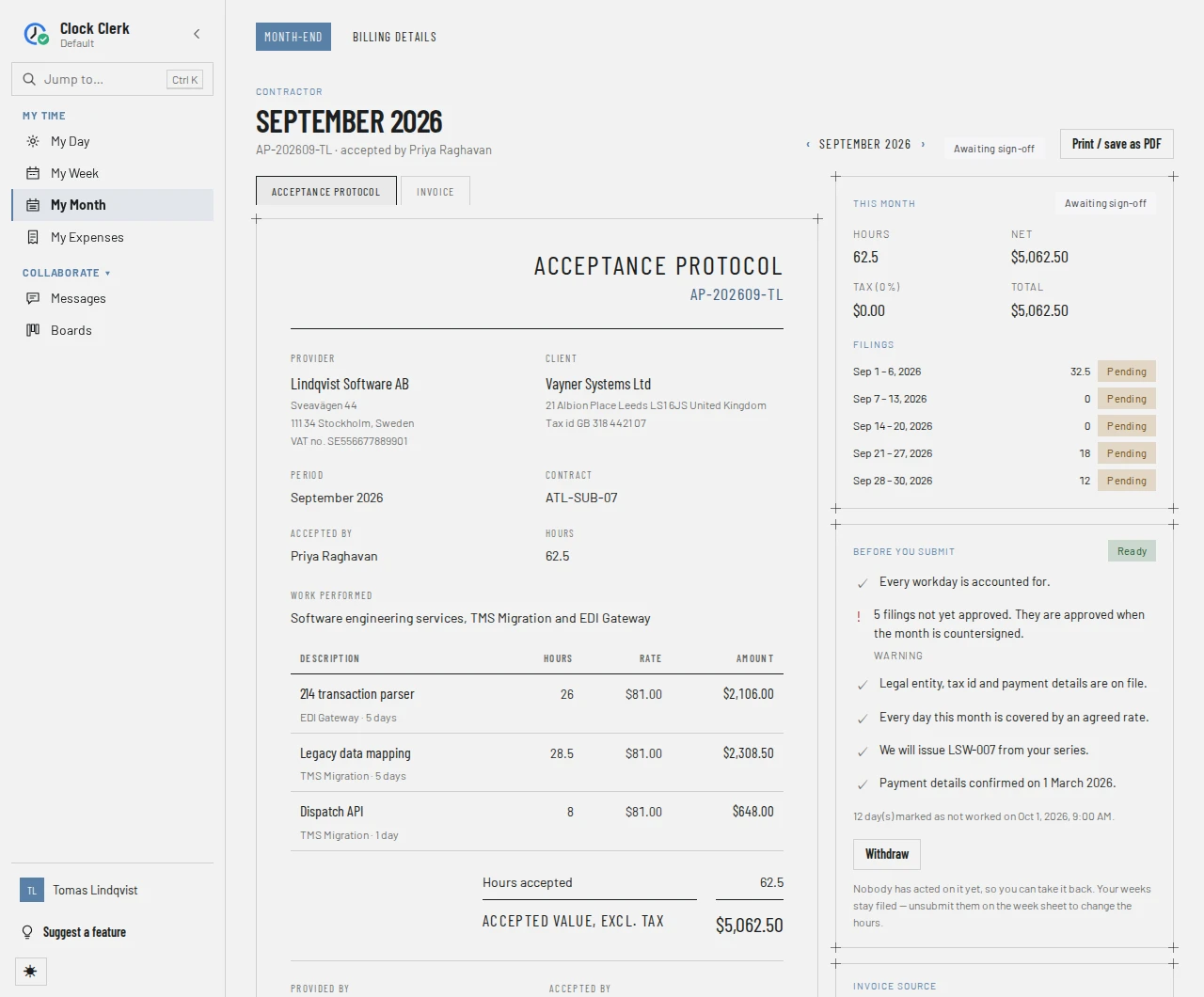
After that, the month moves on without you: Awaiting sign-off, then With accounting once it is countersigned, Approved to pay, and Paid. Its History says who did what, and when.
- To take it back, choose Withdraw. You can only while it is Awaiting sign-off. The app says Withdrawn. The month is yours to change again. Your weeks stay submitted: to change their hours, reopen them on My Week, or ask the person who reviews them to send them back (Reopening a week yourself).
- If it is sent back to you, it says Returned, the reason shows as Sent back — above the documents, and you are emailed it. Correct what it asks, then submit again. The month keeps its protocol number, and its invoice number if it has one.
- Once somebody has acted on it, only a reviewer can send it back, and once it is approved for payment, nobody can.
4. Countersign the month
For the engagement manager, an administrator, or someone in Finance allowed to countersign. The number beside Contractors in the menu counts the months waiting for you to countersign.
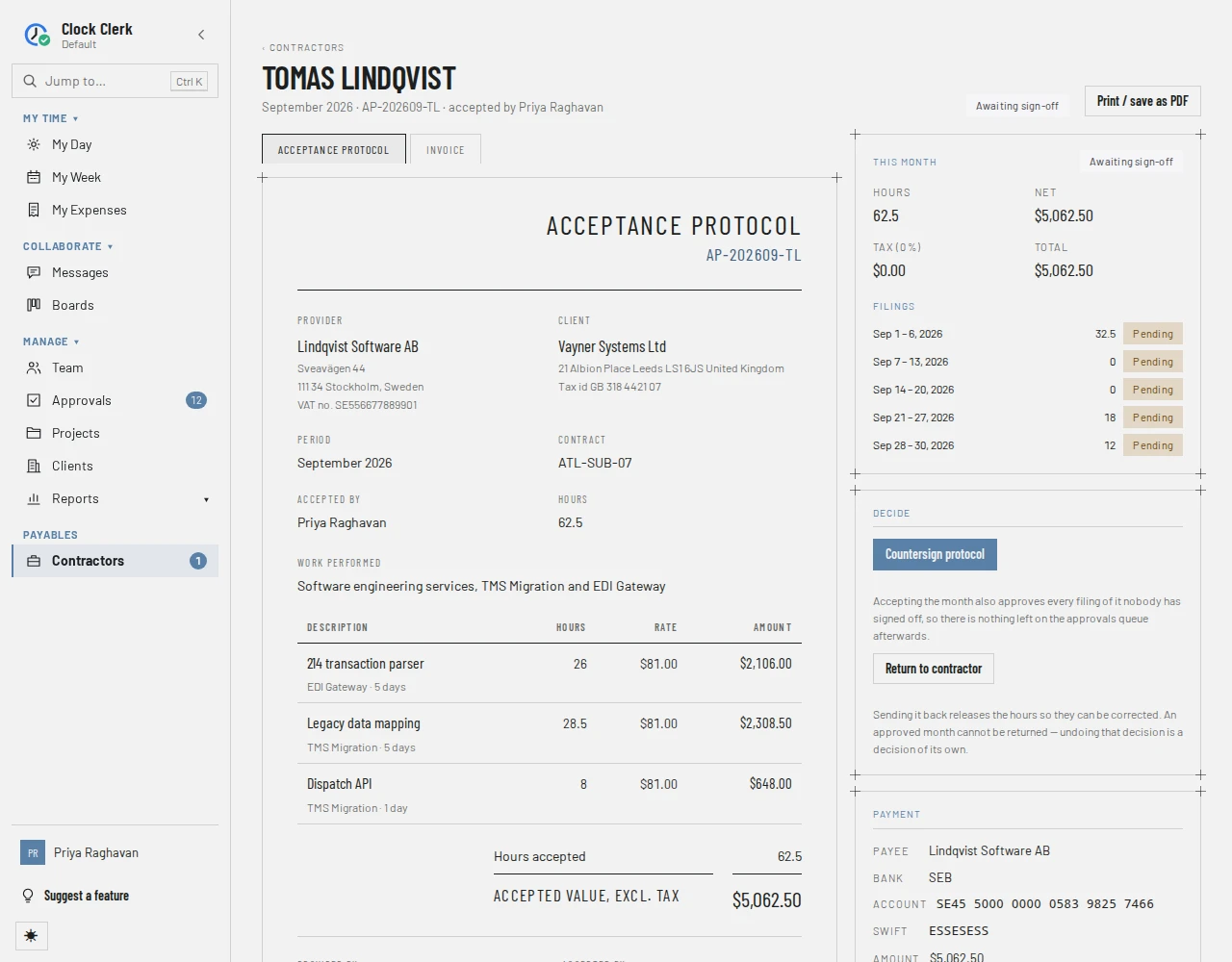
- Choose Contractors in the menu. The register opens on the current month, with the months waiting for you first; use ‹ to go back to the month being closed.
- Choose the contractor's name. The month opens with its Acceptance protocol and Invoice tabs, and beside them its figures, its Filings (the weeks in it and whether they are approved), its Checks and its History.
- Check the work performed, then choose Countersign protocol. There is no confirmation. The app says Month countersigned.
Countersigning also approves every week of the month that nobody had approved yet, exactly as approving them on Approvals would, so there is nothing left for that contractor's month in the approvals queue. The month says With accounting.
If the month is wrong, send it back instead (below).
5. Approve it for payment
For Finance and administrators. Approving is accounting's decision that the month will be paid, and it puts the month in the next payment run.
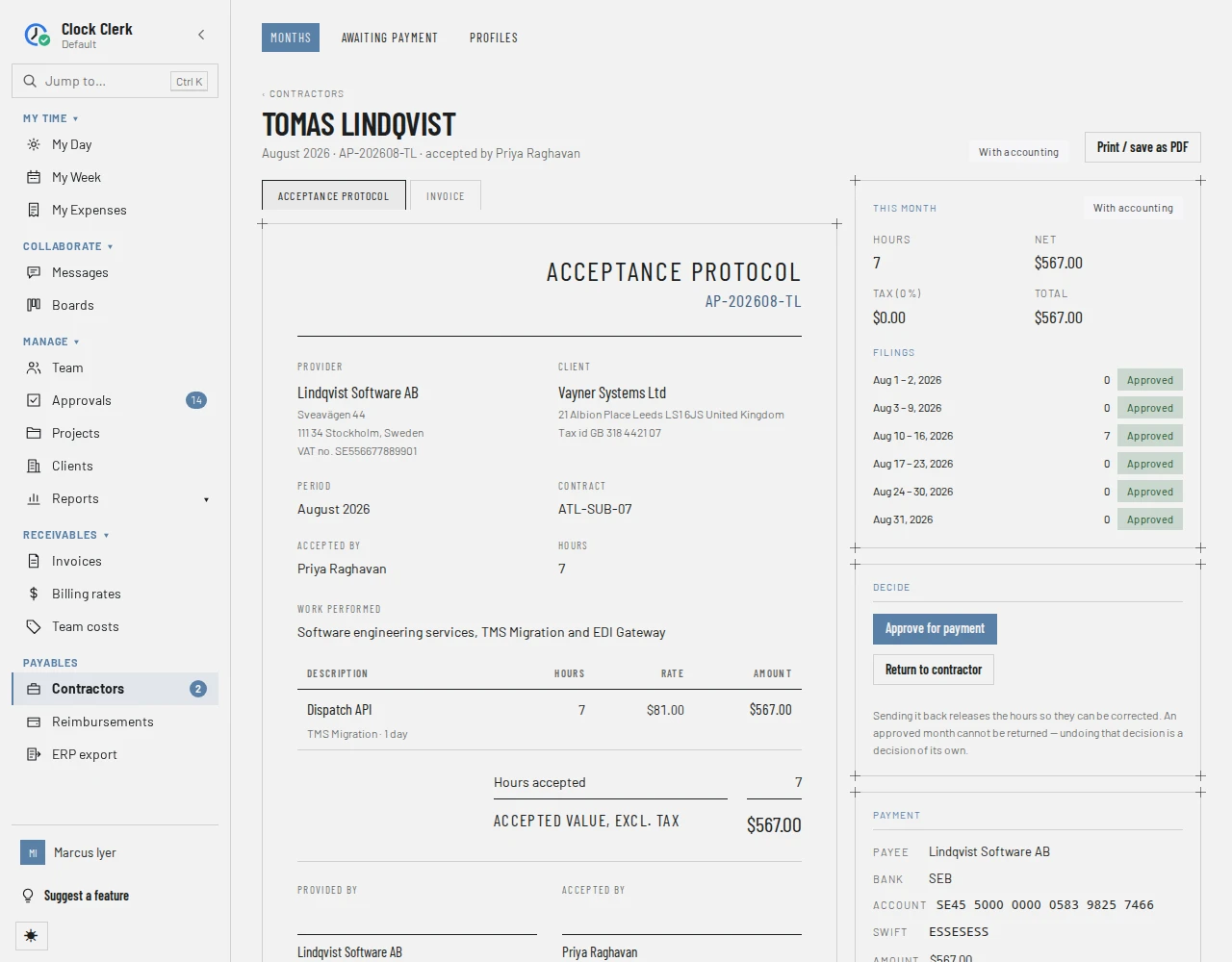
- On Contractors, Finance and administrators see the months With accounting first. Choose the contractor.
- Check the Payment panel: the payee, where the money goes, the amount and the Due date, which is the invoice date plus the contract's payment terms. It should say Payment details confirmed on ….
- Choose Approve for payment. The app says Approved for payment., and the month says Approved to pay.
Approving is refused while the payment details are unconfirmed. The panel says so first: Nobody has confirmed where this money goes, so it cannot be approved for payment., with Confirm payment details, which opens Profiles.
6. Pay it and record it
For Finance and administrators. Clock Clerk does not move money: you pay through your bank, then record it.
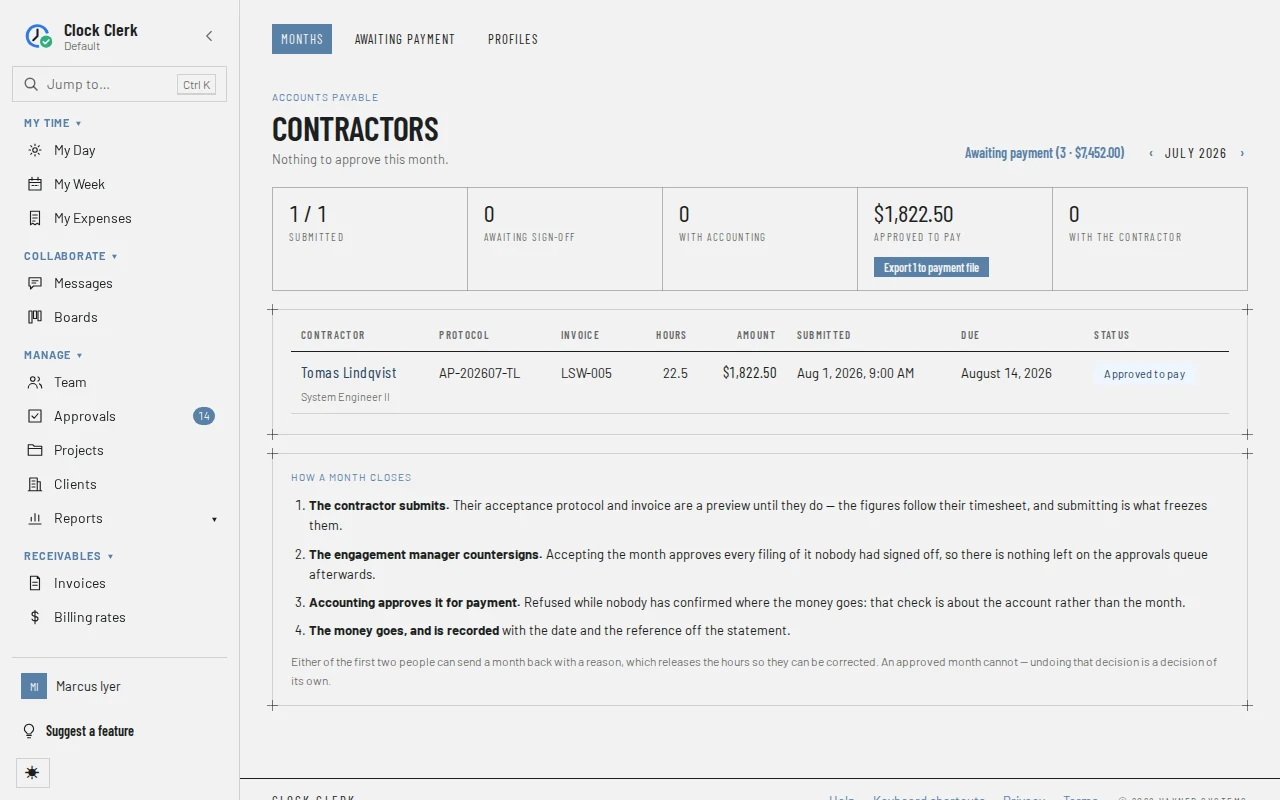
- Take the payment file, if you pay by bank import. On the register, for the month in view, the Approved to pay tile offers Export … to payment file. It downloads a CSV named for the run, such as PAY-20261022-0930.csv, with a line per month approved and not yet in a file: Payee, Account, SWIFT, Amount, Invoice number, Protocol number, Due date, Payment method and Payment details. For a contractor paid some other way than a bank transfer, Account and SWIFT are empty and the last two say how. Each month in it then says in the payment file, and the tile says Payment file up to date, so a month never goes into two files. Months your ERP pays as vendor bills say sent to … instead and are never in the file.
- Pay the contractor through your bank, from the file or by hand.
- Record it. Open the month and choose Mark as paid. Set Paid on, the day the money left (not before the month, and not in the future), and the Reference from your bank statement, which is required. Choose Record payment. The app says Recorded as paid.
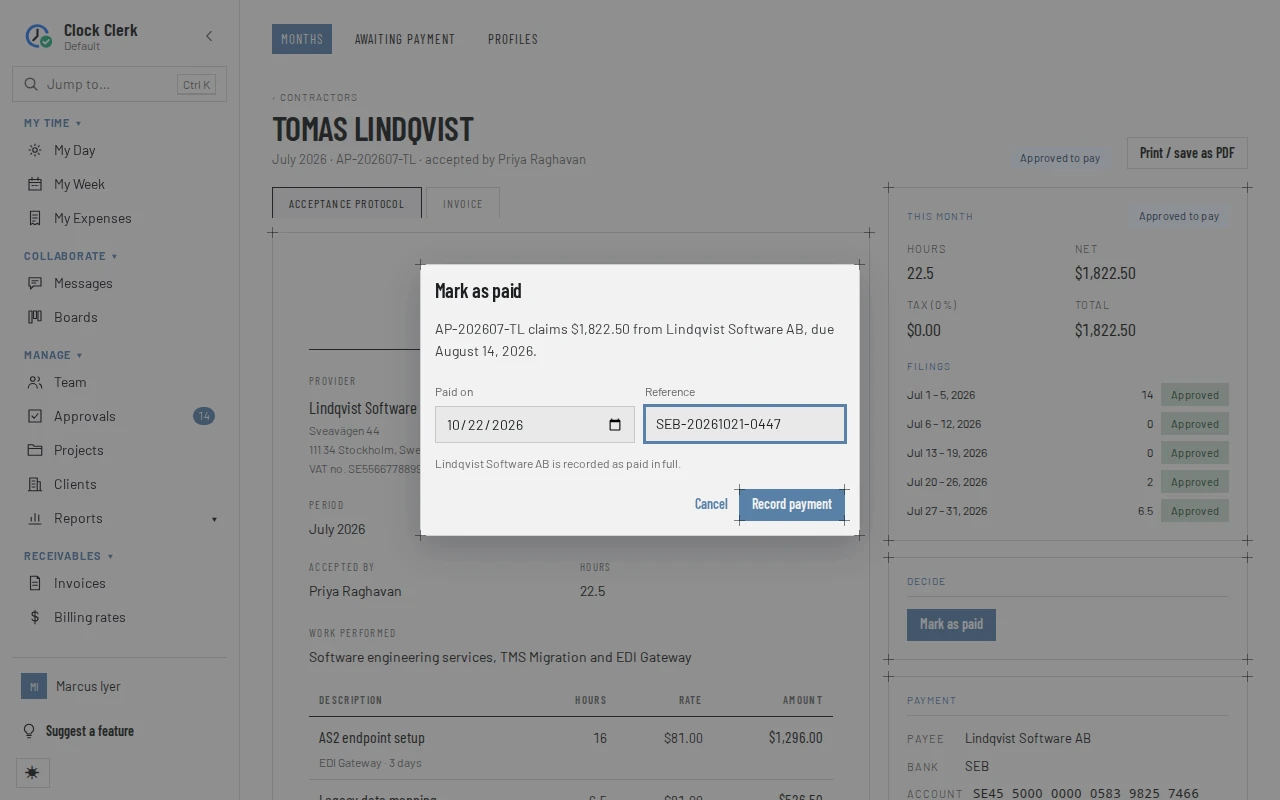
The month says Paid, and nothing on it is left to decide. Taking the payment file does not mark anything paid: each month still needs Mark as paid.
Awaiting payment, at the top of Contractors, lists every month submitted and not yet paid, whichever month it is for, oldest due first: a total per state, and each claim's Due date and how many days it is overdue. Download CSV saves the list. See Contractors.
Sending a month back
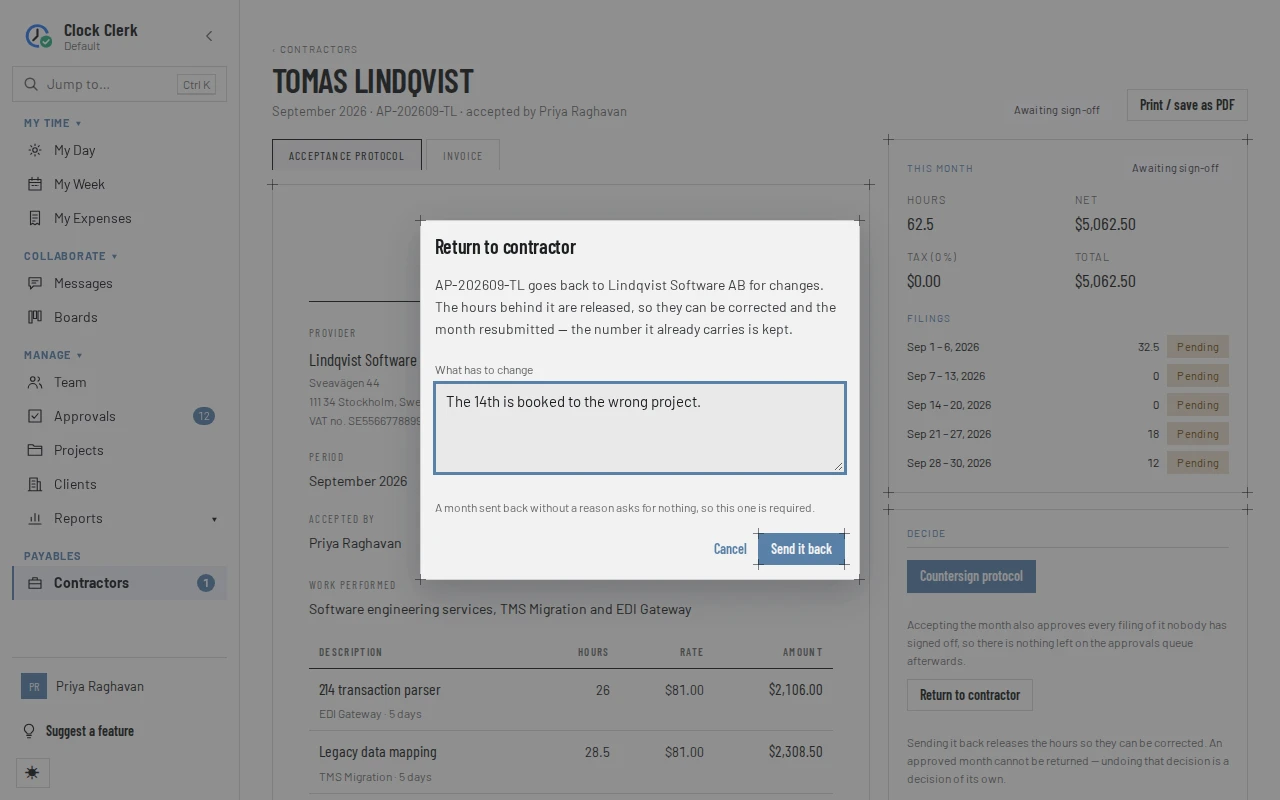
- On the month, choose Return to contractor. It is there while the month is Awaiting sign-off or With accounting, for the engagement manager, Finance and administrators.
- Under What has to change, say what is wrong. The reason is required.
- Choose Send it back. The app says Sent back to the contractor.
The month says Returned, the contractor is emailed the reason, and its hours are released from the protocol. A countersigned month loses its countersignature, so it has to be accepted again after it is resubmitted. The weeks themselves are not reopened: weeks the countersignature approved stay approved, and the person who reviews them reopens one on Approvals if its hours have to change.
A month Approved to pay or Paid cannot be sent back.
Reminders and emails
The app emails three things, when your deployment can send email:
- When a contractor submits, their engagement manager is told the month is waiting for them.
- When a month is sent back, the contractor is told, with the reason.
- When a reviewer chooses Send reminder on a month, whoever it is waiting on is nudged: the contractor while it is Not started, Draft or Returned, and the engagement manager while it is Awaiting sign-off. You cannot choose who. Nobody is offered a reminder for a month waiting on themselves, and once it is countersigned there is nobody to nudge.
Where there is no way to email the person, the button reads Mark as reminded: the nudge goes onto the month's history and nothing is sent. The month's History lists every email with what became of it.
What the contractor lock freezes
Submitting puts every day of the month on its acceptance protocol, and the contractor's claims for the month that they paid for themselves go on it too (see Contractors' expenses). While they are on it, they cannot change:
- Changing the hours is refused with These hours are on acceptance protocol … Ask for it to be returned before changing them., and the locked days on My Week say on protocol … when you hover over them.
- Reopening one of the month's weeks, or sending it back, is refused with This week has hours on acceptance protocol … Withdraw or return the protocol first — reopening it afterwards is the right order.
- Changing a claim on it is refused with This expense is on acceptance protocol … Ask for it to be returned before changing the expense.
The lock lifts by itself when the month is withdrawn by the contractor or sent back by a reviewer. Once the month is Approved to pay or Paid, nothing lifts it: the app says …, which has been approved for payment. They are final. (or which has been paid).
The locks are asked in order: the invoice, then the protocol, then the week. An hour can be on a client's invoice and on a contractor's protocol at once, which is normal: the client is billed for it and the contractor is paid for it. To change such an hour:
- Finance voids the invoice, or removes the hours from a draft (Why billed hours are locked). Until then the app names the invoice, not the protocol.
- The protocol is withdrawn by the contractor or sent back by a reviewer, while it can still be.
- The week is reopened, by the contractor or by their reviewer, and corrected (Why a week cannot be edited).
When something goes wrong
- No My Month or no Contractors in the menu. Your plan does not include contractors, or nobody has made you a contractor (My Month), or no profile names you as an engagement manager (Contractors, for a Manager).
- Submit stays disabled. A check still blocks submission. The message the app gives if you try anyway names it, such as This month is not ready to submit: some workdays have no time on them. Log the time, or mark the days as not worked. or This month is not ready to submit: no agreed rate covers some of its days. Whoever looks after contracts has to add one.
- This month has been submitted, so it is no longer yours to change. Ask for it to be returned first. Withdraw it if it is still Awaiting sign-off; otherwise ask your engagement manager or Finance to send it back.
- Only a month that is waiting to be countersigned can be withdrawn. Once somebody has acted on it, ask for it to be returned. It has been countersigned already.
- Payment details have not been confirmed since they last changed. Somebody changed where the money goes. Confirm them on Profiles, then approve.
- This month was submitted with payment details that have since changed. Return it so it is submitted again with the current ones. The month would pay an account nobody approving it was shown. Send it back, and the contractor submits it again.
- An administrator has not allowed you to countersign contractor months. … is this contractor's engagement manager, so it is theirs to accept. You are in Finance without Can countersign contractor months. You can still send the month back, approve it once it is countersigned, and pay it.
- … does not manage any project this person is on, so they could not approve the month's timesheets. Grant them access first, or name somebody who has it. Saving a profile, a Manager chosen as engagement manager needs a grant over a project the contractor is on (Set up your organization).
- … countersigns for …. Name another engagement manager on those contractor profiles first. A Manager named on a profile cannot be made a User. An administrator chooses another engagement manager first.
- Month in flight instead of Remove on a profile. A month is submitted and not yet paid. Pay it or send it back before removing the profile.
- This month's bill is being sent to … right now. Try again in a minute. Marking a month paid while your ERP is taking it as a vendor bill waits until the ERP has answered (see Export to an ERP or QuickBooks).
- The decisions are replaced by a note that the organization is past its trial. Your organization is read-only: every month can be read and printed, but nothing can be decided (see Roles).