Screens
Integrations
The tools your managers can import tasks from: one connection for each account in Azure DevOps, Jira, Trello or Notion, holding its address and the key that reaches it. Importing itself happens on each project's board, as Plan work on a board describes.
Who sees it
Administrators, on the Team and Enterprise plans and during the trial: it is Settings → Integrations in the menu. On Free and Starter the tab is not in the menu at all, and connections saved before a move down to one of those plans stay stored, keys included, but cannot be read, changed or imported from until the plan includes them again (Plans and your trial).
Managers never see this tab, or a key. When they link a project, they see each connection's name and source, and whether it is ready to use. Finance users never open this tab either. They work with the ERP connection an administrator sets up here from ERP export.
The connections
The table lists each connection:
- Connection: its name, which is unique in your organization, ignoring capitals.
- Source: the tool, such as Jira Cloud or Trello.
- Status: On or Off. A connection to a source your deployment no longer offers is also marked Not available here; it can only be renamed, turned off or deleted.
- Last test: Not tested, OK · … with how long ago, or Failed · … with the source's reason under it.
- Key: when it was set and by whom (Set on … by …), or, for a connection that signs in with Microsoft, whom it is signed in as.
Keys are stored encrypted and never shown again once saved. With no connections yet, the table says No connections yet. Add one, and managers can import tasks from it into their projects.
Adding or editing a connection
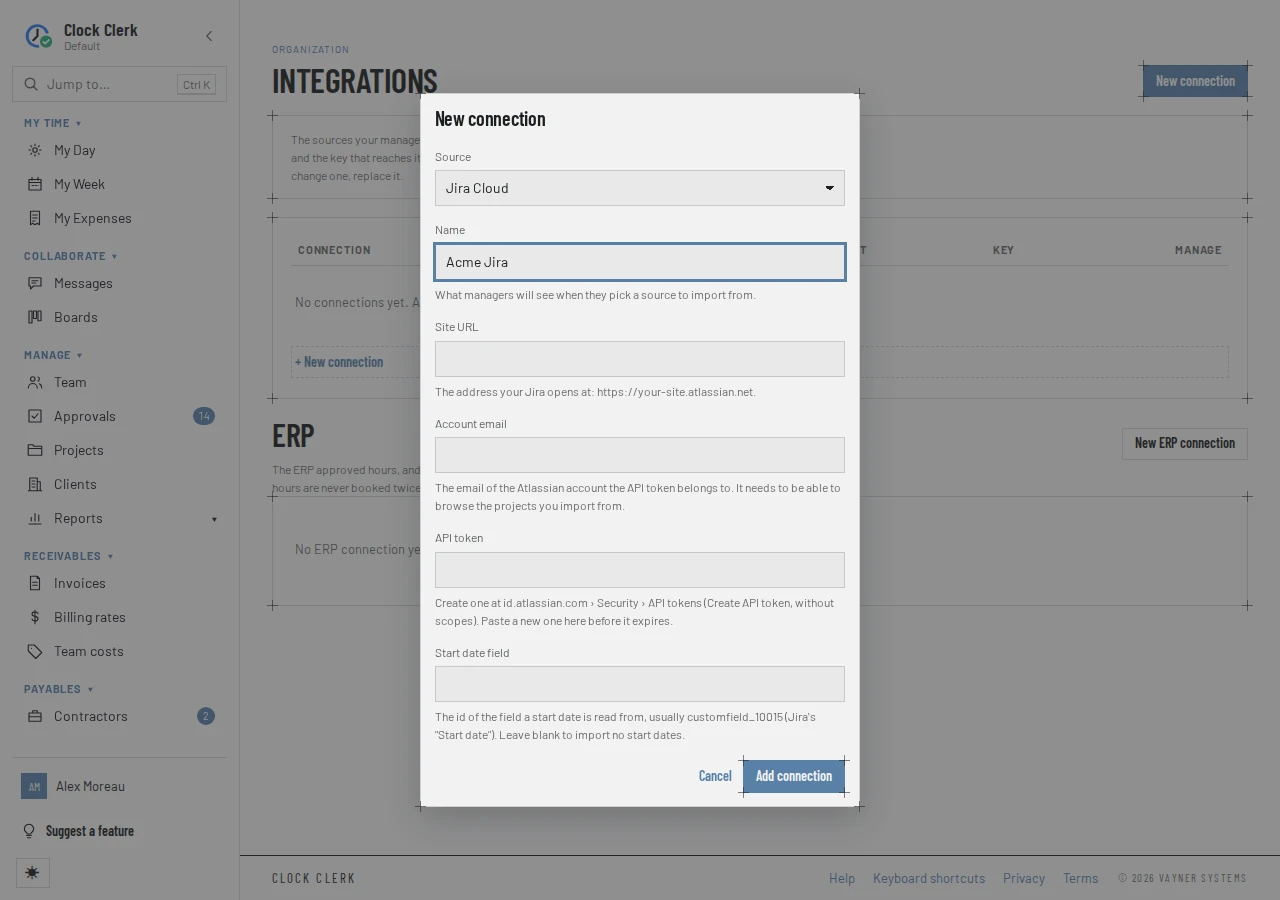
- New connection opens the dialog. Pick the Source; the fields below change to what that source needs, each with help on where to find it.
- Type the Name managers will choose it by.
- Fill in the fields, and choose Add connection. The app says … added. Test it to check the address and key.
- Choose Test connection on the row. The result is shown in a message and kept in Last test.
Edit opens the same dialog, with Save changes; the source cannot be changed. A stored key is never filled in: the field reads •••• set on … by … with Replace, and stays as it is unless you replace it. Changing the address or the key clears the last test, so test again. An address has to be a full https:// address, reachable from the internet, and must not contain a user name or password.
What each source asks for
| Source | Fields | Where the key comes from |
|---|---|---|
| Azure DevOps Services | Organization URL, Authentication (where offered), Personal access token | In Azure DevOps, User settings › Personal access tokens, for this organization, with the Work Items (Read) scope. Or Sign in with Microsoft, below. |
| Azure DevOps Server (TFS) | Collection URL, Personal access token, API version (optional) | Your profile › Security › Personal access tokens, with Work Items (Read). Azure DevOps Server 2019 and later; TFS 2018 and earlier are not supported. |
| Jira Cloud | Site URL, Account email, API token, Start date field (optional) | id.atlassian.com › Security › API tokens, created without scopes. Paste a new one before it expires. |
| Jira Data Center | Base URL, Personal access token, Start date field (optional) | Your Jira profile › Personal Access Tokens, on Jira 8.14 and later. |
| Trello | API key, Token | Create a Power-Up at trello.com/power-ups/admin and generate its API key (the key, not the secret), then follow its Token link and allow access. |
| Notion | Internal integration secret | Create an internal integration at notion.so/profile/integrations with Read content (and Read user information including email addresses, to match owners by email). Then add it to each database under ••• → Connections. |
Whoever the key belongs to has to be able to see the projects, boards or databases your managers import from. The Start date field is the id of the Jira field start dates are read from, such as customfield_10015; left blank, no start dates are imported. Your deployment may not offer every source; the Source list shows the ones it does.
Signing in with Microsoft
Where your deployment is set up for it, an Azure DevOps Services connection can set Authentication to Sign in with Microsoft instead of a personal access token: it then reads work items as the administrator who signs in, with no token to renew. Saving is Save and sign in with Microsoft, which takes you to Microsoft and back.
The Key column then reads Connected as … on …, Not signed in · was … where Microsoft has stopped renewing the sign-in, for example because the person left or it was unused for 90 days, and Not signed in where it has never been signed in. A connected row offers Reconnect; a row that is not signed in offers Sign in with Microsoft. Until it is, managers see the connection as This connection needs attention. Ask an administrator.
Turning a connection off, and deleting it
- Disable stops imports through the connection but keeps its key and every project's link to it: … is off. Its key is kept, and nothing imports from it until it is turned on again. Enable turns it back on. A connection that is off can still be tested.
- Delete asks Delete this connection? and, with Delete connection, removes it and its stored key. Tasks already imported from it stay as they are. While projects are linked to it, it is refused with Projects import through this connection: … Unlink them first, or disable the connection instead.
ERP
Below the task sources, on the Team and Enterprise plans and during the trial, the ERP section holds the connections approved hours, and what they cost, are exported to, with New ERP connection. Only one can be on at a time, so the same hours are never booked twice. QuickBooks can be connected from Team; every other ERP is on the Enterprise plan only, and on Team is listed in Source as … — Available on the Enterprise plan. Export to an ERP or QuickBooks lists the ERPs and walks through connecting one.
- The dialog has two steps, Connection and ERP fields. Save and test saves the new connection off and tests it; Next or Continue anyway moves on; Save and turn on finishes. For QuickBooks Online both the first and the finishing button are Save and sign in with Intuit.
- The rows have the task sources' columns, with ERP for the source. For QuickBooks Desktop, which is never called, Last test says when its last file was downloaded, or Nothing downloaded yet.
- The buttons are the task sources' own, with Sign in with Intuit or Reconnect on a QuickBooks Online connection. Enable is refused while another ERP connection is on: “…” is already enabled as this organization's ERP. Hours go to one ERP at a time, so disable it before enabling another. Delete is refused once the ERP has accepted anything from the connection, or while it may hold something nobody has confirmed; disable it instead.
- A connection to an ERP your plan no longer exports to, kept from Enterprise on Team, says Available on the Enterprise plan and offers only Delete, and Disable while it is on.
Matching records, what is sent and following the export are Finance's, on ERP export. After a new ERP connection is saved, the section says what to do next, with Open record mapping for an administrator, and ERP export appears in the menu, under Payables, for Finance and administrators. It stays while the connection is off, and goes when the last one is deleted.
Buttons and when they appear
| Button | What it does | When you have it |
|---|---|---|
| New connection | Opens New connection. | Disabled while your organization is read-only, on the live demo, and where your deployment offers no source. |
| Test connection | Asks the source whether the address and key work, and records the answer. | On each row. Disabled for a connection marked Not available here. |
| Sign in with Microsoft, Reconnect | Signs the connection in again with Microsoft. | On an Azure DevOps Services connection set to sign in with Microsoft. |
| Edit | Opens the connection's dialog, to rename it or change its address or key. | On each row. |
| Disable, Enable | Turns imports through the connection off or on. | On each row. |
| Delete | Deletes the connection and its key, after asking. | On each row. Refused while projects are linked to it. |
While your organization is read-only, and on the live demo, the tab can be read but has none of the buttons on its rows. On the live demo, which every visitor shares, there are no connections at all: a key saved there would be used by everyone.