Workflows
Export to an ERP or QuickBooks
Clock Clerk can send approved hours, and what they cost, to the system your organization keeps its books in. An administrator connects the ERP once. Finance matches people and projects to the ERP's records and chooses what is sent. After that, each week goes to the ERP as soon as it is approved, and a week changed later goes again as a correction. Hours are never sent twice, or to two ERPs.
Who does what
| Step | Who | Where |
|---|---|---|
| Connect the ERP, test it, change its key, turn it on or off, delete it | Administrators. | Integrations, under ERP |
| Match records, choose what is sent, follow the export, retry, release and resolve postings, download QuickBooks Desktop files | Finance and administrators. | ERP export |
| Approve the weeks that are sent | Whoever approves them. | Approvals |
| See whether their own week went | Everyone, on their own approved weeks. | My Week |
Managers and users never see the connection, its key or the export screens. Someone in Finance never opens the Integrations tab: what an administrator sets there, the address and key, is theirs, and what Finance sets on ERP export, where the money goes, is Finance's.
The ERPs you can export to
QuickBooks is on the Team plan, the Enterprise plan and the trial. Every other ERP is on the Enterprise plan only. On Team and during the trial, the Source list shows them as … — Available on the Enterprise plan, and they cannot be chosen.
| ERP | Plan | Connecting asks for | What it takes |
|---|---|---|---|
| QuickBooks Online | Team, Enterprise, trial | Nothing to type: Save and sign in with Intuit, then choose the company at Intuit. Offered where your Clock Clerk server has its Intuit app set up. | Hours, cost, contractors' bills, expenses with their receipts. |
| QuickBooks Desktop | Team, Enterprise, trial | Nothing: QuickBooks Desktop is never called. Finance downloads a file and imports it (below). | Hours, a monthly or annual cost, contractors' bills, expenses. No receipts. |
| NetSuite | Enterprise | Account ID, then either token-based authentication (Consumer key, Consumer secret, Token ID, Token secret) or OAuth 2.0 machine-to-machine (Client ID, Certificate ID, Private key). | Hours, cost, contractors' bills, expenses. |
| Dynamics 365 Business Central | Enterprise | Directory (tenant) ID, Application (client) ID, Client secret, Environment, Company. | Hours, cost, contractors' bills, and expenses while hours go to time sheets. |
| Dynamics 365 Project Operations | Enterprise | Environment URL, Directory (tenant) ID, Application (client) ID, Client secret. | Hours and expenses with their receipts. No cost, no contractors' bills. |
| SAP S/4HANA Cloud | Enterprise | API URL, OAuth client ID, OAuth client secret, Token URL (optional), Company code. | Hours, cost, contractors' bills. No expenses. |
| SAP S/4HANA | Enterprise | API URL; a User and Password, or a Client certificate and its Certificate password; Client (optional); Company code. The system must be reachable from the internet. | Hours, cost, contractors' bills. No expenses. |
| Oracle Fusion Cloud ERP | Enterprise | Pod address, then either OAuth 2.0 (Identity domain URL, Client ID, Client secret, Scope (optional)) or Basic (User name, Password). | Hours, cost, contractors' bills, expenses with their receipts. |
| Workday | Enterprise | Services host, Tenant name, then either an API client (Client ID, Client secret, Refresh token) or an Integration system user and Password; whether you use Workday Financials, and its Company if you do. | Hours. With Financials, also cost, contractors' bills and expenses with their receipts. |
| Sage Intacct | Enterprise | Company ID, Web Services user, Password, Entity (optional); on the ERP fields step, a Receipts folder (optional), without which expenses go without their receipts. Offered where your Clock Clerk server has a Sage Web Services sender, which your company must list in its Company Security settings. | Hours, cost, contractors' bills, expenses with their receipts. |
| Acumatica | Enterprise | Instance URL, Endpoint version and Tenant (both optional), Client ID, Client secret, User name, Password. | Hours, cost, contractors' bills, expenses with their receipts. |
Some ERPs price time themselves, from the person's own rate in them, so a day's own cost does not go to them. A monthly or annual cost still does.
- The hours go without the day's cost to QuickBooks Desktop, Sage Intacct, Acumatica, and Oracle Fusion when hours go to Time and Labor.
- The whole day is rejected if it carries a cost by SAP S/4HANA Cloud, SAP S/4HANA, and Business Central when hours go to time sheets: SAP values recorded time at the activity type's price, so a day's cost isn't sent; export hours only, or a monthly or annual cost. For these, choose Hours only under What is sent, or send a monthly or annual cost.
- NetSuite rejects a day's cost unless the connection names a Cost field: Name a cost field on the NetSuite connection to send a day's cost; NetSuite's time record has none of its own.
Each field's help in the dialog says where to find the value in your ERP, and what the user or app you connect with must be allowed to do there. The help for Oracle Fusion and Acumatica also says that the connector has not yet been run against a real system of theirs, and asks you to connect a test environment rather than the one your books are kept in. An ERP that is not in the Source list cannot be connected on your Clock Clerk server.
Before you start
- Your plan has to include it (above, and Plans and your trial). Below Team there is no ERP export in the menu and no Integrations tab at all.
- An administrator connects the ERP first. ERP export appears in the menu, for Finance and administrators, only once there is a connection (step 1). Finance cannot add one.
- Only one ERP is on at a time. Two would each be sent the same hours, and their cost would be booked twice. You can keep another connection that is off.
- Only approved time is sent. Hours go once their week is approved, so the export follows Review and approve time.
- Have the ERP's side ready: the user or app registration the export signs in as, and, where you send cost, contractors' bills or expenses, the accounts they are booked to.
1. Connect the ERP
For administrators. The dialog has two steps: Connection, how to reach the ERP and sign in, and ERP fields, where in it the postings go.
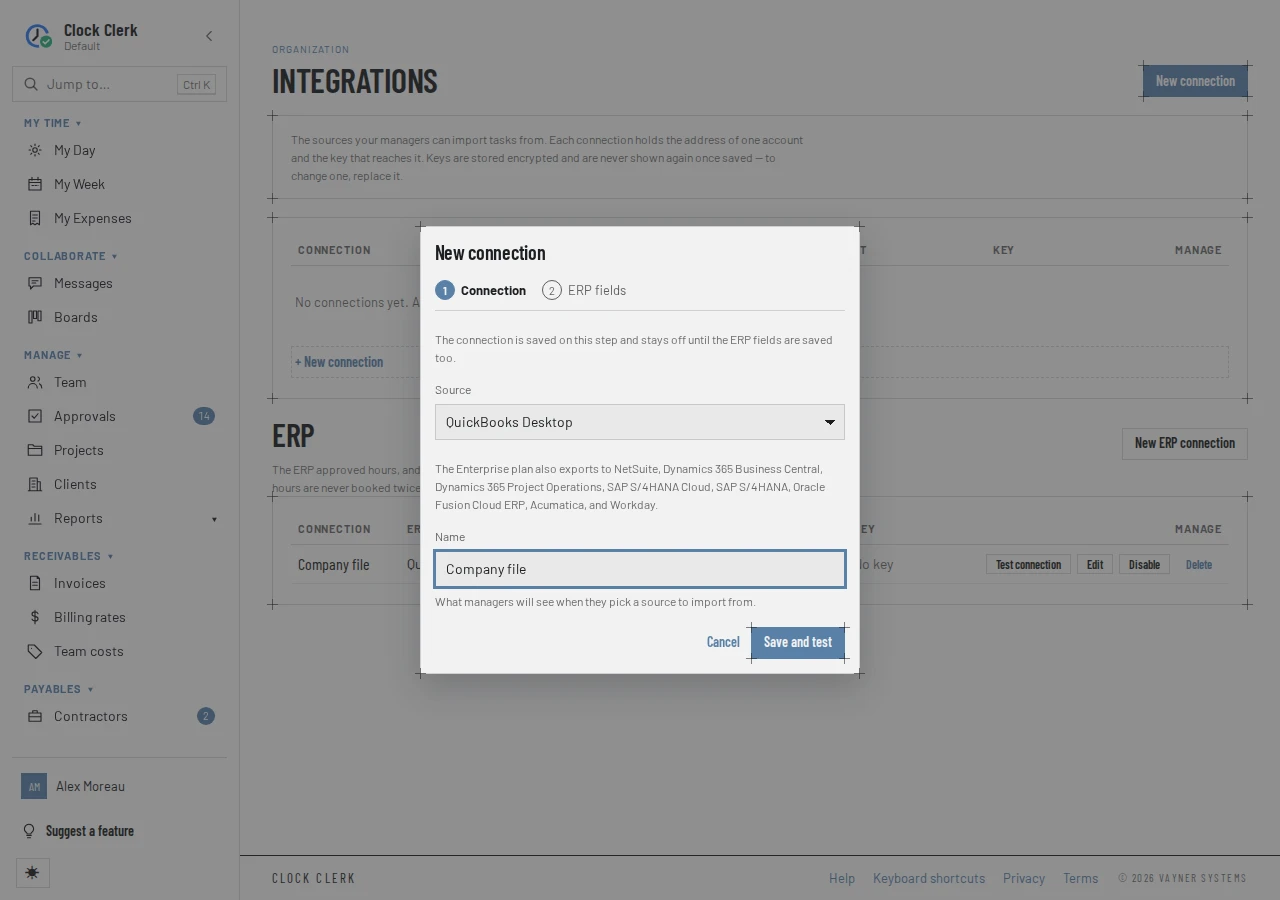
- Choose Integrations in the menu, under Settings. Below the task sources, under ERP, choose New ERP connection.
- Pick the ERP under Source, and give the connection a Name. Fill in the connection fields for that ERP (above). The dialog says The connection is saved on this step and stays off until the ERP fields are saved too.
- Choose Save and test. The connection is saved, off, and tested. A pass says Test passed and what it reached, such as Connected to NetSuite account 1234567, and the button becomes Next. A failure says Test failed and why; correct a field and test again, or choose Continue anyway and test it later from the tab. For QuickBooks Online the button is Save and sign in with Intuit instead: Intuit asks you to sign in and choose the company, then sends you back to Clock Clerk to finish.
- On ERP fields, fill in what the ERP needs: accounts, journals, the business unit, what to do with a record after it is written. A field the help calls needed only for something, such as a contractor expense account for bills, can be left blank until Finance sends that.
- Choose Save and turn on. The app says … is set up. Next, match people and projects to the ERP's records: a posting that needs one not matched yet is held. As an administrator you can go straight there with Open record mapping.
From the moment the connection is saved, ERP export is in the menu, under Payables, for Finance and administrators. It stays there while the connection is switched off, and goes when the last connection is deleted.
A new connection exports from the first of the current month, hours only, so turning it on sends no history. Finance can change both (step 3).
2. Match people and projects
For Finance and administrators. The ERP has to know who each person is and which project the hours are for. A day that needs a record nobody has matched yet is held, not dropped, and goes once the record is matched.
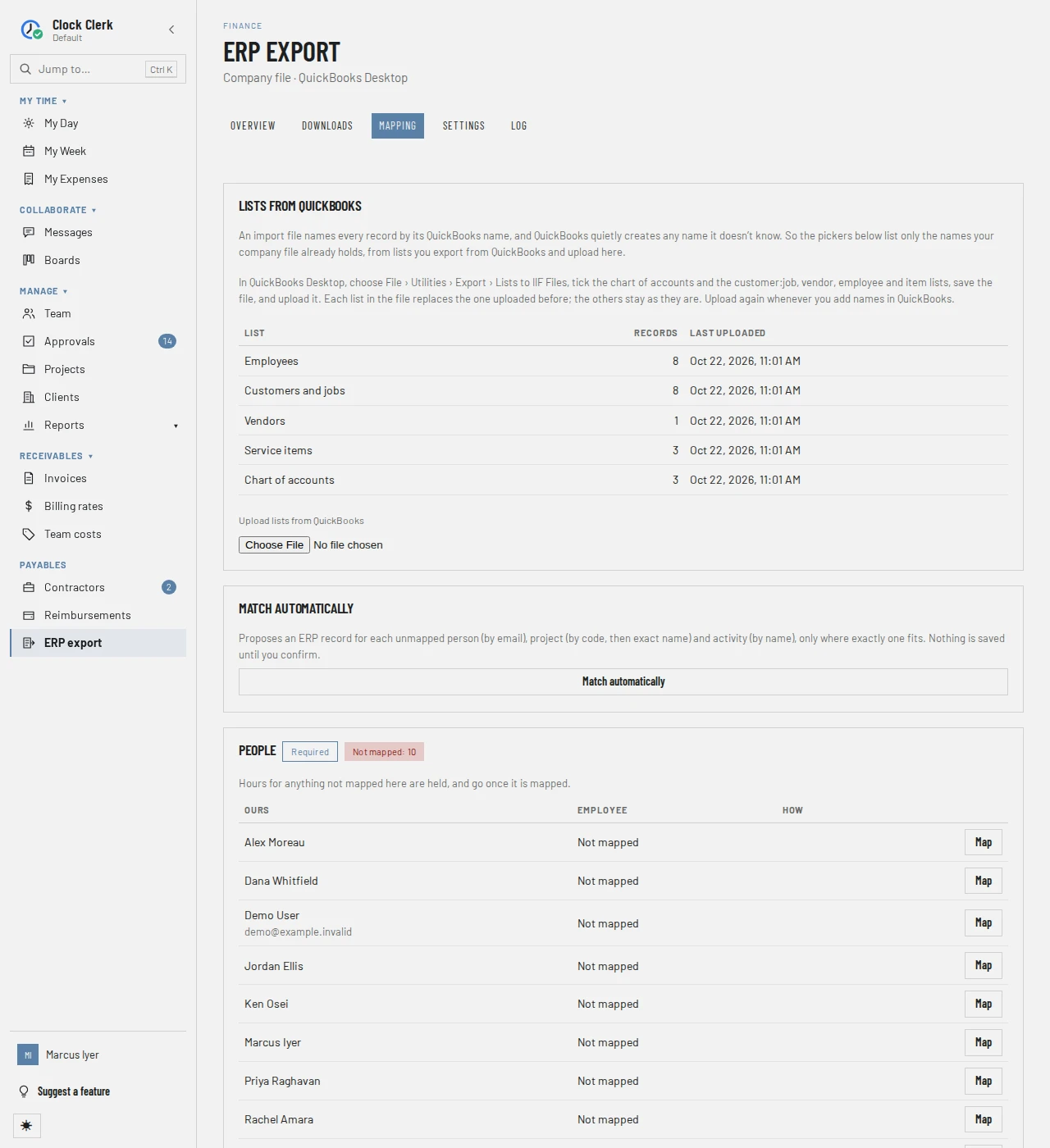
- Choose ERP export in the menu, under Payables, then Mapping.
- Choose Match automatically. It proposes an ERP record for each person not yet mapped (by email), project (by code, then by exact name) and activity (by name), only where exactly one fits, and saves nothing. Check each proposal: a person matched to the wrong employee is somebody else's salary cost. Untick any that are wrong, then choose Save ticked. The app says Mappings saved: …. QuickBooks Desktop's lists hold names alone, with no email or code, so for it nothing is proposed: Nothing more to match. Map the rest by hand below.
- Map the rest by hand. Each table is one kind of record, the ones the ERP requires marked Required and listed first, with how many are Not mapped. Choose Map on a row, search the ERP's records by name or number, and pick one. The app says Mapped … to ….
Every ERP requires People and Projects. Acumatica, Oracle Fusion, SAP and Workday also require Activities, and Business Central requires Tasks when its hours go to the job journal. A mapped task wins over its project, and a project over its client. The other tables, such as Clients, Billing roles, Cost centers, Contractors and Expense categories, are there where the ERP takes them. Saving a mapping releases what it held within minutes, at the next pass of the export.
3. Choose what is sent
For Finance and administrators, on ERP export → Settings. Only what the connected ERP can take is on the form.
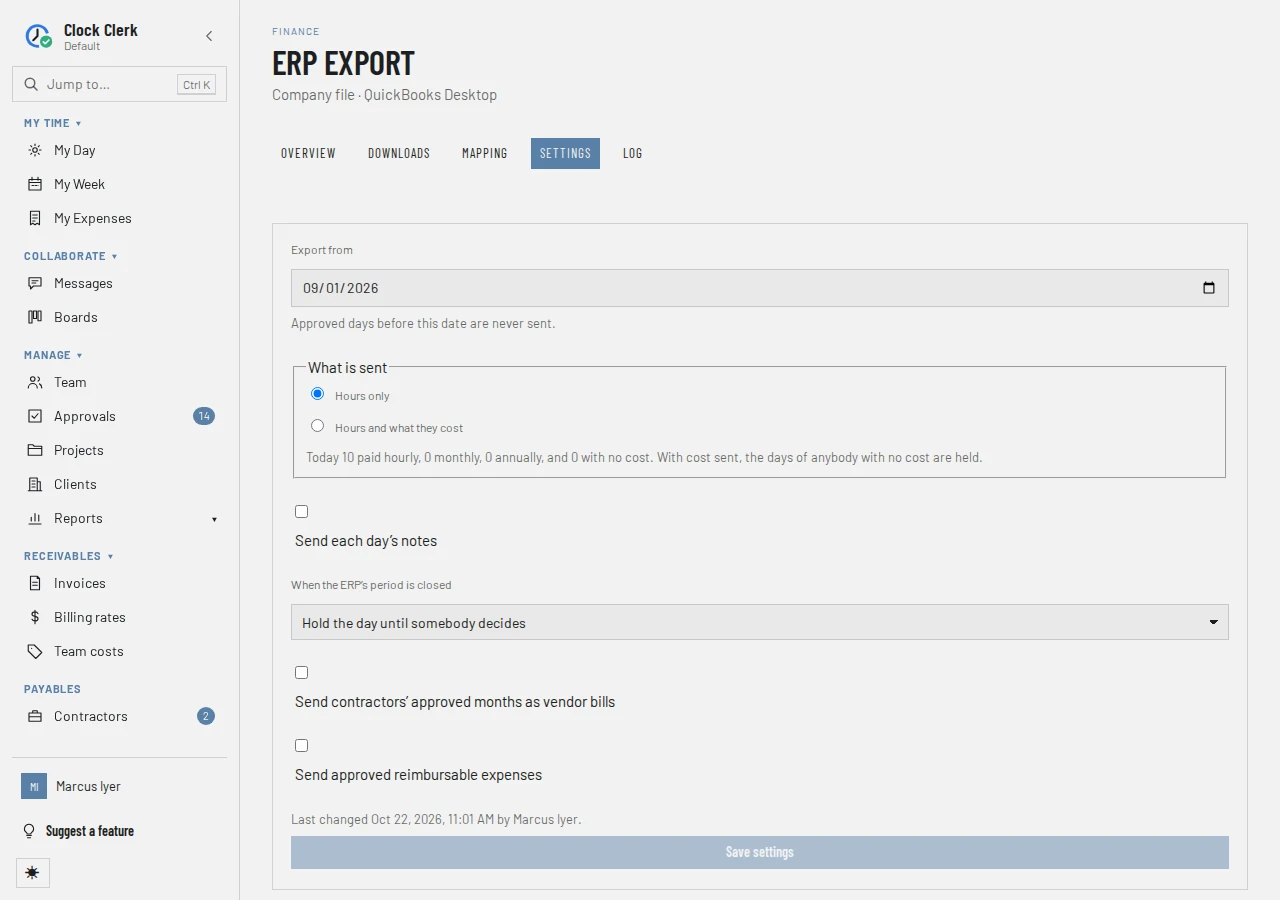
- Export from: approved days before this date are never sent. Moving it earlier says how much it would send before you save, such as Saving this also sends what was approved before … · days: 62, people: 8.
- What is sent: Hours only, or Hours and what they cost, at each person's cost on Team costs. With cost sent, the days of anybody with no cost are held.
- A monthly or annual cost, once cost is sent: it goes once a month per person, after their month is approved, Spread over the projects they worked on, by their hours, To their cost center, as one amount where the ERP has cost centers, or As priced hours, the month's amount divided over its hours.
- Send each day's notes, the comments on the hours.
- When the ERP's period is closed: Hold the day until somebody decides, or Post it in the first open period, dated the first of the current month with the original date in its text.
- Send contractors' approved months as vendor bills, and Send approved reimbursable expenses: see below.
Choose Save settings. The app says Export settings saved. Choosing something the connection lacks an account for is refused, naming the field, such as QuickBooks Desktop needs “Accounts payable account” on its connection first. An administrator sets it on the Integrations tab.
4. What is sent, and when
- A week's hours go when it is approved, one posting per line of the week per day, so a person with hours on two projects in a day has two. Within five minutes, the export also catches anything approval did not send: a week approved while the connection was off, a hold whose record is now mapped, a day before Export from once it is moved earlier.
- The person sees it on their week. An approved week says · posted to … and the ERP's name beside its status, or · 1 day held or · … days held while something holds it. The reviewer sees the same on Approvals.
- A change after export is a correction, not a lock. An approved week can still be reopened, and the app warns first: These hours are already in … Changes post as corrections when the week is approved again. When it is approved again, the export takes back what the ERP holds for each changed day and sends the new one. A billed or protocolled week stays locked as before (Bill a client, Pay contractors).
- A contractor's month is paid once. With vendor bills on, each month Approved to pay goes to the ERP as a bill, and the payment file on Contractors leaves it out. A month whose bill is held, or that falls before Export from, stays in the payment file.
- An expense claim is paid back once. With expenses on, each approved, reimbursable claim goes to the ERP, and Reimbursements lists it under Paid back through the ERP, out of the run. A contractor's own claims go on their month's bill, not on their own. The person's claim says Sent to and the ERP's name, and changing it is refused: This expense was sent to …, which may have paid it. Change it in … instead.
QuickBooks Desktop: download a file
QuickBooks Desktop has nothing Clock Clerk can call, so its export is a file Finance takes and imports. Its postings wait as Queued until a file takes them, and ERP export has a Downloads tab for it.
- Upload the lists. In QuickBooks Desktop, choose File › Utilities › Export › Lists to IIF Files with the chart of accounts and the customer:job, vendor, employee and item lists. On Mapping, under Lists from QuickBooks, choose the file under Upload lists from QuickBooks. The pickers offer only the names your company file holds, because a file naming a record QuickBooks does not know makes a new one. Upload again whenever you add names in QuickBooks.
- Back up the company file.
- Download the file. On Downloads, choose Download for QuickBooks Desktop. The app says Downloaded …. Import it in QuickBooks Desktop now. What it holds counts as sent from that moment, because nothing comes back from the import.
- Import it in QuickBooks Desktop: File › Utilities › Import › IIF Files.
- Make the changes by hand listed under By hand in QuickBooks. A file cannot take a time activity back, so a corrected day's old entry is listed there, with its reference, for you to find and delete.
If the import failed, choose Undo on the newest file. Undo this file? warns: If QuickBooks took any of it, those records would go in twice. Its postings go back in the queue for the next file. Any file can be downloaded again with Download again, which changes nothing.
5. Follow the export
For Finance and administrators, on ERP export → Overview and Log. A posting is one thing sent: a day, a person's cost month, a contractor's month or an expense. On the Overview, every count links to its postings in the log, and the three that need somebody are marked.
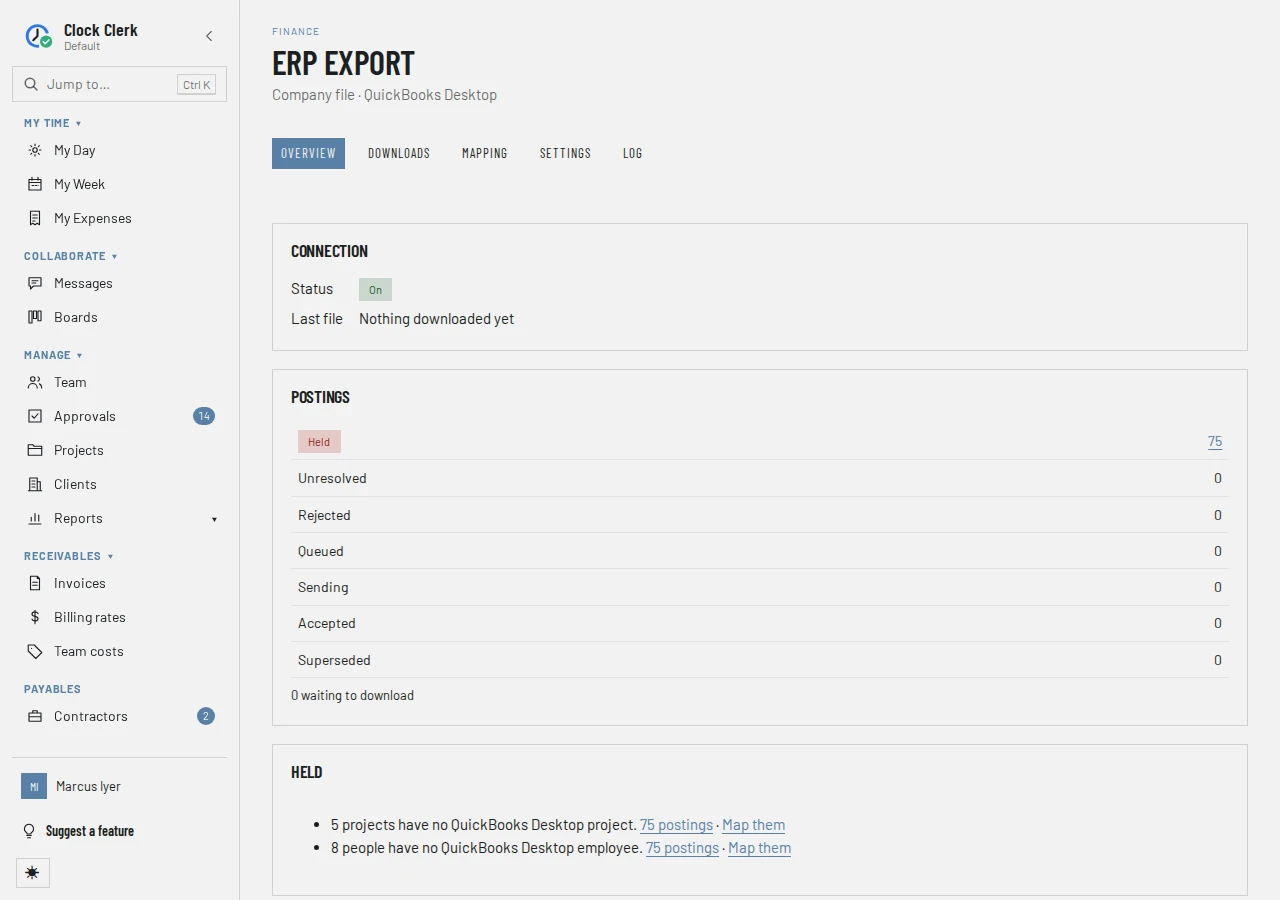
| State | What it means | What to do |
|---|---|---|
| Held | Not sent, because something is missing, said in a sentence such as No QuickBooks Desktop employee for Jordan Ellis. or a day outside the person's employment dates. | Fix what it names (Map them goes to the table). If you entered it in the ERP by hand, Release it. |
| Unresolved | The answer was lost on every try, so the ERP may already hold it. | Look it up in the ERP, then Resolve. |
| Rejected | The ERP refused it, with its own message, or it ran out of tries and the ERP holds nothing. | Fix the cause in the ERP, then Retry. |
| Queued | Waiting to be sent, within a minute or so; for QuickBooks Desktop, waiting for the next file. | Nothing. |
| Sending | On its way, or being asked about after a lost answer. | Nothing. |
| Accepted | In the ERP, with the ERP's id for it. | Nothing. |
| Superseded | Replaced by a later revision before the ERP took it, or released. | Nothing. |
The Log lists the latest Calls to the ERP (when, why, and how many were sent, accepted, rejected or got no answer), then every posting, filtered by state and date, with its reference, the ERP's id, its message and, under Show, exactly what was sent.
Switching to another ERP
Disable the old connection on the Integrations tab, then add and turn on the new one. Each connection keeps a mapping and a record of what it sent of its own, so the new one starts with nothing mapped. So that the same hours are not sent again, a new connection starts the day after the last day the old one had accepted. If the new ERP needs that history, Finance moves Export from back.
A connection that has had anything accepted cannot be deleted, because its record of what was sent is what stops the same hours going twice; disable it instead. Nor can one with a posting Unresolved or Sending, whose answer is not recorded yet. If your organization moves from Enterprise to Team, a connection to an ERP other than QuickBooks stays stored, with only Disable and Delete, and nothing is sent through it.
When something goes wrong
- The connection shows Failing, or turns itself off. If the ERP refuses the key while hours are being sent, the export pauses and switches the connection off. The Overview's Last problem says The ERP refused this connection's key while hours were being exported, so the export is paused and nothing was lost. Enter a new key and enable the connection to resume. An administrator chooses Edit on the Integrations tab, enters the new key (or, for QuickBooks Online, chooses Reconnect), and Enable. What was approved meanwhile catches up within minutes.
- Hours are held. The Overview's Held list says why, once per reason, such as 3 people have no QuickBooks Desktop employee. Map them, or add the cost or employment dates it names; they go at the next pass.
- A posting was rejected. Read its message in the log; it is the ERP's own, such as a closed period or a locked record. Fix it in the ERP, then choose Retry. The app says Queued to be sent again. A rejected reversal holds back the corrected day behind it until it is retried.
- A posting is unresolved. The Overview says Unresolved postings lost their answer on every try, so the ERP may already hold them. Choose Resolve in the log, look for its reference in the ERP, and record what you found: It is in the ERP, with Its id in the ERP, or It is not in the ERP — send it again. Nothing more is sent for that day until you do.
- You entered something in the ERP by hand. Choose Release on its held posting. Release this posting? says It is never sent from here, and a later change to the same record is held saying so. This can't be undone.
- “…” is already enabled as this organization's ERP. Hours go to one ERP at a time, so disable it before enabling another. Turn the other connection off first.
- “…” has sent records the ERP accepted, and deleting it would delete the record of what was sent, so the same hours could be sent again. Disable the connection, or edit its key, instead. See Switching to another ERP.
- “…” has records the ERP may hold that nobody has confirmed yet, so deleting it could lose the record of what the ERP holds. Check them in the ERP and clear them, or disable the connection instead. Resolve its unresolved postings in the log first.
- “…” has records on their way to the ERP whose answer hasn't been recorded, so deleting it could lose the record of what the ERP holds. Wait for the export to finish (enable the connection if it is off), or disable it instead.
- Exports to SAP, Oracle, NetSuite, Dynamics 365, Sage Intacct, Acumatica and Workday are not part of the Team plan. An administrator can move the organization to the Enterprise plan to use them. The connection is to an ERP your plan does not export to.
- This QuickBooks Desktop connection is switched off, so nothing is taken into a file. Enable it first. An administrator turns it on on the Integrations tab.
- Only the newest file can be undone: a later one may already have been imported on top of it. Undo that one first.
- This posting has just changed. Reload and try again. The export moved it while you were deciding; reload the log.
- Read-only. While the organization is read-only, nothing is sent, and the tabs offer no changes (Roles).