Getting started
Roles and what each can do
Everyone in an organization has one of four roles: User, Manager, Finance or Admin. Each reaches further than the one before it. Two more kinds of people are not roles: a contractor is a person with a contractor profile, and a guest is a client's contact invited into a conversation.
An administrator sets each person's role on their page under Settings → People (see People). The role lives in Clock Clerk, not in Microsoft or Okta, so it takes effect at once and nothing in your directory changes it.
At a glance
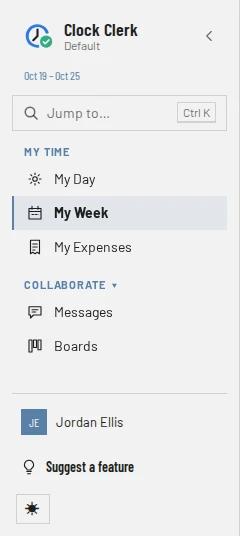
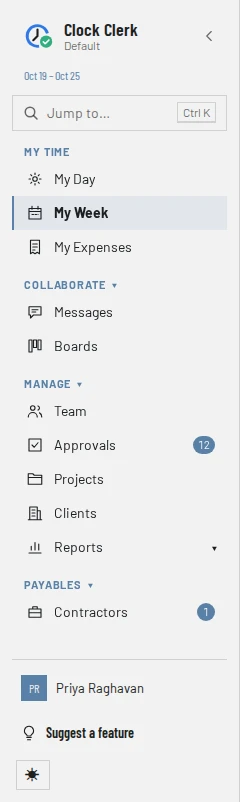
What each role finds in the menu. Items marked * only appear on plans that include them (see Pricing), and ERP export only once an administrator has connected an ERP in Settings → Integrations. The menu hides a whole group when nothing in it is yours, and the app refuses what the menu does not show, so a role never gets a button it cannot use.
| Menu item | User | Manager | Finance | Admin |
|---|---|---|---|---|
| My Day, My Week, My Expenses | Yes | Yes | Yes | Yes |
| Messages, Boards | Yes | Yes | Yes | Yes |
| Suggest a feature | Yes | Yes | Yes | Yes |
| Team, Approvals | No | Yes | Yes | Yes |
| Projects, Clients, Reports | No | Yes | Yes | Yes |
| Invoices*, Billing rates, Team costs* | No | No | Yes | Yes |
| Contractors* | No | Named ones | Yes | Yes |
| Reimbursements, ERP export* | No | No | Yes | Yes |
| Settings: Organization, Features, Audit log, People, Holidays*, Integrations*, Provisioning*, Activities, Expense categories | No | No | No | Yes |
| Plans and the organization's subscription | No | No | No | Yes |
User
Manager
Admin

Everyone also has Home at the top of the menu, where signing in lands. Its columns change with the role: each section below says what that role finds there.
A Manager sees Contractors only where they are named as a contractor's engagement manager. My Month appears for anyone who has a contractor profile, whatever their role, on plans that include contractors.
User
A User records their own time and expenses, and works on the projects they are on.
- Fills in My Week and My Day for the projects whose team they are on, and submits each week (see Record and submit your week).
- Records their own expenses under My Expenses.
- Reads and writes in the conversations of their projects and their direct messages, and opens their projects' boards, where they can move the cards of the tasks they can log time to.
- Reviews nobody: Team and Approvals are not in their menu, and a grant on a client does not change that.
- On Home, sees their week and the boards of their projects.
Manager
A Manager does everything a User does, and oversees the clients and projects an administrator granted them.
- Approvals: approves, sends back and reopens the weeks of the people on the projects they manage, and decides on their expenses (see Review and approve time).
- Team: sees those people's weeks and who has not submitted.
- Projects and Clients: sees the ones granted, edits their projects, and adds projects to a client they manage. Creating, editing, archiving and restoring a client itself is the administrator's.
- Reports: reports on the hours and expenses of the projects they manage, in hours or at their value on the rate card, but not at cost (see Build and save reports).
- Manages their projects' boards and stages, and invites client guests into a project's shared conversation.
- On Home, sees the weeks waiting for their approval and who has not submitted this week, with their own week on a line above.
A Manager, like Finance and administrators, sees the Getting started checklist: the steps to the organization's first logged hour, within the clients they were granted, with the ones only an administrator or Finance can take marked as waiting on them. A Manager who has been granted no client at Manager level but is on a project's team doesn't see it: they were put there to log time. The getting-started checklist explains it.
A manager only sees the hours booked to projects they manage. When a week also has hours on someone else's project, they cannot decide it alone: the app says so, and somebody who oversees all of it, or an administrator, has to.
Grants and project teams
Two separate things decide what a person reaches, and both are set on their page under Settings → People. Set up your organization goes through setting them.
A grant: what you oversee
Access is granted per client, at one of three levels: No access, User or Manager. Every project of that client inherits it. A single project can be given its own level instead, an override, which raises it, lowers it or holds it back. So for any project:
- if the person has an override on the project, that is their level;
- otherwise they have the level granted on the project's client;
- otherwise they have no access.
Only where the level comes out as Manager does a manager oversee the project. A Manager override on one project lets someone oversee just that project of a client they do not otherwise manage, and a No access override keeps one project of a granted client back. A grant reaches only as far as the role does: a person whose role is User oversees nothing, whatever they are granted.
Project team: what you book time to
Being on a project's team, the Timesheet tick beside the grant, is what puts the project on a person's own week. A grant on its own books no time: a manager who oversees a client still has to be on a project's team to log hours to it, and a User needs no grant at all to log hours to the projects they are on.
The two are easy to mix up, because the project's own team, Who can see this project on Edit project, and the person's Timesheet ticks are the same thing: a seat on the team. Putting a Manager on every project's team lets them log time to all of them, but they still oversee nothing: their Clients screen stays empty, they review nobody's week, and the People list reads Logs time on 3 projects · manages no client. To make a manager able to see and manage a client, open them under Settings → People and set that client's Client access menu to Manager. Until a Manager on a team has a client or a project granted, their page says On the team, but manages nothing until a client is granted. Finance is different: it already reviews everyone and handles the money without a grant, so for Finance a grant only opens a client's projects and tasks for editing, and their page says On the team, but edits no client until one is granted.
Finance
Finance is a Manager who also handles the money.
- Reviews everyone without a grant: approvals, the backlog of missing weeks, reminders, Team, and expenses. A Finance decision on an expense ranks with an administrator's, so a manager cannot overturn it.
- Handles the money across the whole organization: invoices, billing rates, team costs, reimbursements, contractor profiles, and approving and paying contractors' months.
- Reports on every project, including what the time cost to deliver, on a plan with team costs.
- Sees every client and project on Clients and Projects without a grant, and sets any project's rates there. Changing a project itself, its tasks or its team still takes a grant, like a Manager's. A project's board and conversations stay with its team and whoever manages it.
- Grants nobody anything: roles, grants and everything under Settings stay the administrator's, including making someone Finance.
- On Home, sees the invoices to raise, chase or finish and what is waiting to be paid, with their own week on a line above. On Free or Starter, which have no invoicing, their boards take the invoices' place.
Admin
An administrator reaches every client, project and screen with no grants needed.
- Everything Finance does, plus Settings: the organization and its sign-in, which features it uses, people, roles and grants, branding, holidays, integrations, activities, expense categories and the audit log of sign-ins and changes to access and settings.
- The organization's own Clock Clerk plan and subscription, and the first steps of setting it up.
- Creating contractor profiles and naming each contractor's engagement manager.
- The only role that may approve and reopen their own week, because there is nobody above them to clear it.
- On Home, sees the weeks waiting for approval and, beside them, the invoices, or on Free or Starter, which have no invoicing, the organization's people. Their own week is on a line above.
Reaching every project is not the same as booking time to it: an administrator, too, logs hours only to the projects whose team they are on.
Your own work
Nobody reviews, countersigns or accepts their own work, whatever their role, with one exception:
- A Manager never sees their own week in their approvals queue; their own reviewer approves it. Finance does see their own week there, but the app refuses to let them approve it, so somebody else has to. An Admin sees it too, and approves or reopens it.
- Nobody can send their own week back or remind themselves about it, an Admin included. To change a week you submitted, you can take it back yourself only if you have the permission to reopen a submitted week (see below) and the week has not yet been approved. Otherwise ask the person who reviews it to send it back to you.
- A contractor cannot countersign their own month.
Permissions for one person
A few things are switched on for one person at a time, under Permissions on their page in Settings → People. Can reopen a submitted week is on for a new person; the others are off by default. Only an administrator changes them.
- Can reopen a submitted week: lets the person take back a week they submitted and change it, as long as it has not been approved, invoiced or accepted in a contractor's month. Without it, the person who reviews the week sends it back to them.
- Can countersign contractor months: lets someone in Finance accept any contractor's month. It means nothing for the other roles.
- Can create tasks: lets a person add tasks to the boards of the projects they work on, and rename and describe the ones they can see. Administrators and the project's managers can already. See Plan work on a board.
Contractor
Contractor is not a role. A person becomes a contractor when an administrator creates a contractor profile for them, on plans that include contractors. They keep their role and log their time like anyone else, and also get My Month, where they submit each month's work and invoice details. A contractor whose role is User finds their month on Home in place of their week.
- The month is countersigned by the contractor's engagement manager, by any administrator, or by someone in Finance with the countersign permission. Countersigning also approves that month's weeks.
- Finance or an administrator then approves it for payment and marks it paid.
- The engagement manager is chosen by an administrator, never by the contractor. It can be an administrator; someone in Finance with the countersign permission; or a Manager who manages at least one project the contractor is on.
The whole month, step by step, is in Pay contractors.
Guest
A guest is a client's contact, invited by email into a project's shared conversation by someone who manages the project. Guests are available on paid plans, not on Free or during a trial.
- They sign in with a link sent by email, with no password (see Signing in).
- They see only the conversations shared with them, under a bar with your organization's name and logo. They never see the project's own conversation, its cards, anyone's hours or the menu.
- They post, edit and remove their own messages, and mention people. Inside your organization, a shared conversation carries a Shared with tag naming the client.
- An administrator can turn a guest into a person of the organization with Convert guest on the People tab.
How a manager shares a thread and invites a guest, and what the guest does next, is in Talk with your team and clients; the guest's pages are in The guest screens.
When the organization is read-only
When a trial ends without a plan being chosen, or a subscription is no longer paid, the organization becomes read-only for everyone. A strip at the top says Your free trial has ended or Your subscription has ended. It is read-only too for the 30 days after an administrator asks for it to be deleted, and the strip says Your organization is being deleted and the day; administrators see Undo deletion there instead of the plans (Delete organization).
An organization that stays read-only because nobody pays is removed 90 days after its trial or subscription ended, and the strip names the day (Removal after 90 days).
- Everything recorded is still there and can still be read, reported on and exported.
- Nothing can be changed: no hours, approvals, invoices or new records. Most buttons that would change something are turned off, and the app refuses the rest.
- You can still change your own preferences on My profile, open a saved report and suggest a feature.
- Only administrators see See plans or Choose a plan, and choosing one opens the organization again.
- Guests can read their conversations but not post.
- When a trial ends, reminder emails stop as well. When a subscription lapses they keep going out.
Plans and your trial covers the trial, its one extension and choosing a plan.