Workflows
Bill a client
Finance turns the hours people record into invoices. Each hour is priced by the billing rates, and approved hours are offered for billing by customer and period. A draft is checked and then issued, which fixes it. The customer is emailed the invoice, and payments are recorded against it until it reads Paid. Once hours are on an invoice they are locked, so the figures the customer was sent cannot change underneath them.
Who does what
| Step | Who | Where |
|---|---|---|
| Set billing rates and billing roles | Finance and administrators, on every plan. | Billing rates, and a project's page |
| Record what each person costs | Finance and administrators, on the Team and Enterprise plans and during the trial. | Team costs |
| Generate, check, issue, send and void invoices, and record payments | Finance and administrators, on the Team and Enterprise plans and during the trial. | Invoices |
| Approve the hours that are billed | Whoever reviews the week. | Approvals |
| Give a client a billing email and an invoice language | Administrators. | Clients |
Only Finance and administrators handle money. A Manager or a User sees no invoice, no rate card and no team cost: Invoices, Billing rates and Team costs are not in their menu, and the app refuses those screens to them. A manager reviewing a week does see what its hours are worth at the rates (Billed value on Approvals), but never the rates or costs behind it. Roles says who is Finance.
Before you start
- Your plan has to include invoicing. Invoices are on the Team and Enterprise plans, and in the trial. On the Starter plan, Invoices is not in the menu; billing rates still are, because they price your reports and approvals.
- Fill in who you are on an invoice. On Invoices → Customer settings, the seller block needs at least a Legal name before anything can be issued. Add your Address, Tax id and Remit to (your bank details) too. The block is copied onto each invoice as it is issued, so changing it later never changes an invoice already sent.
- Give each client a billing email if you want to email their invoices. An administrator sets Billing email and Language for invoices on the client, under Clients.
1. Price the hours
Every hour is booked as a billing role, such as System Engineer II, and the rate cards say what a role bills at, from a date. Finance and administrators keep them on Billing rates and on each project's page. For a given person, project and day, the narrowest card that has a rate in effect wins:
- The person's custom rate on the project, which prices every role they book there.
- The person's rate for that role on the project (Rates beside them on the project's Team card).
- The project's rate for that role, for everyone on it (the project's Billing rates section).
- The client's contract rate for that role (the client's card on Billing rates).
- The global standard rate for that role.
Each rate is a period with an Effective from date and an optional end, so a rate change never reprices the hours before it. A rate of $0 is a price like any other: the hours are priced at nothing on purpose.
| An hour booked as Engineer | Bills at | Because |
|---|---|---|
| By anyone, on another client's project, January 15 | $150 | Only the standard list covers it. |
| By someone else, on the Northwind project, January 15 | $180 | The contract beats the standard list. |
| By anyone but Jordan, on the Northwind project, August 1 | $200 | The contract's later period is in effect. |
| By Jordan, on the Northwind project, January 15 | $220 | Jordan's own rate beats the contract. |
| By Jordan, on the Northwind project, March 15 | $260 | The custom rate beats Jordan's rate for the role. |
| By Jordan, on the Northwind project, July 15 | $200 | Jordan's rate ended in June, so the contract applies again. |
A billing role added in the app has no price but its rate periods. While a billable hour has no rate on its day, its week shows Billing rate missing on Approvals and cannot be approved until somebody adds one (see Review and approve time).
2. Know what is billed
Two settings decide whether an hour is billed to the client, and either can say no:
- The activity, such as Development or Internal meeting, is billable or not for the whole organization (Activities).
- The project's Billing type: Time and materials bills each hour at its rate; Fixed still prices each hour at its rate, so you can see what the work was worth against the fee; Non-billable bills nothing on the project (Projects).
An hour is billed when its activity is billable and its project is not Non-billable. Anything else is priced at nothing and never offered for an invoice. The same rule covers expenses (Expenses and reimbursements).
3. Generate a draft
- Choose Invoices in the menu, under Receivables. The footer under the list, Ready to bill, says how many hours and expenses are waiting and what they are worth.
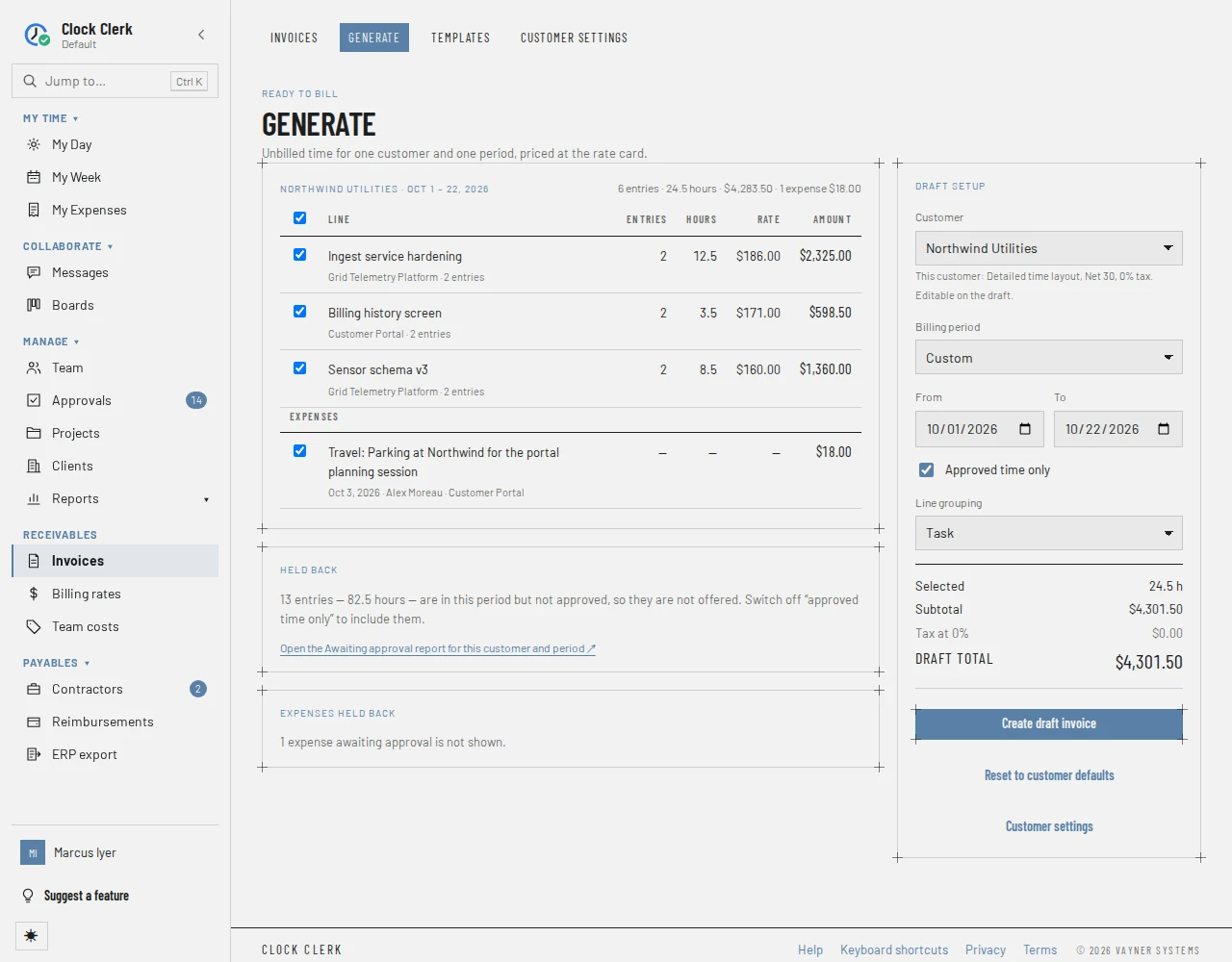
- Choose Review unbilled time to see them by customer, oldest first, with how many are still Awaiting approval. Generate invoice on a customer opens Generate for that customer, from their oldest unbilled entry to today; nothing is created until you choose Create draft invoice. Or choose Generate from time, or Generate above the list, and pick the Customer.
- Set the Billing period (This month, Last month, Last 3 months, Year to date or Custom, with From and To).
- Check Approved time only. It starts from the customer's Approved only setting, which is ticked unless somebody changed it. While it is ticked, hours whose week is not approved are not offered, and Held back says how many there are, with a link to the Awaiting approval report for the customer and period.
- Pick the Line grouping: one line per Task, Project, Person and role, Role, Activity, Entry (each recorded day), or a Single line for the period. Activity isn't offered where nothing in your organization asks for an activity, unless the profile already uses it (see Activities).
- Untick any line or expense you do not want to bill now. The totals on the right follow.
- Choose Create draft invoice. The app says Draft … created. and opens it.
The draft takes what is still unbilled at the moment you press the button, priced by the rate cards once, so a rate changed afterwards does not change it. Its number is given now: the customer's prefix, the year and a count that starts again each year, such as NOR-2026-0004. Its hours are already locked against edits (see below), and they leave the unbilled list.
4. Check its lines and totals
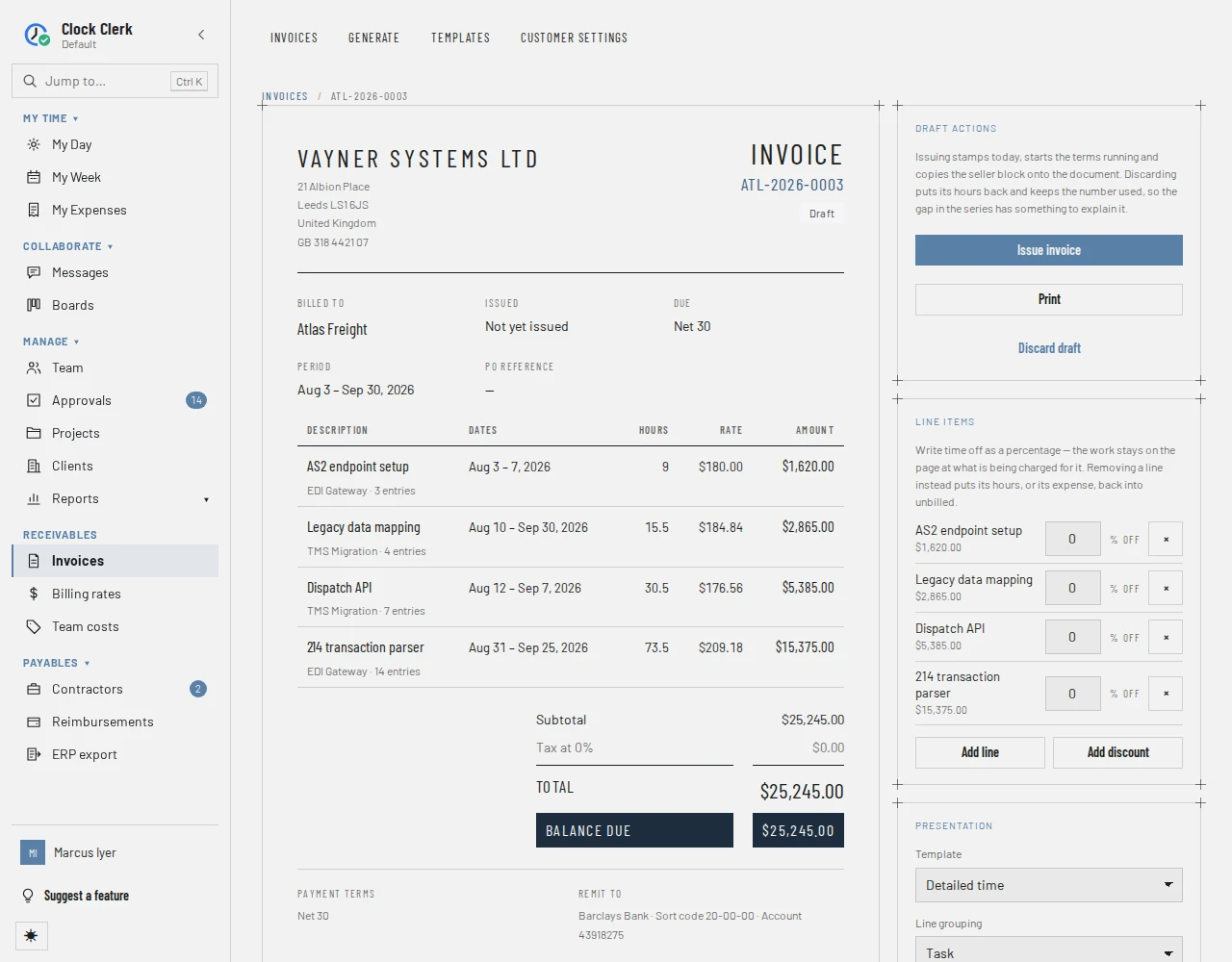
On a draft, everything is still yours to change, under Line items and Presentation:
- Write time off by typing a percentage in a line's % off. The work stays on the page at what is being charged for it, with what it was.
- Remove a line with its ×. Its hours, or its expense, go back to unbilled.
- Add line adds a manual line with a Description and an Amount, for work that was never tracked, such as a fixed fee.
- Add discount adds a discount with a Reason and a Value in % or $.
- Under Presentation, choose the Template (Detailed time, Summary or Fixed fee), the Line grouping, Tax %, Terms, a PO reference, Notes printed under the totals, and Attach the time detail, which prints every recorded day behind the lines. Changing the grouping rebuilds the time lines and keeps manual lines, discounts and write-offs.
The totals are worked out the same way everywhere in the app. Each line is rounded to the cent; discounts come off the subtotal before tax; two percentage discounts are each taken from the subtotal, not one after the other; and tax is charged on what is left.
| The lines | Discount | Tax | Total |
|---|---|---|---|
| $1,000.00, with a 10% discount and 10% tax | $100.00 | $90.00, on $900.00 | $990.00 |
| $1,000.00, with two 10% discounts | $200.00 | None | $800.00 |
A Fixed fee template prints descriptions and amounts only. It does not make the project fixed-fee: to bill an agreed fee, write the time lines off in full and add a manual line for the fee.
5. Issue it
- Choose Issue invoice. There is no confirmation. The app says … issued.
- The invoice is dated today, its terms start running, and your seller block and the client's language are copied onto it. From now on its lines are fixed.
- In the list it now says Sent, and its Due date is the issue date plus its terms. Once the due date passes with money still owed it says Overdue, by itself.
Print prints the document through your browser, or saves it as a PDF there. Leave Margins on Default under More settings in the print dialog, so the printout keeps its own margins. Clock Clerk keeps no separate PDF.
6. Send it to the customer
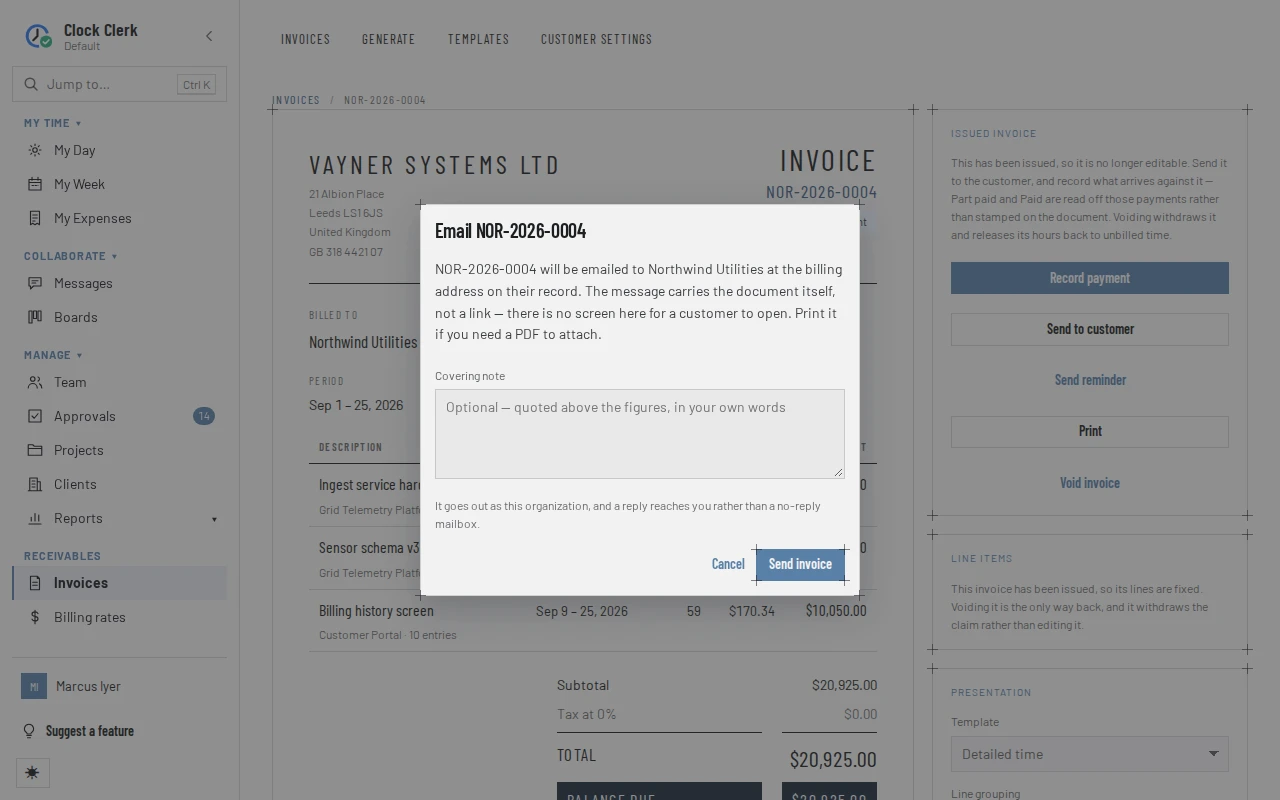
- On the issued invoice, choose Send to customer.
- Add a Covering note if you like, up to 500 characters. It is quoted above the figures.
- Choose Send invoice. The app says … emailed to ….
The client's billing email receives Invoice … from …: the invoice itself in the message (its lines, totals, due date and your remit-to block), in the client's language. There is no link to open and no attachment. It goes out in your organization's name, and a reply comes to whoever pressed Send. The invoice's History records each send. Send again sends it once more.
While money is owed, Send reminder sends Reminder: invoice … is …, with the balance and how far it is from the due date. Send to customer and Send reminder only appear when the invoice can be emailed and your organization is not read-only: it is issued, the client has a billing email, the address has not bounced, and your deployment can send email.
7. Record a payment
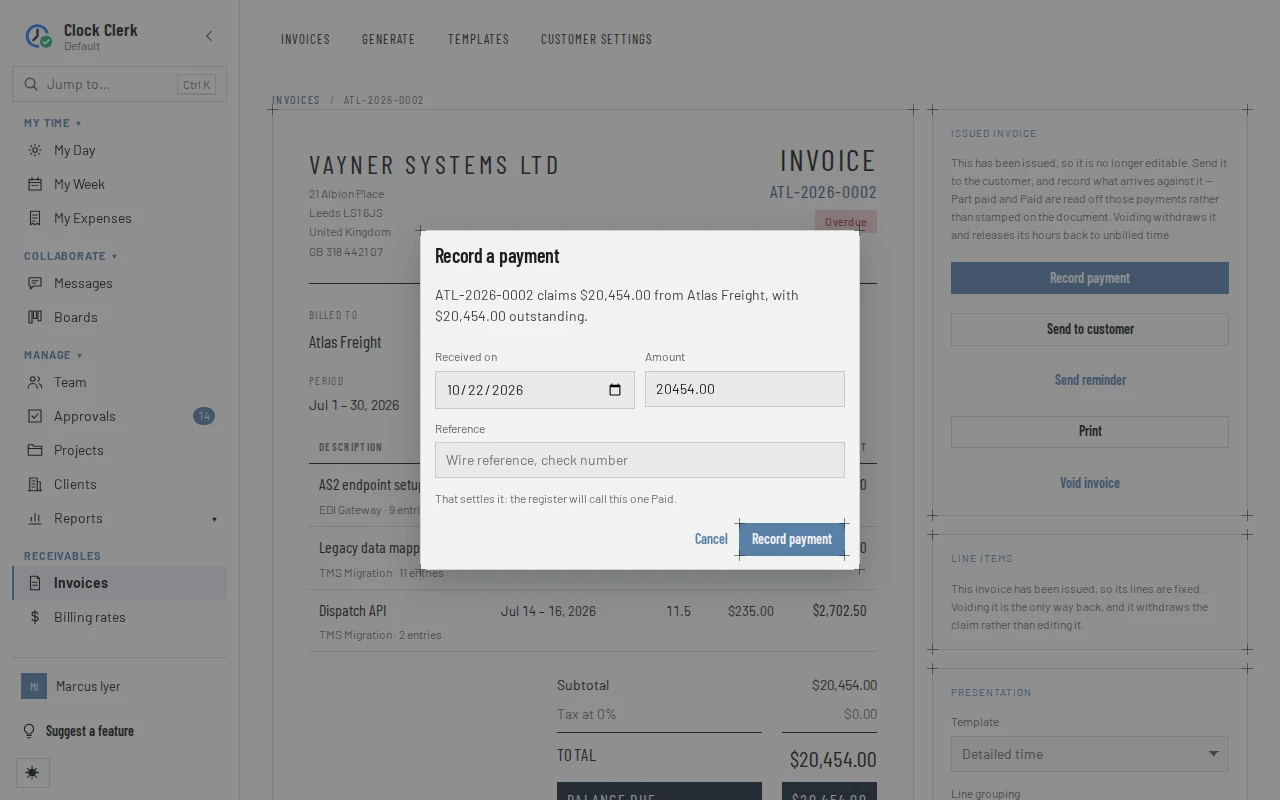
- When money arrives, open the invoice and choose Record payment.
- Set Received on, the day it arrived (not a future day), the Amount, and a Reference, such as the wire reference or check number.
- Choose Record payment. The app says Payment recorded against ….
The invoice says Part paid while money is still owed (or Overdue, once it is past its due date) and Paid once nothing is, and Record payment goes away. A payment cannot be taken back once it is recorded, and you cannot record more than the balance: if the customer paid too much, record what was owed and send the rest back. On a $1,000.00 invoice, a payment of $400.00 leaves $600.00 to pay.
On the Invoices list, Outstanding is what is still owed, and Collected this year is what has been paid against the invoices issued this year.
Discarding and voiding
There are no credit notes. An invoice is withdrawn, either as a draft before it is issued or after. Either way it stays in the list as Void, struck through, with its number used.
- Discard draft, on a draft, asks Discard this draft?. Discard draft again puts its hours back into unbilled time. Its number stays used, so the gap in the series has a record to explain it.
- Void invoice, on an issued invoice, asks Void this invoice?. Void invoice again withdraws it: its hours go back to unbilled time, and the document stays in the list, struck through, saying what it claimed. A voided invoice cannot be paid, sent or changed. To bill the hours again, generate a new draft.
Why billed hours are locked
Hours on an invoice, a draft included, cannot change: not by the person who recorded them, and not by a reviewer. Their days stay locked on My Week, hovering over one says on invoice …, and changing them is refused with These hours are on invoice … Void it before changing them. Reopening the week or sending it back is refused too, with This week has hours or expenses on invoice … Void the invoice first — reopening it afterwards is the right order. The same lock is described for the person recording time in Why a week cannot be edited.
The lock lasts while the hours are on the invoice, and lifts by itself when they leave it. That happens when Finance or an administrator removes their line from a draft, discards the draft, or voids the invoice. Then the week can be reopened and corrected, approved again, and billed on a new invoice.
When something goes wrong
- No Invoices in the menu. It is for Finance users and administrators, on a plan with invoicing.
- No unbilled time or expenses for this customer and period. Widen the dates, or untick Approved time only. Hours that are not billable never show here (see What is billed).
- There is nothing left to bill in that period. The hours may have gone onto another invoice since this screen was drawn. Somebody else billed them first. Look in the list.
- This organization has no invoice profile yet, so there is no seller to head the document. Fill one in under Invoices → Customer settings first. or An invoice has to say who is claiming. Give the organization a legal name. Fill in the seller block on Customer settings.
- … has been issued. Void it first if it is wrong. An issued invoice's lines are fixed. Void it and generate a new one.
- No Send to customer. The client has no billing email, the address bounced, or your deployment cannot send email. Sending is refused with … has no billing address on their record, so there is nowhere to send this. Add one under Clients first. or This deployment has no mail provider configured, so an invoice cannot be emailed from here. … Ask an administrator to add the billing email, or print the invoice and send it yourself.
- This organization may email … invoices a minute and … a day. Wait a moment and send again.
- That is more than the … outstanding, and a payment cannot be taken back once it is recorded. Record what is owed and send the rest back. The amount is more than the balance, and Record payment is disabled until it is not. If somebody else records a payment at the same moment, the app may instead refuse with … has … outstanding, and there is no way to take a payment back once it is recorded. Record what is owed, and send the rest back to the customer.
- These hours are on invoice … Void it before changing them. See Why billed hours are locked.
- Create draft invoice is replaced by a note that the trial or subscription has ended. Your organization is read-only: every invoice can still be read and printed, but nothing new can be billed (see Roles).