Screens
My Month
A contractor's month-end. Clock Clerk draws two documents from the hours on your weeks, an acceptance protocol for the organization to sign and an invoice for it to pay, and checks them with you before you submit. Your billing details live here too.
Who sees it
Anyone with a contractor profile, whatever their role, on a plan that includes contractors (see Pricing). An administrator makes someone a contractor by creating their profile. My Month appears in the menu beside My Week; nobody without a profile has it. The bare address opens the current month, and each month has its own (/month/2026-10). At the top, Month-end and Billing details switch between the two halves of the screen.
You still record your hours on My Week or My Day, as in Record and submit your week. My Month adds up what is there. Reviewing and paying contractors' months is covered in Pay contractors, and the contractor's own steps are in Your month, as a contractor.
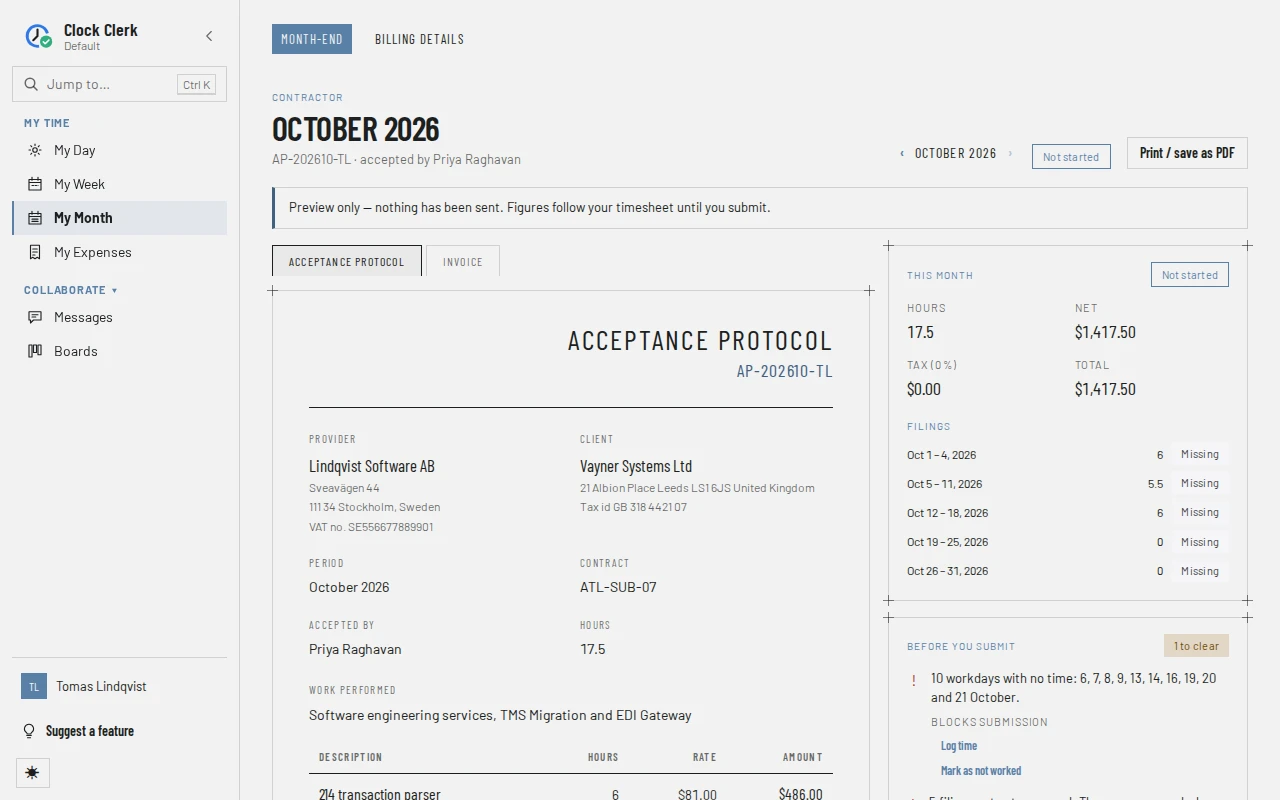
Month-end
- The month, its protocol number and who accepts it (accepted by …, or accepted by nobody yet). ‹ and › step between months, up to the current one.
- The month's state: Not started, Draft, Returned, Awaiting sign-off, With accounting, Approved to pay or Paid.
- Print / save as PDF prints the document on screen.
- Until you submit, a note says Preview only — nothing has been sent. Figures follow your timesheet until you submit. A month sent back to you shows Sent back — and the reason.
- Two tabs hold the documents. Acceptance protocol lists the work performed with hours, rate and amount, any expenses (see Contractors' expenses), the hours accepted and their value, and space for both signatures. Invoice is the same month as an invoice from you to the organization, with tax, the total due and how to pay you.
Beside the documents
- This month: hours, net, tax and total, and Filings, each week (or part of a week) in the month with its hours and whether it has been approved.
- Before you submit: the checks the month has to pass, with Ready or how many are left to clear. Ready counts only the checks that block submission: it means ready to submit, not ready to be paid. Each failed check says whether it Blocks submission, Blocks payment or is a Warning:
- Every workday is accounted for. Days with no time are listed, with Log time and Mark as not worked. Weekends and the organization's full-day holidays are not counted.
- Your legal name, tax id and payment details are on file, with Complete details to fill them in.
- Every day is covered by an agreed rate. Whoever looks after contracts adds a missing one.
- The invoice is ready: a number can be drawn from your series, or your own invoice's number and total match the protocol.
- Your payment details have been confirmed since they last changed (Payment details confirmed on …). Someone in Finance or an administrator confirms them; unless you are one, you cannot. This is the one check that Blocks payment: it does not stop you submitting, but the month cannot be approved for payment until it passes.
- Every filing this month has been approved. This is only a warning: the filings are approved when the month is countersigned.
- Invoice source: The invoice is either Draw it from my series or I issue my own, which asks for Your invoice number and Its total. Protocol detail is A line per task, A line per project or One line for the month. Then the Invoice date and Tax %. Once the month is submitted these are no longer yours to change.
- History: everything that has happened to the month, with when and who.
Submitting and withdrawing
| Button | What it does | When you have it |
|---|---|---|
| Submit | Submits any of the month's weeks still open, freezes both documents and sends them to your countersigner to accept. | While the month is yours to change: not started, draft or returned. Disabled until every check that blocks submission passes. |
| Withdraw | Takes the month back. Your weeks stay submitted; to change their hours, reopen them on My Week. | Only while the month is Awaiting sign-off and nobody has acted on it yet. |
| Mark as not worked | Accounts for the listed workdays with no time as days you did not work. | While the month is yours to change and has workdays with no time. |
Submitting puts the month's hours on its acceptance protocol, which locks them on your weeks until the month is withdrawn or returned to you. Once it is approved for payment or paid, they are final. See Why a week cannot be edited.
Billing details
What goes on your documents, kept by you:
- Legal entity: Legal name, Address, Tax id, Registration no. and Billing email.
- How you are paid: Pay me by Bank transfer, with your bank's details and SWIFT / BIC, or Something else, described in your own words.
- Numbering & tax: your invoice series' Invoice number prefix and Next number, Tax % and a Tax note.
Choose Save billing details to keep them. The Contract section below shows your engagement's terms read-only: they are set by whoever runs the engagement, so ask them if any of it looks wrong.