Screens
People
The administrator's list of everyone in the organization, each person's page with their role, dates, permissions and client access, and the dialog for adding somebody before they ever sign in.
Who sees it
Administrators only. It is People under Settings in the menu, at /admin/users, and it is the page /admin opens on. Anyone else who opens the address is told You don't have access to this area.
The other links under Settings are Organization, Holidays, Integrations, Activities and Expense categories. Holidays appears only on plans that include holidays, and Integrations only on plans that include integrations. The People screen itself is on every plan.
The list
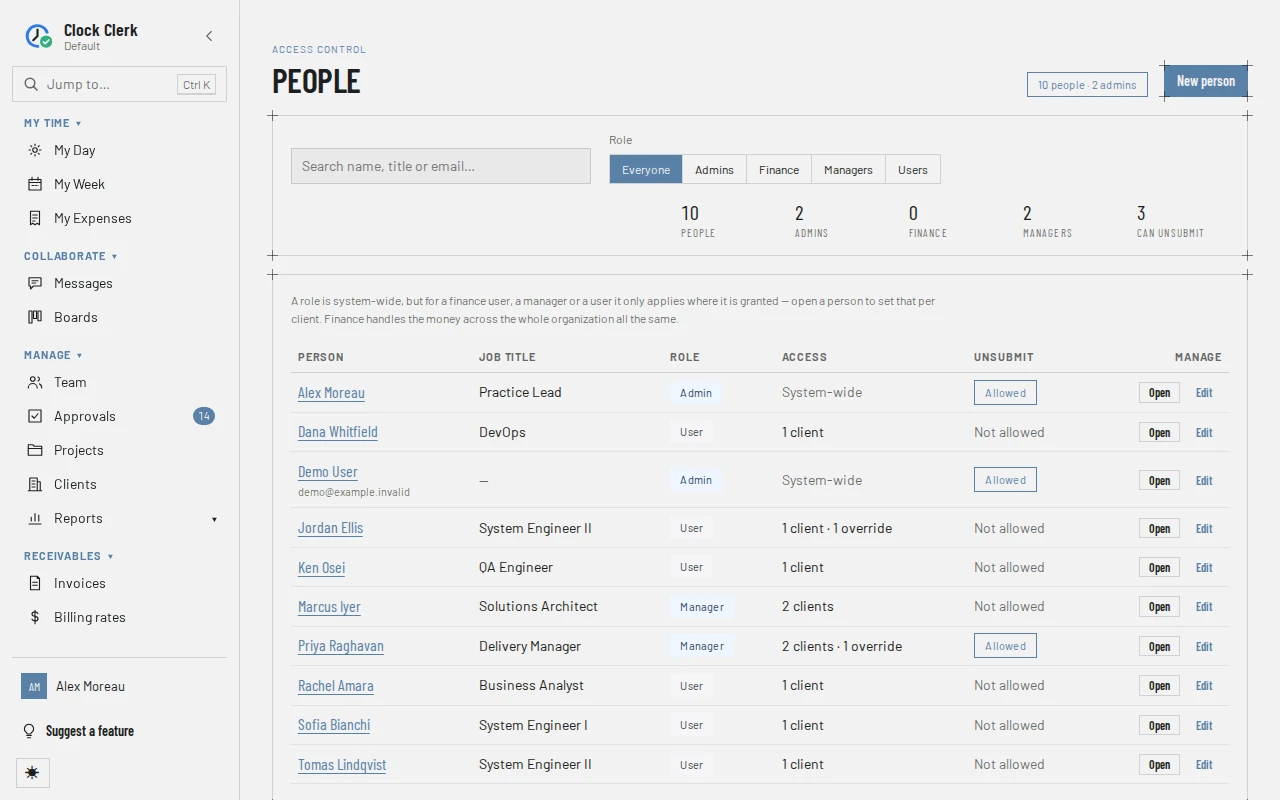
- New person, beside how many people and administrators there are, opens the dialog for adding somebody.
- A search box for name, job title or email, and a Role filter: Everyone, Admins, Finance, Managers or Users. When nothing matches, Clear filters puts both back.
- Counts of People, Admins, Finance, Managers, and those who Can unsubmit.
- A row per person: name and email, Job title, Role, Access and Unsubmit, Allowed or Not allowed. Access reads System-wide for an administrator. For anyone else it counts their client grants, such as 2 clients · 1 override. With no grant, it counts the project teams they are on instead, such as Logs time on 3 projects · manages no client, and reads No client access when there are none of either. A team seat only puts a project on their own week; what they can see and run as a manager comes from a client grant, set on their page.
- Tags under the name: Awaiting first sign-in for somebody added who has not arrived yet, and Leaving or Left with a date once a last day is set. Under an awaiting person, a line says what became of their last invitation: emailed and by whom, waiting to be sent, bounced, or marked as spam.
Edit opens a short form for the person's First name and Last name, Job title, Started and Left dates, System-wide role and Can reopen a submitted week, saved with Save changes; it cannot be saved with no name. A name corrected here is kept: signing in again with Microsoft or Okta does not put the directory's spelling back. The person's page has neither the name nor the job title; everything else is there as well.
A person's page
Open, or the person's name, opens their page. Each change there is saved the moment you make it, with a message saying what changed.
Client access
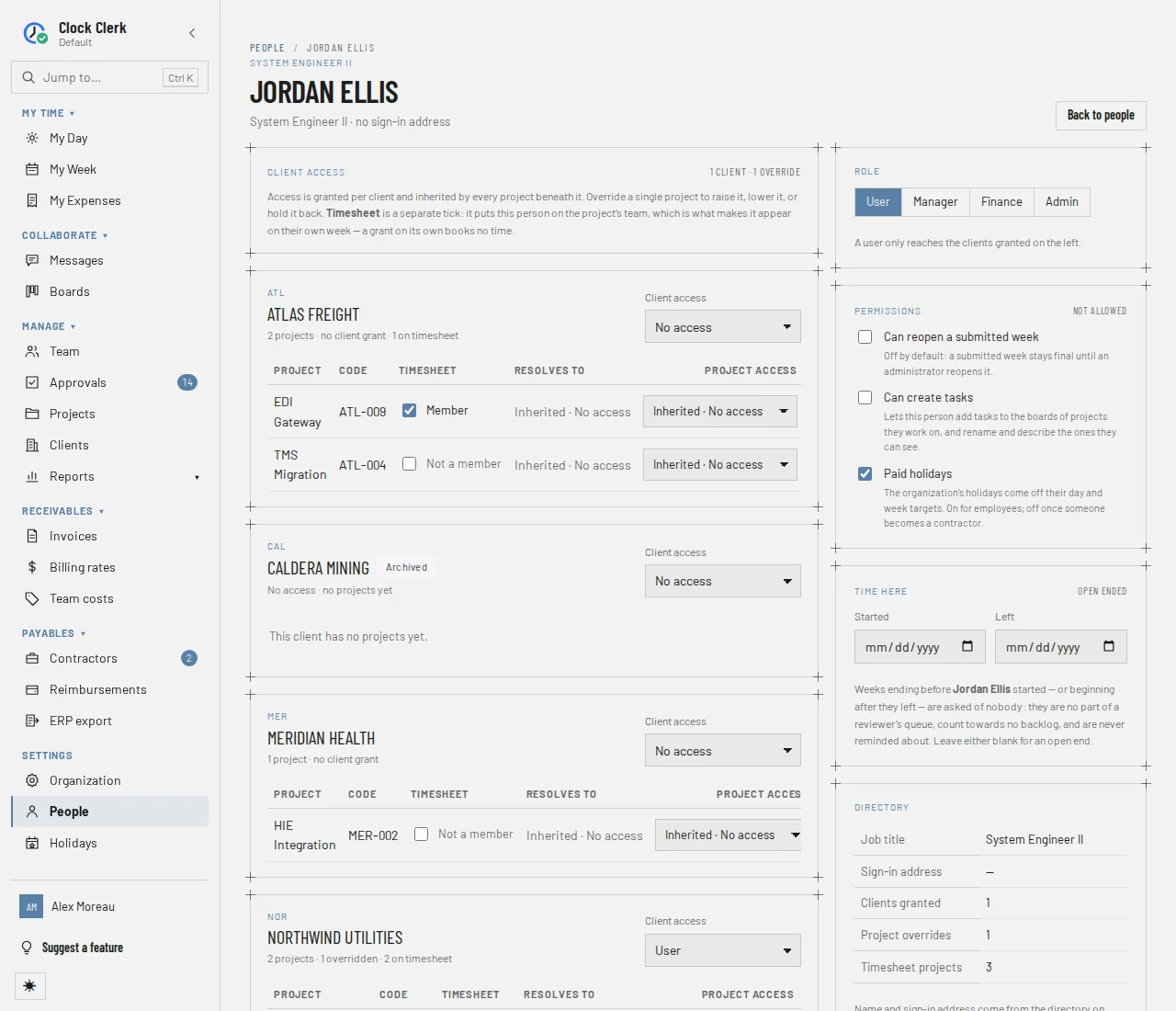
Beside the heading, the person's reach is counted as it is in the list's Access column. Below, a block per client, each with a Client access menu, which is where a client is granted: No access, User or Manager. Below it, every project of that client:
- Timesheet: the tick that puts the person on the project's team, Member or Not a member. This is what makes the project appear on their own week. A grant on its own books no time.
- Resolves to: Inherited · … from the client, or Override · ….
- Project access: keep the client's level, or override it with Manager, User or No access for this project alone.
For a Manager who has Timesheet ticks but nothing granted, the card above the clients adds On the team, but manages nothing until a client is granted. Ticking every project only puts those projects on their own week. To let them see and run a client, with its projects, approvals and reports, set that client's Client access menu to Manager. The line goes as soon as any client is granted, or any single project is given a Project access level of its own. For a Finance person in the same position it reads On the team, but edits no client until one is granted. instead, because Finance already reviews everyone and handles the money without a grant; the grant only lets them edit that client's projects and tasks.
How grants and teams work together is in Grants and project teams. An administrator's page has no grants, because an administrator already reaches every client; it only says so. They still need the Timesheet tick, on the project's own page, to book time.
Role
A switch between User, Manager, Finance and Admin, with a line saying how far that role reaches (see Roles). You cannot give up your own administrator role: the app says You cannot give up your own administrator role. Ask another administrator.
Permissions
- Can reopen a submitted week, for everyone.
- Can create tasks, for everyone but an administrator, who can already.
- Can countersign contractor months, only for someone in Finance, and only on plans that include contractors (see Pay contractors).
- Paid holidays, only on plans that include holidays: the organization's holidays come off this person's day and week targets. It is on for employees and should be off for a contractor (see Holidays).
What each one allows is in Permissions for one person.
Time here, the directory and the history
- Time here: Started and Left. Weeks before the start or after the last day are asked of nobody: they are in no reviewer's queue, no backlog and no reminder. Leave either blank for an open end. An end before the start is refused: The end date is before the start date.
- Directory (or Account in an organization that signs in with a password): job title, Sign-in address, Clients granted, Project overrides and Timesheet projects. The sign-in address is not editable; the name is corrected with Edit on the list. With a password, the card also says whether their Two-step sign-in is On or Off; while it is on, Reset two-step sign-in is for somebody who has lost their phone and their recovery codes. After Reset two-step sign-in?, their authenticator app and recovery codes stop working and they are signed out everywhere. If your organization requires two-step sign-in, they set it up again the next time they sign in; otherwise they sign in with their password alone until they turn it on again. You cannot reset your own (see the message).
- Submission history: every week the person submitted or reopened, with the reasons they gave.
Adding somebody
In an organization that signs in with Microsoft, anyone from your directory is added the first time they sign in, as a User with no grants and on no project's team. New person adds somebody before that, so their role, start date and projects are ready when they arrive. In an organization that signs in with a password or with Okta, nobody is added by signing in, so it is the only way in unless your identity provider sends people over SCIM, on the Enterprise plan. A provider that sends somebody you added here takes over that same person (see Provision people from Okta or Entra ID). The dialog depends on how your organization signs in:
- Microsoft: Add somebody from the directory. Type at least two characters of a name or sign-in name under Search the directory and pick the person. Anyone already here is marked Already in Clock Clerk, with Open. If your directory cannot be searched yet, the dialog offers Add by hand, with First name, Last name, the Microsoft Entra object id from the Microsoft Entra admin center and an optional Email, or Set up search, the steps to make search work.
- Password or Okta: Add somebody, with First name, Last name and Email. The email is required, and nobody else here can have the same one.
Then set Job title, Starts (today if left blank; the weeks before it are asked of nobody), System-wide role and Can reopen a submitted week, and choose Add person. The person's page opens next, so you can grant clients and tick projects.
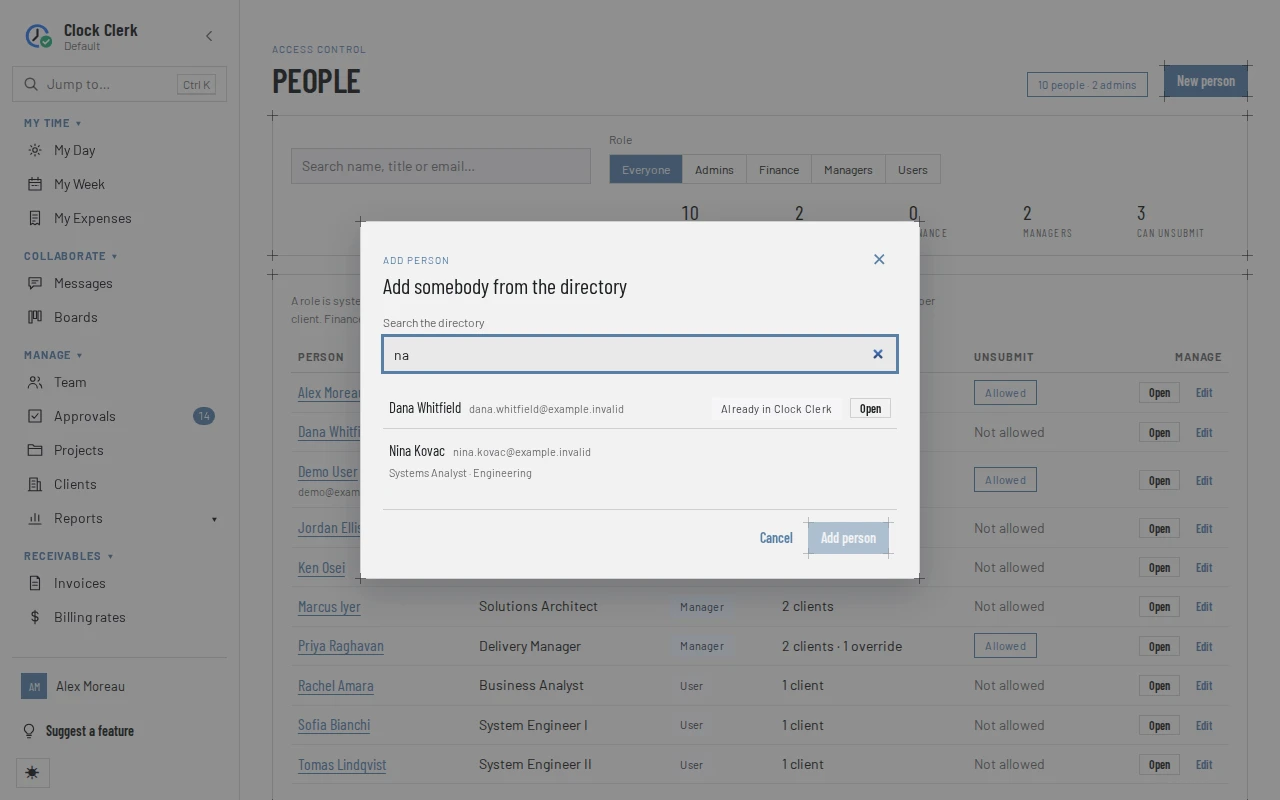
If the email belongs to one of your organization's client guests, the dialog says so and the button becomes Convert guest: the guest's messages become this person's, they join those conversations' projects, and their guest sign-in stops.
On the Free plan, an organization has room for 3 people who have not left. Adding a fourth is refused, and the message suggests moving to the Team plan or setting a Left date on somebody who has gone.
The invitation
Adding somebody does not tell them. In organizations that sign in with Microsoft or with a password, the dialog has an Invitation section, ticked by default: Email them the sign-in link now (Microsoft) or Email them a welcome with a link to choose their password (password), with room for a line of your own. It goes out with your name on it, and replies come back to you. What the person does with it is in Accepting an invitation.
Until they sign in, their page starts with an Invitation card marked Not signed in yet, with what became of the last email and two ways to hand it over:
- Send invitation, or Resend invitation once one has gone, where your deployment can send email and the person has an email address on record that has not bounced. A Microsoft person added by hand without an address has only Copy invitation.
- Copy invitation, always: a short message with the link, to send however you already talk to them. Where email cannot be sent, the card says so and this is the only way.
A Microsoft link signs the person in with their work account; it does not expire, and forwarding it is safe, because only that person can claim the row. A password link lets whoever opens it choose the password, so send it only to the person. It works once, for 7 days. Copying it again on the same page, without reloading, gives the same link. After a reload, or in another browser, Copy invitation makes a new link and the one already sent stops working, so copy it once and send that. New link, or emailing a new invitation, likewise makes the earlier link stop working.
An organization that signs in with Okta gets no invitation: tell the person yourself that they have been added, and to sign in with their work email.
Invitations are limited to 5 a minute and 50 a day for the whole organization. During a trial they are emailed only to addresses at your own domain: in a password organization the one it signed up with, in a Microsoft organization the domain of the inviting administrator's own sign-in name; for anybody else, use Copy invitation. If an address has bounced, Clock Clerk stops emailing it: copy the link instead, or, if the address is wrong, remove the person and add them again with the right one.
When somebody leaves
There is no delete for someone who has signed in. Set their Left date: they drop out of reviewers' queues, the backlog and reminders for the weeks after it, and no longer count toward the Free plan's limit. Their hours, approvals and history stay. Once the date has passed they can no longer sign in, however your organization signs in, and if they are still signed in they are turned away at their next step. Clearing the date brings them back, and counts them again.
Remove is only for somebody who was added here and has never signed in, the way to take back an invitation sent to the wrong person. Even then it is refused if they have been sent messages or were converted from a guest; set a Left date instead.
Buttons and when they appear
| Button | What it does | When you have it |
|---|---|---|
| New person | Opens the dialog for adding somebody. | Always. Turned off while the organization is read-only. |
| Open | Opens the person's page. | On every row. |
| Edit | Changes the name, job title, dates, role and Can reopen a submitted week. | On every row. |
| Send invitation, Resend invitation | Emails the invitation to the address on the person's record. | For somebody awaiting their first sign-in, in organizations that sign in with Microsoft or a password, where the deployment can send email and the person has an email address on record that has not bounced. |
| Copy invitation | Copies the invitation message with its link. | For somebody awaiting their first sign-in, in organizations that sign in with Microsoft or a password. On the list, only where Send invitation is not offered; on the person's page, always. |
| New link | Copies a fresh set-password link, and stops the earlier one working. | On the person's page in an organization that signs in with a password, once a link has been copied there since the page was last loaded. |
| Reset two-step sign-in | After Reset two-step sign-in?, clears the person's authenticator app and recovery codes and signs them out everywhere. | On another person's page, in an organization that signs in with a password, while their two-step sign-in is on; not on the live demo. |
| Remove | After Remove this invitation?, deletes the person. | For somebody awaiting their first sign-in. Refused for anybody who has been sent messages or was a guest. |
| Add person, Convert guest | Adds the person, converting the guest at that address if there is one, and opens their page. | In the dialog, once a person is picked or the required fields are filled in. |
Everything on this screen is an administrator's alone, and it is checked again when you press it. While the organization is read-only (see When the organization is read-only), the list and pages can still be read, but every change is refused.