Screens
Expense categories
The one list of what people in your organization may claim expenses for, whether each kind is billed to the client by default, and above what amount a claim needs a receipt. How claims are made, reviewed and paid back is covered in Expenses and reimbursements.
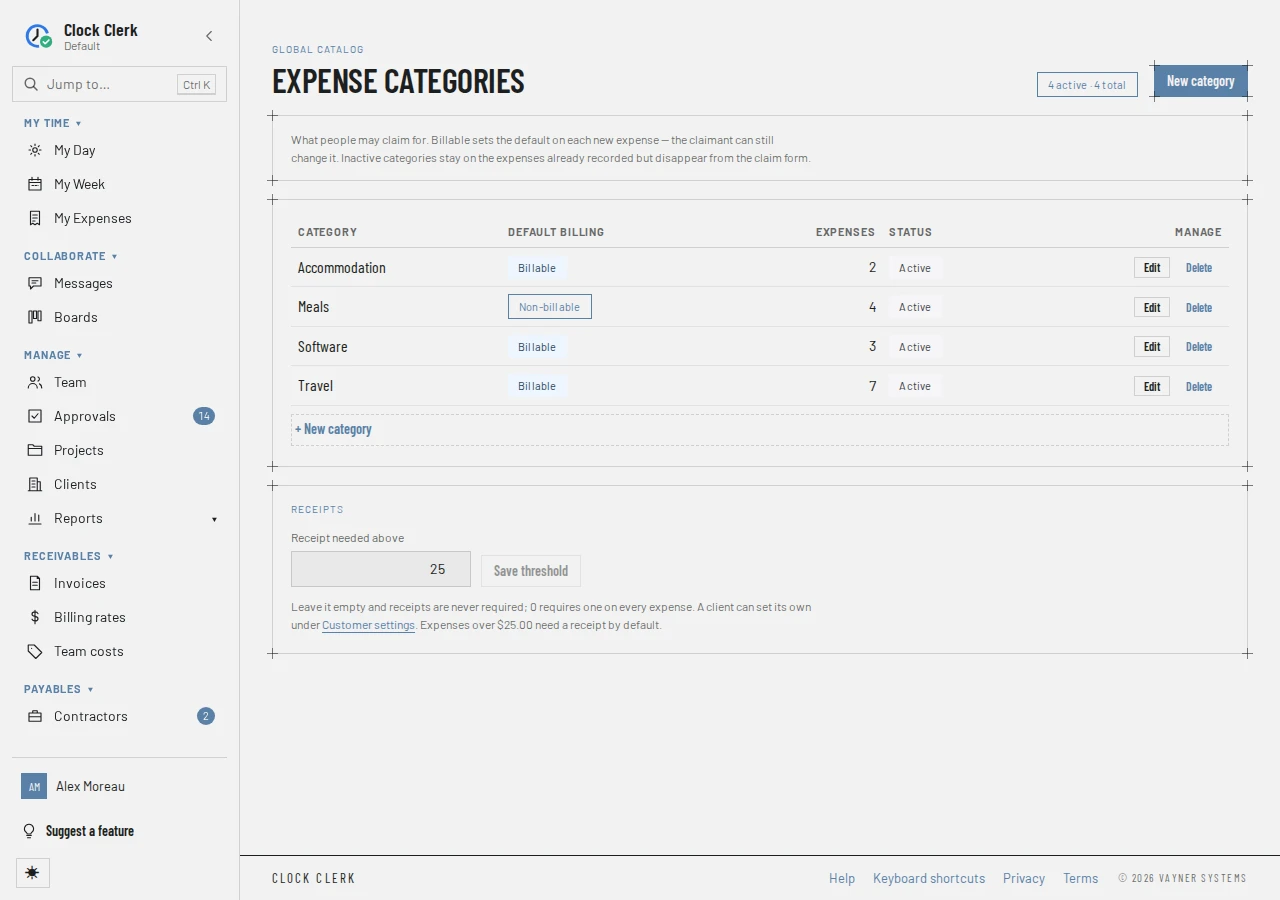
Who sees it
Administrators only: it is Expense categories under Settings in the menu, at /admin/expense-categories. Anyone else who opens the address is told You don't have access to this area. It is on every plan.
A new organization starts with no categories, and until there is one nobody can claim an expense. The screen says so: No categories yet, so nobody can claim an expense.
While an administrator has Expenses turned off for the organization, this screen is gone from the menu and from Jump to, and opening its address takes you to Home. The categories and the receipt threshold are kept as they are, still apply to the claims submitted before, and are back here when Expenses is turned on again.
The categories
- At the top, how many categories are active and how many there are, for example 4 active · 4 total.
- One row per category, in name order: the Category, its Default billing (Billable or Non-billable), how many Expenses have been claimed under it, and its Status, Active or Inactive.
The billing is only where a new claim starts: the person claiming can still change it on each expense. A claim on a project that is not billed to the client is never billed, whatever the category says.
Adding and changing a category
- Choose New category (at the top, or + New category under the list), or Edit on a category's row.
- Fill in the Name. Tick or clear Billable to the client by default and Active — offered on the claim form. Both start ticked on a new category.
- Choose Create category, or Save changes.
Two categories cannot share a name, whatever the capitals: the app says There is already an expense category with that name.
Renaming a category or changing its billing affects new claims only. Each claim keeps the name and billing it was made with, so nothing already approved or invoiced changes.
Deactivating or deleting a category
- To retire a category, choose Edit and clear Active — offered on the claim form. It leaves the claim form but stays on the expenses already recorded under it.
- Delete asks Delete this category?, and Delete category removes it. This works only for a category nothing has been claimed under. Otherwise the app says Expenses have been claimed under this category. Deactivate it instead, so it stays on them and leaves the picker. Deactivate it instead.
Receipts
Receipt needed above is the amount over which a claim needs a receipt, in your organization's currency. Type it and choose Save threshold, or Discard to go back to the saved amount.
- Empty means receipts are never required, and the line under it says Receipts are not required by default.
- 0 requires a receipt on every expense.
- Any other amount requires one on claims over it: a claim of exactly that amount needs none.
- It has to be zero or more. A negative amount, or anything that is not a number, is stopped before it is sent: The threshold is an amount of zero or more, or empty for never. More than two decimal places is refused by the server: A receipt threshold is an amount of zero or more, to the cent. Leave it empty for none.
A client can have a threshold of its own, which then applies to claims on its projects. That is set under Customer settings on the invoices screens, which need a plan with invoicing.
A week with a claim over the threshold and no receipt cannot be submitted. My Week marks it Receipt needed.
Buttons and when they appear
| Button | What it does | When you have it |
|---|---|---|
| New category, + New category | Opens New expense category. Create category is disabled until there is a name. | Always. While your organization is read-only, New category is disabled and + New category is hidden. |
| Edit | Opens Edit category to change the name, the billing default or whether it is active. | On every row, unless your organization is read-only. |
| Delete | Asks Delete this category?, then Delete category removes it. | On every row, unless your organization is read-only. Refused for a category with expenses. |
| Save threshold | Saves Receipt needed above. | Unless your organization is read-only. Disabled until you change the amount. |
| Discard | Puts back the saved threshold. | While you are changing the amount. |
Each change is checked again when you press it: only an administrator can change the categories or the threshold (see Roles).