Screens
Signing up and setting up
The screens a new organization passes through once: the sign-up form and its emailed link, the five-step setup wizard, the page an invited teammate lands on, and, for organizations that sign in with Microsoft, the admin-consent page and the directory setup guide. The whole job, start to finish, is in Set up your organization.
Who sees it
- Start your trial (
/signup) is for anyone not signed in, where your deployment offers trials. Elsewhere the address takes you to Sign in, and someone already signed in goes to their week. The website's Start free trial opens it. - Set up your workspace (
/setup) is for administrators. The emailed sign-up link sends the new administrator there; any administrator can open it again later. - Pick a look (
/welcome/theme) is the last step of accepting an invitation to an organization that signs in with a password. - Set up your organization (
/adminconsent) is for a Microsoft Entra administrator granting admin consent, which they open directly. On a deployment that does not offer Continue with Microsoft on the sign-up page, Clock Clerk also sends there someone who signs in with Microsoft from an organization it does not serve yet; elsewhere Sign in says no organization signs in with their account yet and offers a free trial. It needs only their Microsoft sign-in. - The directory setup guide is for administrators of an organization that signs in with Microsoft, on the Organization tab and in the People tab's New person dialog.
Password or Microsoft
How an organization arrives decides which of these screens it ever sees:
- Signed up with a work email: the organization signs in with email and password. It needs no admin consent and no directory setup guide. People are added on the People tab and invited by email.
- Signed up with Microsoft: anyone with a work or school account can start the organization with Continue with Microsoft on the trial form (see Signing up with Microsoft). Microsoft asks them only to share their name and email, so they need not be an administrator. Colleagues from the same directory then sign in with their work accounts. Later, one of the directory's administrators can connect it from the Organization tab, which moves the organization to Microsoft Entra ID at once.
- Signs in with Microsoft Entra ID: one of the organization's Microsoft Entra administrators grants admin consent. Whoever grants it becomes the organization's first administrator, if it is new. After that, colleagues sign in with their work accounts.
- Signs in with Microsoft, and wants to find people by name: the People tab can search the directory only once a tenant administrator has allowed it. Until then the directory setup guide shows instead, and people can still be added by hand.
- Signs in with Okta: the organization starts on Okta from the sign-up link, or an administrator moves a password organization there with a test sign-in (see Starting on your organization's Okta and Set up single sign-on). Otherwise your IT administrator creates the Okta app from the setup pack Clock Clerk sends them and sends back two values, and Clock Clerk's support then makes the switch. There is no admin consent, no directory setup guide and no invitation email.
Start your trial
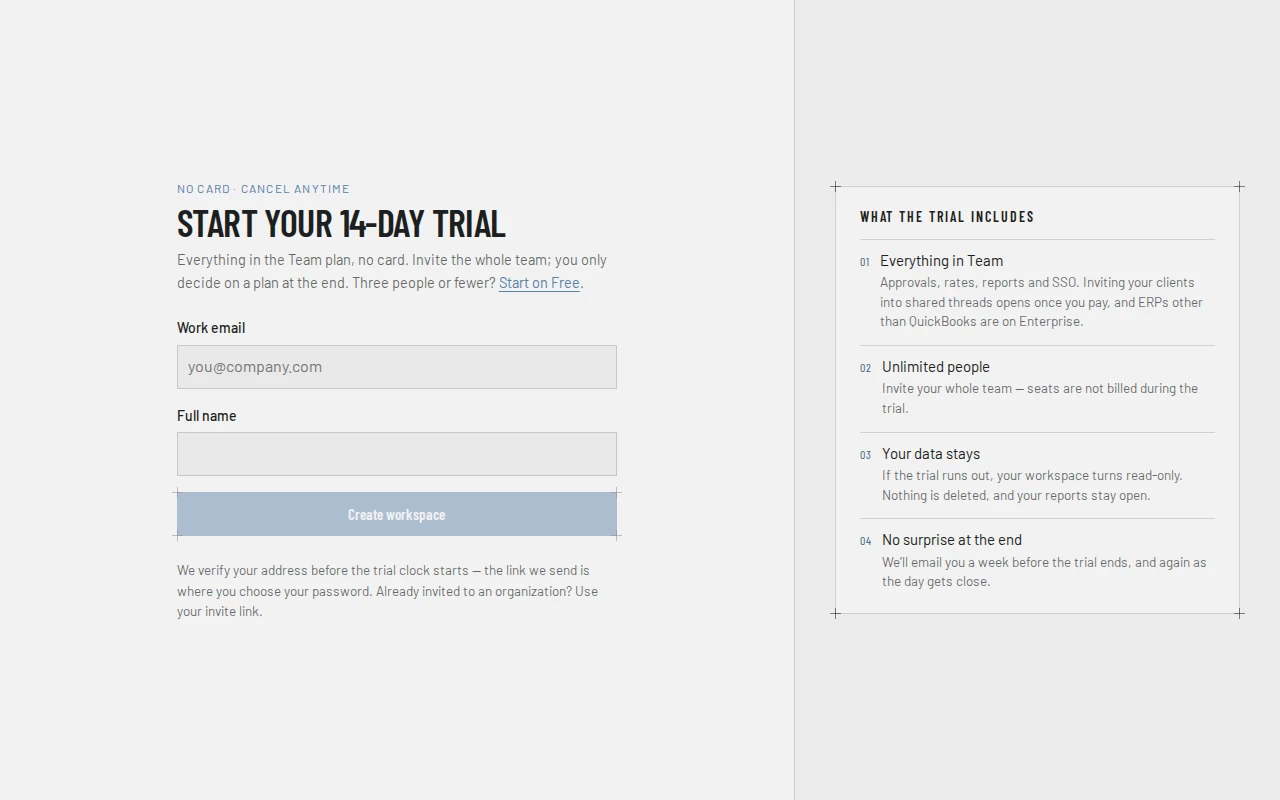
Type your Work email and Full name and choose Create workspace. There is no password here: you choose it at the emailed link, so only the owner of the mailbox can. The page then says Check your inbox, with the address it sent to. The link works for 24 hours, and only the newest one works. Use a different email takes you back to the form.
The form refuses, beside the field:
- a personal address, such as a free webmail one: Use your work email.
- an alias, relay or throwaway address: Anonymous email isn't allowed.
- an address that is not one: Enter a valid email address.
It does not tell you whether your organization already uses Clock Clerk; the link does, so only someone who reads mail at that domain finds out.
Start on Free switches the form to the Free plan: no trial, no card, never read-only, for up to 3 people, 10 active projects and 20 clients (see Plans and your trial). Where your deployment offers it, the trial form also offers Continue with Microsoft (see Signing up with Microsoft). The Free form does not: the Free plan signs in with passwords only, so a Free organization starts with one, and its link refuses Okta with The Free plan signs in with passwords only. Single sign-on, through Microsoft, Okta, Google Workspace or another OpenID Connect provider, comes with every paid plan and the trial.
Signing up with Microsoft
Above the email form, tick I agree to the Terms and acknowledge the Privacy notice (see Accepting the terms) and choose Continue with Microsoft, which stays disabled until you tick it. Microsoft asks you to sign in with your work or school account and to let Clock Clerk see your basic profile, your name and email, and nothing else. You do not have to be an administrator in your Microsoft directory to agree. If you typed a Work email first, Microsoft offers that account.
If nobody has set your directory up in Clock Clerk yet, you come back signed in as the administrator of a new organization, and its trial starts. Colleagues from your directory join as Users the first time they sign in with Microsoft; you don't have to invite them, and you choose their roles on the People tab. Your email's domain is claimed for the organization only where Microsoft says your directory owns it. If your directory is already set up, you are signed in to its organization instead, and nothing new is created. A personal Microsoft account is refused: use a work or school one.
Some organizations let only their administrators approve new apps. There, Microsoft says the app needs admin approval, and you come back to Sign in, which says Your organization’s identity provider didn’t complete the sign-in. Ask one of your Microsoft Entra administrators to grant admin consent, or sign up with your work email on this form instead. If Continue with Microsoft cannot reach Microsoft, the page says Clock Clerk could not reach Microsoft just now. Try again in a moment.
The emailed link
The link opens Confirming your address, then one of three things:
- Choose a password: type a Password of at least 8 characters, with a number and a special character, and not your email address, then Confirm password (Show password in either field shows what you typed), tick I agree to the Terms and acknowledge the Privacy notice (see Accepting the terms), and choose Create workspace. A password known from a data breach elsewhere is refused with This password has appeared in a known data breach; choose another. The organization is created, named after your email's domain, you are its administrator and signed in, the trial starts, and you go to the setup wizard. Above the password, Set a password and Use my organization’s Okta choose how your organization will sign in (see Starting on your organization's Okta).
- Your organization is already here: someone on your email domain already has an organization. Ask to join emails its administrator your name and address; you are not told who. Ask us to review it opens a short form to Clock Clerk's support for when you think the organization is not yours.
- This link no longer works: It has been used, has expired, or a newer one has been sent since. A sign-up link works for 24 hours, and only the newest one does. Use Sign up again.
Starting on your organization's Okta
If your organization signs in through Okta, you can start its trial on Okta from the link, with no request to support. (Not a Free organization: the Free plan signs in with passwords only, and the link refuses Okta with a message saying so.) Choose Use my organization’s Okta; the page is headed Connect your Okta and shows:
- Your workspace address, such as
acme.clockclerk.com. It is assigned from your email's domain, not chosen, and your organization signs in there from then on. Only support can change it later, because the address is part of the redirect URIs in your Okta. - The two values to copy into Okta, Sign-in redirect URI (such as
https://acme.clockclerk.com/api/auth/oidc/callback, where Okta returns everyone who signs in) and Sign-in redirect URI for the test (https://acme.clockclerk.com/login), and the setup steps, the same ones the emailed setup pack lists: create an OIDC Single-Page Application with the Authorization Code grant only and both sign-in redirect URIs, with no sign-out redirect URI; assign it to the people who will use Clock Clerk; if your issuer is a custom authorization server, such ashttps://acme.okta.com/oauth2/default, make sure one of its access policies (under Security → API → Authorization Servers, on Access Policies) is assigned to this app, or to All clients, with a rule that allows Authorization Code for the people assigned to it; and nothing more, since people are matched by their email on their first sign-in and by their Okta user ID after that. There is no audience, scope or claim to add. - Issuer URI and Client ID: your authorization server's Issuer URI, under Security → API in the Okta Admin Console, such as
https://acme.okta.com/oauth2/default(or, if your Okta has no API item there, your Okta address on its own, such ashttps://acme.okta.com), and the client ID of the app integration you created for Clock Clerk.
Tick I agree to the Terms and acknowledge the Privacy notice (see Accepting the terms) and choose Test sign-in with Okta. The browser moves to your workspace address and on to your Okta, where you sign in as yourself, with the address you signed up with. If the test passes, the organization is created on Okta at that address, you are its administrator, you are signed in there through Okta, which usually does not ask again, and you go to the setup wizard. If it doesn't, the page says what to fix in Okta or in what you entered (see the Okta test's messages), and Back to your Okta settings returns you here to change it. Your link keeps working until a test passes or you create the workspace with a password.
Starting on Okta yourself needs an issuer on okta.com or oktapreview.com, one no other Clock Clerk organization signs in through, and a workspace address your deployment can give your domain. Where one of those is missing, the page says which and offers Set a password instead in place of the test (and Change the Okta settings, to correct what you entered). Support can still connect an Okta on your own domain: create your workspace with a password, then ask for Okta from the setup wizard's How people sign in step.
Accepting the terms
Whoever starts an organization agrees to Clock Clerk's Terms and acknowledges its Privacy notice, whichever way they start it: at the emailed link, with a password or on Okta, with Continue with Microsoft, or with admin consent or by starting a trial from it. The checkbox I agree to the Terms and acknowledge the Privacy notice sits above the button that creates the organization, starts unticked, and the button stays disabled until you tick it. Both links open the pages in a new tab. For a password or Okta, it is asked at the link rather than on the sign-up form, because the person who follows the link is the one the organization is made for. Continue with Microsoft asks on the sign-up form, beside its button, because the organization is made as soon as you come back from Microsoft.
Clock Clerk keeps a record of the acceptance: who accepted, the dates of the Terms and the Privacy notice they were shown, the sentence beside the checkbox in the language the page was in, when, and the address it came from. The record is kept after the organization and the person are removed, and is never changed. If the Terms or the Privacy notice change later, administrators are told (see When the terms change); nobody has to tick the box again. An organization that support creates for you is not asked, because you agree with Clock Clerk another way.
When the terms change
When Clock Clerk revises its Terms or Privacy notice, the new version applies to your organization 30 days after it is posted. On the day it is posted, every administrator gets an email saying which page changed, what changed, the day it applies, and links to read it. Until that day, administrators also see a banner across the top of every screen with the same news, a link to each page that changed, and Dismiss, which hides the banner for that revision in that browser. Nobody else sees the banner or gets the email.
You don't need to accept the new version or sign anything. If your organization keeps using Clock Clerk on or after the day it applies, it accepts the new version. Every administrator is told, even one who has turned off other email or whose organization is read-only after its trial; you can't unsubscribe from this email. A suspended organization isn't told, and an organization started after the new version was posted isn't either, because whoever started it accepted that version at sign-up.
The setup wizard
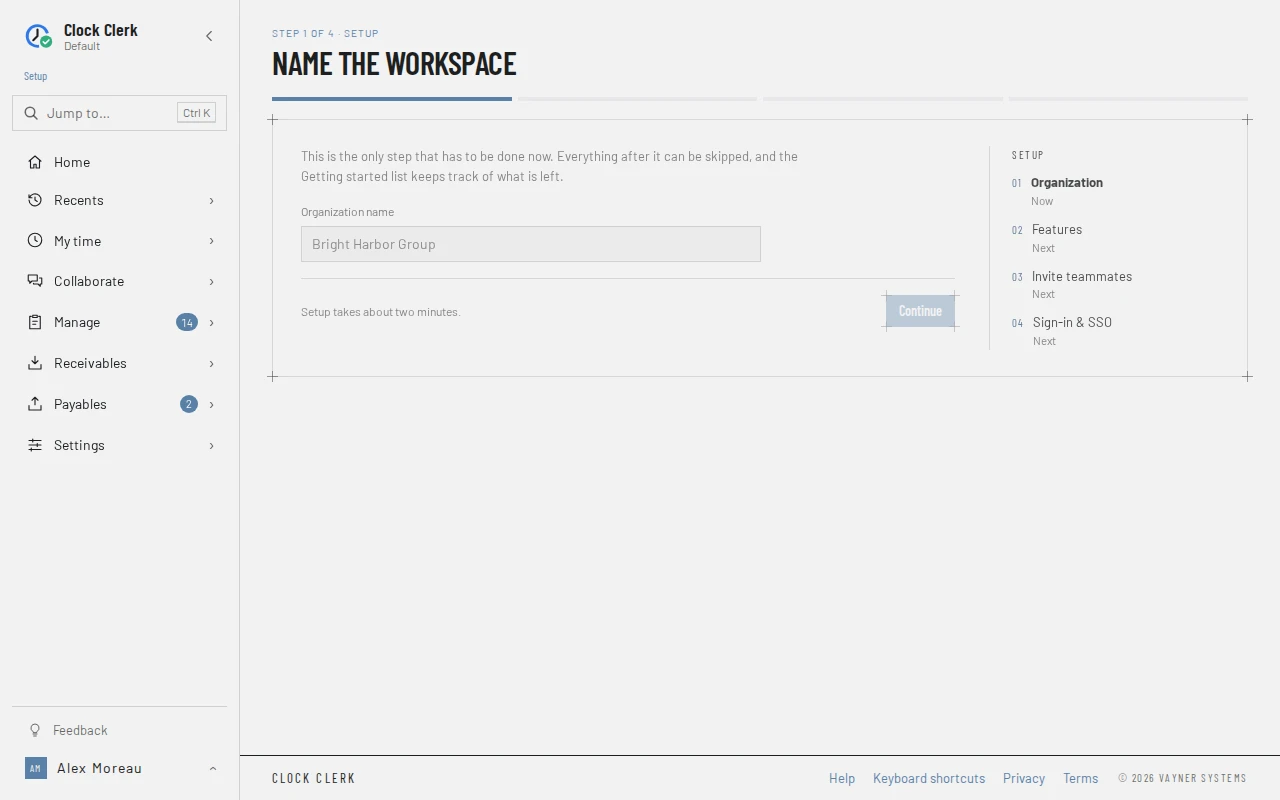
Five steps, with a rail on the right showing where you are. The step is in the address, so a reload keeps your place. Only the first step has to be done now; the others have Skip for now, and the Getting started checklist, which takes over once you leave the wizard and never shows beside it, keeps track of what is left.
- Name the workspace: the Organization name, which starts empty and must be filled in. It is the same name the Organization tab changes. Choose Continue.
- What will you use?: three tiles, Expenses, Boards and Messages, each with what it is for and a checkbox, all on to start (or as your organization has them, if you come back to setup later). Clear the ones your organization won't use and choose Continue: they disappear for everybody, including the people you invite next, and nothing is deleted. Continue saves only a change; Skip for now saves nothing, so everything stays on. Time tracking is always on, and the three can be changed any time on the Features tab. During the trial, What your trial includes lists the paid features the trial lends you, grouped under a badge for the least plan that keeps each one: Starter, Team or Enterprise. Threads shared with your clients are marked Paid plans · not during the trial, and exports to SAP, Oracle and the other ERPs beside QuickBooks Not in the trial. On a paid plan the list is not shown. Where your organization can't change its features (the live demo, or while it is read-only), the checkboxes are disabled and Continue just moves on.
- Do you track kinds of work?: whether each time entry asks for an activity, the kind of work the hours went on, such as Design, Code review or Meetings. It says when activities help (billing kinds of work at different rates, or reports split by them) and when they don't, and offers one checkbox, Ask for an activity on each time entry, off to start (or as your organization has it, if you come back to setup later). While it is off, nobody picks an activity: every hour is booked on your organization's one activity, and Name of your one activity holds its name, Project work to begin with. Keep it or type another; it is the name reports and invoices print where they group by activity. Tick the box instead and the name field gives way to a note that the activities people choose from are added under Settings → Activities after setup. Either way a project can still be set to ask, or not to. Continue saves only what changed: ticking the box turns activities on, and a new name renames the one activity; Skip for now saves nothing, so activities stay off. Where your organization can't change this (the live demo, or while it is read-only), the controls are disabled and Continue just moves on.
- Who else keeps time?: type a Name and Email, pick a Role (User, Manager, Finance or Admin; see Roles) and choose Add. The role starts at User for everyone. Nothing is sent until Continue, which adds each person and emails them an invitation. Each row then says Sent, Not emailed (added, but the email did not go) or Not added (for example, already there). During the trial, invitations are only emailed to addresses at your organization's own domain; anyone else is added but not emailed, and you send them their link from the People tab with Copy invitation. This step is offered only to an organization that signs in with a password, on a deployment that can send email, and not while the organization is read-only. Otherwise it says why, with Open the People tab.
- How people sign in: Email and password, Okta, Google Workspace or Microsoft Entra ID. Choosing Microsoft asks for Send the setup pack to, your IT administrator's address at your organization's own domain. Finish setup emails them the steps and tells support, and a message says Sent to … as the wizard moves on. It is a request, not a switch: everybody keeps signing in with a password until support makes the switch. Choosing Okta shows the switch you make yourself, to Okta, Google Workspace or another OpenID Connect provider (see Switching to your own provider yourself), with the setup pack beneath it for support to make the switch instead. Choosing Google Workspace shows the same switch, started on Google Workspace, with Google Cloud console's steps and no setup pack (see Signing in with Google Workspace). Either way, Finish setup then just leaves the wizard. Email and password or Skip for now sends nothing. Every choice but email and password is single sign-on, which the Free plan leaves out: on Free, the test, Switch on and the setup pack are refused, so keep passwords, or move to a paid plan first (see What each plan includes). A trial has them all.
After the last step you go to your week.
Switching to your own provider yourself
An administrator of an organization that signs in with email and password can move it to its own Okta, Google Workspace or other OpenID Connect provider, with no request to support, from the wizard's Okta or Google Workspace card or from Set up single sign-on on the Organization tab's Sign-in card. Nobody else is offered it, and not while the organization is read-only. It needs a paid plan or the trial: the Free plan signs in with passwords only, and refuses the test, Switch on and the setup pack. Both show the same panel: the Identity provider to choose, the Redirect URI to register, Okta's setup steps when Okta is chosen and Google Cloud console's when Google Workspace is, the fields for its details, and what switching on does to everybody, with your administrators' addresses.
Test sign-in runs a sign-in through your provider at your workspace address and comes back to the Organization tab, saying whom it signed in or what to fix. Nothing changes until an administrator chooses Switch on, which works for an hour after a test passes. Set up single sign-on walks through each step, and the way back to passwords.
Where self-serve is not to be had (no workspace address your deployment can give, or no administrator with an address on your own domain), the panel says which, hides the test, and offers Send the setup pack instead, so support can connect your Okta. Google Workspace has no setup pack.
Pick a look
Someone invited to an organization that signs in with a password sets their name and password from the invitation (see Accepting an invitation), then lands here, at Step 2 of 2 · your account. Choose a theme to see it across the whole app, then Start logging, which opens their week. The theme is kept in that browser only and can be changed later on the profile.
Admin consent
On a deployment that does not offer Continue with Microsoft on the sign-up page, Microsoft sign-in brings the first person from an unserved organization here. Elsewhere a Microsoft Entra administrator comes here to grant consent, and someone who signs in from an unserved directory is offered a free trial on Sign in instead (see Signing in with Microsoft). When someone from an organization that signs in with Microsoft is the first to arrive, the page says Your organization is not set up yet: their account is fine, but Clock Clerk does not serve the organization until a Microsoft Entra administrator of it agrees. It shows the directory, who is signed in and Clock Clerk's app registration, and two steps:
- Grant admin consent for Clock Clerk, by a Microsoft Entra administrator: tick I agree to the Terms and acknowledge the Privacy notice (see Accepting the terms), and Grant admin consent, disabled until then, opens Microsoft's own consent page. Accepting it creates the organization, with whoever accepted as its first administrator, and starts its trial where your deployment has trials. The page then says … is set up and offers Continue to Clock Clerk.
- Sign in, by everybody else: colleagues arrive as plain users, and an administrator sets their roles on the People tab.
The person reading the page is often not the one who can act, so Copy these instructions copies it all to send on. Only an account holding an administrator role in the directory can create the organization; anyone else is told to ask one. Where your deployment offers trials, anybody signed in can start one instead: the page says you can start its free trial now, with Start the free trial first and Grant admin consent beside it, both disabled until the terms are accepted. Whoever starts it is its first administrator, and the first Microsoft Entra administrator of your organization to sign in afterwards is made an administrator too. Microsoft only lets someone who is not an administrator this far once an administrator has approved Clock Clerk for your organization at least once, so the very first person from your organization has to be a Microsoft Entra administrator, or start a trial with a password and connect your directory later. If someone on the same email domain already has an organization, consent is refused with This domain has already subscribed to Clock Clerk. If you do not have access to this subscription, please fill out the contact form so we can reach out to assist you.
The same page has other headings for other problems: Microsoft would not sign you in to Clock Clerk (the same missing consent, met earlier), That account is not in the organization this Clock Clerk serves (with Sign in with a different account), Your organization's access has been suspended (consent does not reopen it) and Microsoft could not sign you in (with Try signing in again). Where a deployment serves one organization only, there is no consent link, just Copy these details.
An organization that already signs in with a password can connect its Microsoft directory from the Organization tab. That opens this page as Connect your Microsoft Entra directory; consent then creates nothing, and support makes the switch.
An organization that signed up with Microsoft connects its directory the same way, with Connect your Microsoft directory, and the consent has to come from an administrator of the directory it signs in from. No support step follows: the page says … now signs in with Microsoft Entra ID, with Continue to Clock Clerk. Everybody keeps their account and what they have recorded, anybody signed in is asked to sign in with Microsoft once more, and the first administrator of the directory to sign in is made an administrator in Clock Clerk too.
The directory setup guide
An organization that signs in with Microsoft can sign people in as soon as consent is granted. Finding people by name from the People tab needs one more permission, which only a tenant administrator can give. Until it is given, administrators see this guide on the Organization tab's Sign-in card, and in the People tab's New person dialog under Set up search; Add by hand beside it adds someone without the search.
The guide says what is wrong in one sentence, names your Microsoft Entra tenant and Clock Clerk's app registration, and lists each step with who has to do it and the Azure CLI commands for it. Copy these instructions copies the whole guide; Email these steps sends it to an address at your organization's own domain, and where it refuses an address for its domain, offers Open in your email app, which starts a message to that address in your own email app with a link to the steps; Check again asks once the steps are done.
An IT administrator who works for another company cannot be emailed the steps, so an administrator can send them a link instead: Copy a link for your IT administrator copies it, to paste into your own email, Slack or Teams. If the browser will not let Clock Clerk reach the clipboard, the link is shown for you to select and copy. Whoever opens the link sees the same guide without signing in, headed Directory setup for your organization's name, with your tenant, the app registration, the steps and Copy these instructions. Nothing on that page changes anything in Clock Clerk: there is no Check again and no Email these steps, and the guide ends by asking them to tell whoever sent the link, who then chooses Check again. A link works for a week, and only the newest one does, so copying a new link stops the last one working; an expired or replaced link, or one for an organization that no longer signs in with Microsoft, says so instead of showing the steps.
Buttons and when they appear
| Button | What it does | When you have it |
|---|---|---|
| Create workspace | On the form, emails the sign-up link. At the link, creates the organization with your password. | Anyone not signed in, where the deployment offers trials. Disabled until both fields, or both passwords, are filled in, and at the link until the terms are accepted. |
| Continue with Microsoft | Signs up with your Microsoft work or school account, sharing only your name and email, and starts the trial of a new organization for your directory. | On the trial form, where the deployment offers it. Not on the Free form. Disabled until the terms are accepted. |
| Test sign-in with Okta | Saves the issuer and client ID, then runs an Okta sign-in at your workspace address and, if it passes, creates the organization on Okta. | At the link, under Use my organization’s Okta, when your domain is free and self-serve Okta is available. Disabled until both fields are filled in and the terms are accepted. |
| Test sign-in, Switch on | Runs a sign-in through the provider entered at your workspace address; once one passes, switches your organization to it. | In the wizard's Okta card, for an administrator of a password organization that is not read-only, where self-serve is available. Switch on only for an hour after a test passes. |
| Send the setup pack | Emails your IT administrator the Okta steps and tells support, who makes the switch. | In the wizard's Okta card, beneath the test, or in its place where self-serve Okta is not available. |
| Set a password instead | Goes back to choosing a password. | At the link, where self-serve Okta is not available. |
| Change the Okta settings | Brings the issuer and client ID fields and the test back, to correct what you entered. | At the link, beside Set a password instead, where self-serve Okta was not available with what you entered. |
| Ask to join, Ask us to review it | Ask the organization that already holds your domain to add you, or ask support to look again. | At the link, when your domain already has an organization. |
| Continue | Saves the name, the features you turned off or on, or whether time entries ask for an activity and what your one activity is called, or sends the drafted invitations, and moves on. Reads Try again when an invitation failed. | Administrators, in the setup wizard. |
| Add, Edit, Remove | Draft an invitation, take a failed one back to fix it, or drop one. | On the invite step, where it is offered (see above). |
| Skip for now | Moves on without saving or sending anything. | On every step after the first. |
| Finish setup | Sends the Microsoft setup pack, then leaves the wizard. | On the last step. It sends nothing where Email and password or Okta is chosen. For an organization that already signs in with Okta or Microsoft, or one that is read-only, the choices are replaced by a sentence saying why, and the button just leaves the wizard. |
| Start logging | Opens your week. | An invited teammate, on Pick a look. |
| Grant admin consent | Opens Microsoft's consent page. | On the admin-consent page, where the deployment accepts new organizations and the organization is not suspended. Disabled until the terms are accepted, except when connecting a directory to an organization that already exists. |
| Start the free trial | Sets your organization up, with you as its first administrator. | On the admin-consent page, for someone signed in with Microsoft, where the deployment offers trials to anybody. Disabled until the terms are accepted. |
| Copy these instructions | Copies the page or guide as text, to send to whoever can act on it. | On the admin-consent page and in the directory setup guide, including the page a setup link opens. |
| Email these steps | Emails the directory setup guide to an address at your own domain. For an address elsewhere it offers Open in your email app instead. | In the directory setup guide, when there are steps to take. Not while your organization is read-only. |
| Open in your email app | Starts a message in your own email app to the address Email these steps refused, with a link to the steps. It is sent from your mailbox, not by Clock Clerk. | Under the refusal, when the address is not at your organization's own domain or your organization has proved no domain. |
| Copy a link for your IT administrator | Copies a link that shows the directory setup guide, without signing in, for a week. Copying a new one replaces the last. | Administrators, in the directory setup guide, when there are steps to take. Not while your organization is read-only, on the live demo, or on the page a setup link opens. |
| Check again | Checks whether the directory can be searched now. | In the directory setup guide. Not on the page a setup link opens. |