Screens
Activities
The one list of kinds of work for your whole organization, such as development, testing or meetings, and whether people are asked to pick one when they record time. Every timesheet line is booked on an activity, and whether an activity is billable decides, with the project, whether its hours are billed to the client.
Who sees it
Administrators only: it is Activities under Settings in the menu, at /admin/activities. Anyone else who opens the address is told You don't have access to this area. It is on every plan.
A new organization starts with one activity, Project work, billable, and with activities turned off, so people can record time from the first day without being asked for one. Turn them on, rename Project work and add the others you need. Organizations that used Clock Clerk before activities could be turned off still have them on.
What an activity is
- A timesheet line is one task under one billing role and one activity. Where a line's project asks for an activity, people pick it when they add the line on My Week, and can change it there or on My Day until the week is locked. Each person can set a Default activity on their profile that new lines start with. Where the project doesn't ask, nobody picks one: the line is booked on your organization's default activity, and the screens don't show it (see Asking for an activity).
- Hours are billed to the client only when both the activity and the project say so: an activity marked Non-billable keeps its hours off the bill on every project, and a non-billable project keeps all its hours off whatever the activity says.
- Reviewers see each line's activity on Approvals and Team where its project asks for one, and reports can be grouped and filtered by it.
The list is the same for every client and project. There is no list of activities per project.
Asking for an activity, and the default
Above the list, under For the whole organization, are two settings.
- Ask for an activity on time entries: on, people pick an activity for every line they add. Off, nobody picks one, and time is booked on the default activity. Either way, a project can be set to ask or not to ask on its own: whoever can edit the project chooses that on Projects, and the project's setting wins.
- Default activity: the activity time is booked on where its project doesn't ask for one. Only active, billable activities are offered. The list marks it Default.
Each saves as soon as you change it. Neither changes time already recorded: lines keep the activity they have, and only lines added or changed afterwards follow the new setting. A line on a project that no longer asks moves to the default activity the next time its task or billing role is changed, or it is moved. Typing hours or a comment on it leaves its activity as it is.
Where a project doesn't ask for an activity, My Week, My Day, Approvals and Team leave the activity out of its lines, and the Default activity preference on My profile is hidden while your organization doesn't ask. One exception: if a project stopped asking after people had already booked it on more than one activity, those lines keep showing their activity, so two lines for the same task don't look like one line twice.
Where nothing in your organization asks for an activity, Reports and Invoices stop offering activity as a grouping or filter, since every hour is on the default activity. A saved report or invoice profile that already uses activity keeps it, and shows the hours under the default activity's name.
The switch can't be changed while your organization has no default activity, which is only while it has no active, billable activity. The first active, billable activity you add becomes the default; or make an existing activity active and billable and choose it under Default activity. The live demo, which everybody shares, keeps both settings as they are. You can also answer the question while setting up your organization.
The list
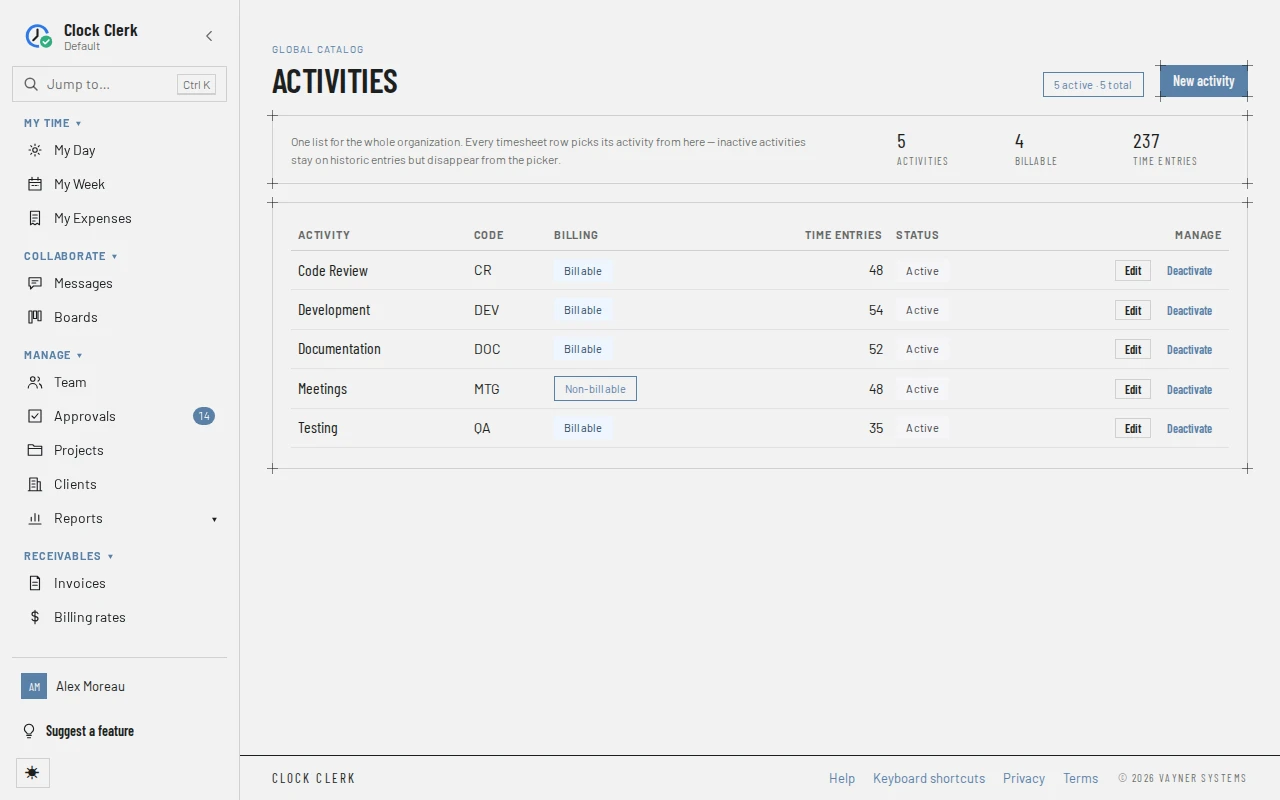
- At the top, how many activities are active and how many there are, for example 5 active · 5 total, and the figures Activities, Billable and Time entries.
- One row per activity, in name order: the Activity, marked Default on your organization's default activity, its Code (a dash where it has none), its Billing (Billable or Non-billable), how many timesheet lines use it under Time entries, and its Status, Active or Inactive.
Adding and changing an activity
- Choose New activity, or Edit on an activity's row.
- Fill in the Activity name and, if you use them, a short Code.
- Pick the Billing treatment, Billable or Non-billable, and the Status.
- Choose Create, or Save changes.
A rename shows on every line that uses the activity, past weeks included. Changing the billing treatment changes whether the hours already logged under it count as billable: on reports, on approvals and on the next invoice. An invoice already made keeps its own copy of what it billed.
Deactivating an activity
Activities are not deleted, because past hours are recorded under them. Deactivate takes an activity out of the picker for new lines and out of the choice of default activity on people's profiles. Lines that already use it keep it. Activate offers it again.
Your organization's default activity can't be deactivated or made Non-billable. Time on a project that doesn't ask for an activity is recorded under it, so it has to stay on offer and billed. To retire it, make another active, billable activity the default first. See The default activity has to be active and billable.
Buttons and when they appear
| Button | What it does | When you have it |
|---|---|---|
| New activity | Opens New activity. Create is disabled until there is a name. | Always. Disabled while your organization is read-only. |
| Edit | Opens Edit activity to change the name, code, billing treatment or status. For the default activity, Non-billable and Inactive are not offered (see Deactivating an activity). | On every row. While your organization is read-only it still opens, but its Save is disabled. |
| Deactivate | Makes the activity Inactive at once, without asking. | On an active activity's row, except your organization's default activity's. Refused while your organization is read-only. |
| Activate | Makes the activity Active again. | On an inactive activity's row. Refused while your organization is read-only. |
Each change is checked again when you press it: only an administrator can change the activities (see Roles).