Screens
ERP export
Finance's view of the export to your ERP or QuickBooks: whether it is working, what has gone and what is held, how your people and projects are matched to the ERP's records, what is sent, and every posting with what the ERP said about it. The workflow, from connecting the ERP to fixing a failed posting, is in Export to an ERP or QuickBooks.
Who sees it
Finance users and administrators, on the Team and Enterprise plans and during the trial: ERP export in the menu, under Payables, at /admin/erp. It appears in the menu once an administrator has connected an ERP in Settings → Integrations, and stays while that connection is switched off, since its log and downloads are still here. Deleting the last connection takes it out of the menu again. Below Team it is never in the menu. Users and managers are told You don't have access to this area.
The heading names the connection and its ERP, such as Company file · QuickBooks Desktop, with Off while it is switched off. The connection itself, its address and key, is on the administrators' Integrations tab. Until there is one, the screen still opens at its address, and says Nothing is exported yet: the organization has no ERP connection., with Add one for an administrator, or An administrator adds one. for Finance.
The tabs are Overview, Mapping, Settings and Log, and, for QuickBooks Desktop only, Downloads second.
Overview
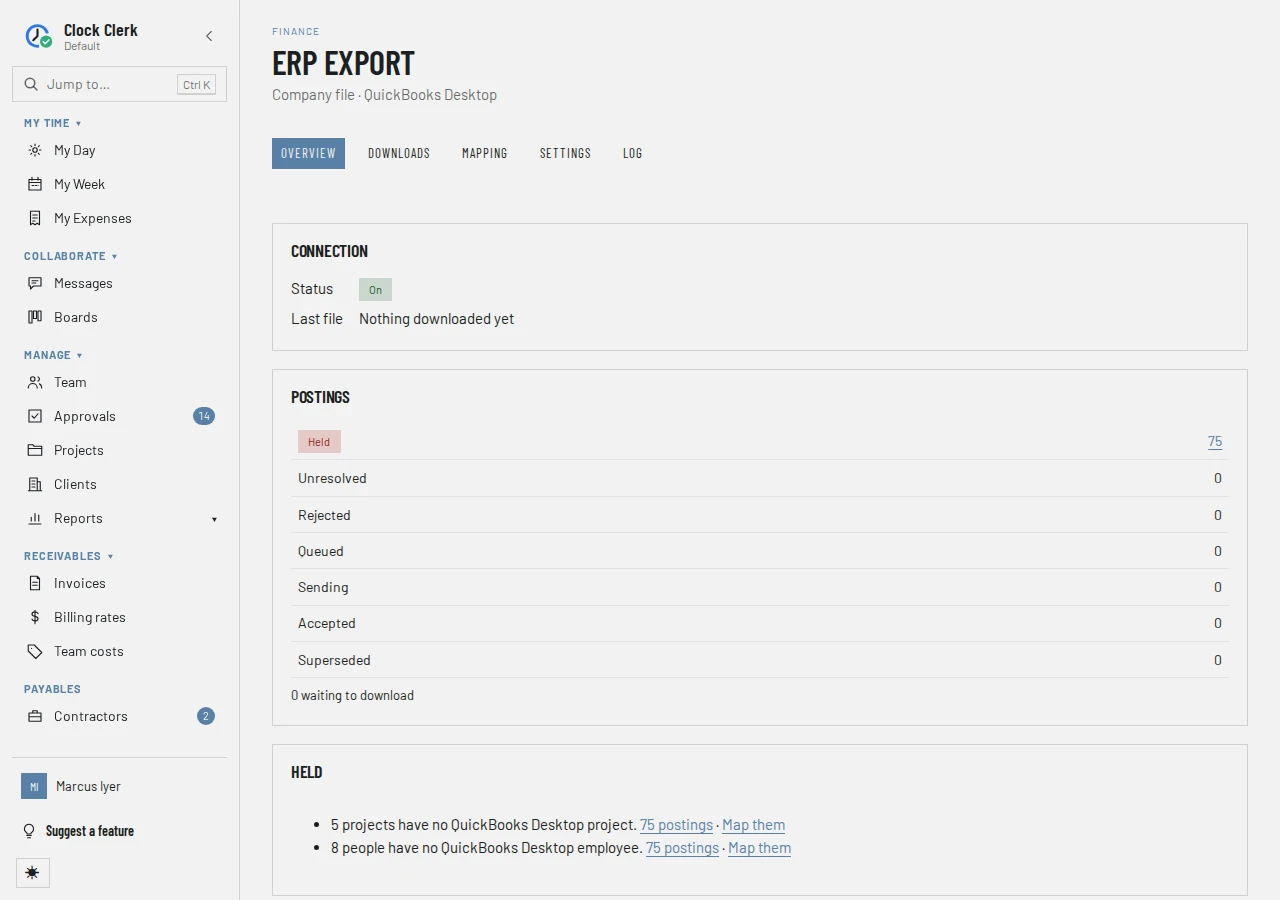
- Connection: its Status, which is On, Failing (its last test failed), Not tested, Off — nothing is being sent (for QuickBooks Desktop, Off — nothing is taken into a file), or Not available on this deployment. Then the Last problem, if there was one, and the Last call to the ERP: when, why (On approval, Scheduled or Retry) and how many were sent, accepted, rejected and left without an answer. For QuickBooks Desktop it is the Last file instead: when, how many were in it and how many were left out.
- Postings: how many are in each state, Held, Unresolved and Rejected first and marked when any are there, each count linking to those postings in the log. What each state means is in the workflow. For QuickBooks Desktop, it also says how many are waiting to download, with Download them.
- Held: why postings are held, said once per reason, such as 3 people have no QuickBooks Desktop employee., each with a link to the held postings in the log and, where mapping a record releases them, Map them. Or Nothing is held.
- Cost months waiting for weeks, where a monthly or annual cost is sent: each person's month that goes once their weeks are approved, under the note These go once their weeks are approved. Nothing needs doing here. The section appears only while a month is waiting.
Downloads
For a QuickBooks Desktop connection only, whose postings go as a file you import.
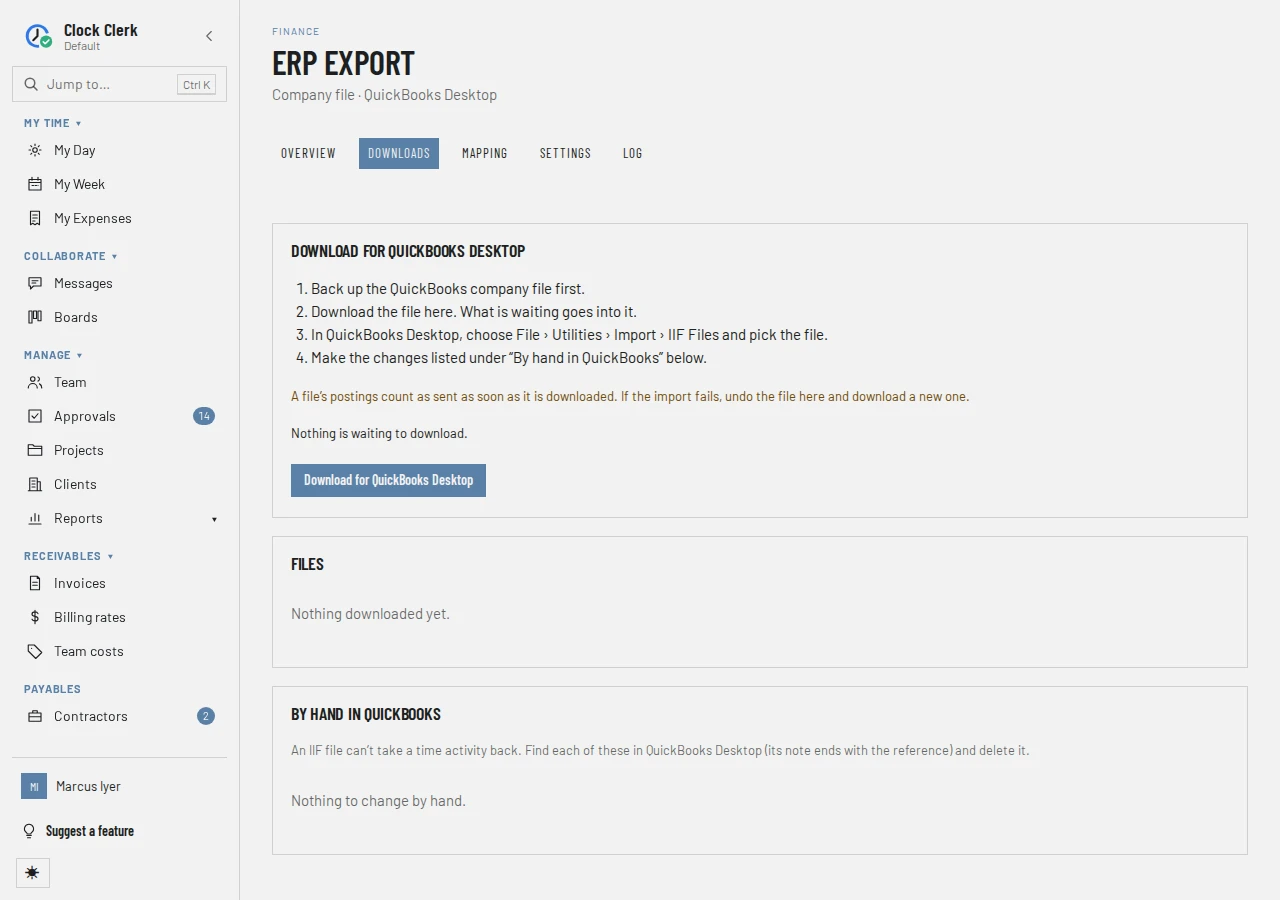
- Download for QuickBooks Desktop: the steps, how many postings are waiting, how many were left out because QuickBooks Desktop cannot take them as they are (with See why in the log), and the button that makes the file.
- Files: each file made, newest first, with when it was Made, its name, What it holds (such as Day: 12, Day · Reversal: 1), how many were Left out, and Undone … where it was undone. Show older files pages back.
- By hand in QuickBooks: for each file, the old time entries of corrected days, which a file cannot take back, with their date, person, job, hours, item and reference, to find and delete in QuickBooks. Or Nothing to change by hand.
Mapping
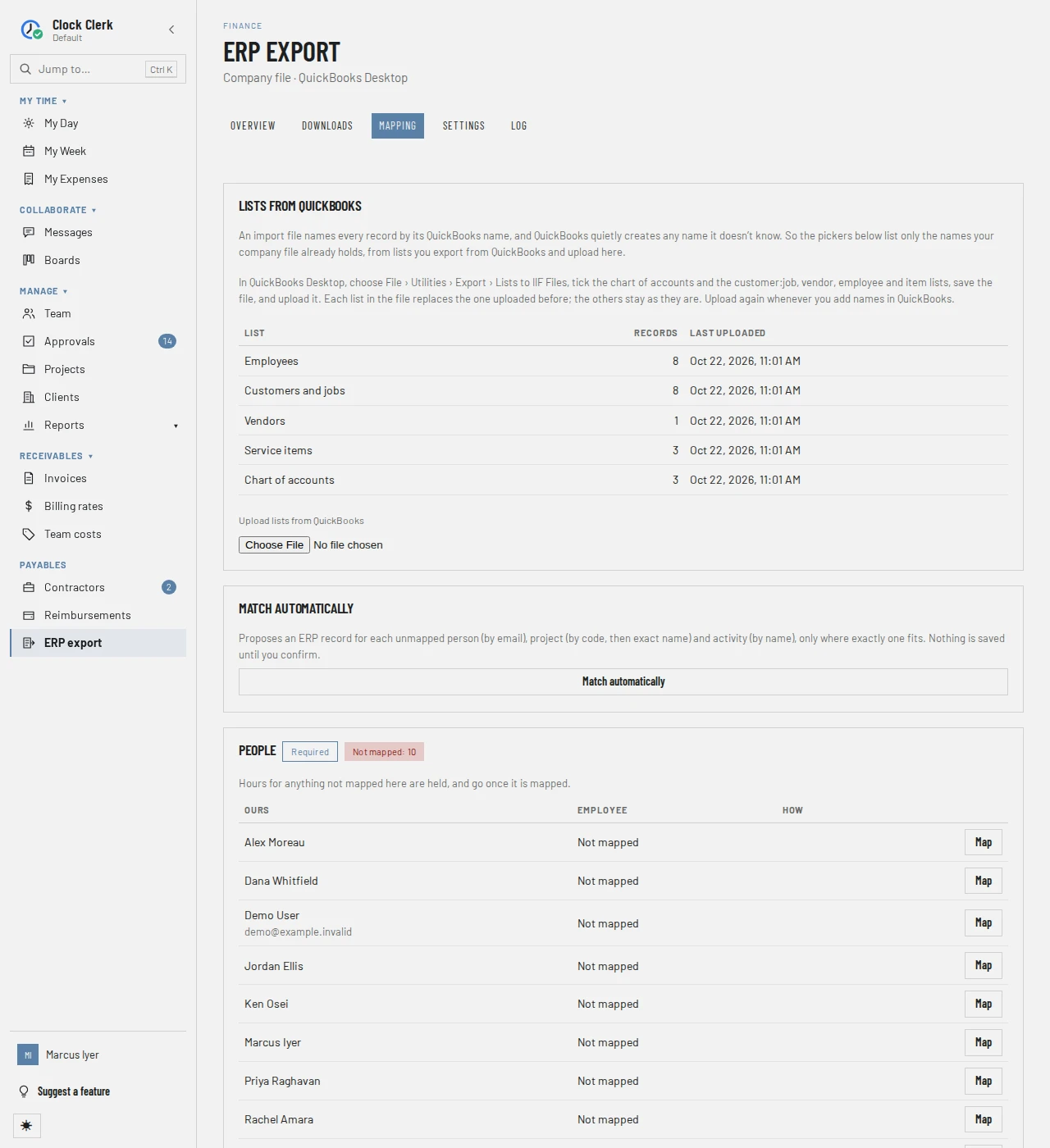
- Lists from QuickBooks, for QuickBooks Desktop: how to export the lists from the company file, each list with its Records and when it was Last uploaded (or Not uploaded yet), and Upload lists from QuickBooks. A file can be up to 20 MB. Each list in it replaces the one uploaded before.
- Match automatically: proposes a match for each person (by email), project (by code, then exact name) and activity (by name) not mapped yet, only where exactly one fits. The proposals are listed, ticked, with Ours, In the ERP and How (by email, by code, by name); nothing is saved until you choose Save ticked, and Discard drops them. For QuickBooks Desktop, whose lists hold names only, it proposes nothing.
- A table per kind of record the ERP takes: People, Clients, Projects, Tasks, Activities, Billing roles, Expense categories, Contractors, Cost centers, or SAP's Contractors' purchase orders. Those the ERP requires say Required and come first, with how many are Not mapped: Hours for anything not mapped here are held, and go once it is mapped. Each row has your record, the ERP's record it goes to (or Not mapped), and How: Manual or Matched, and by whom. A record deleted here shows as No longer here (#…).
Map or Change opens a search of the ERP's records (Search by name or number, then Search, and More for the next page), because each search asks your ERP. For QuickBooks Desktop, it searches the uploaded lists, and says This list hasn't been uploaded from QuickBooks yet. Upload the lists above first. until it has been.
Settings
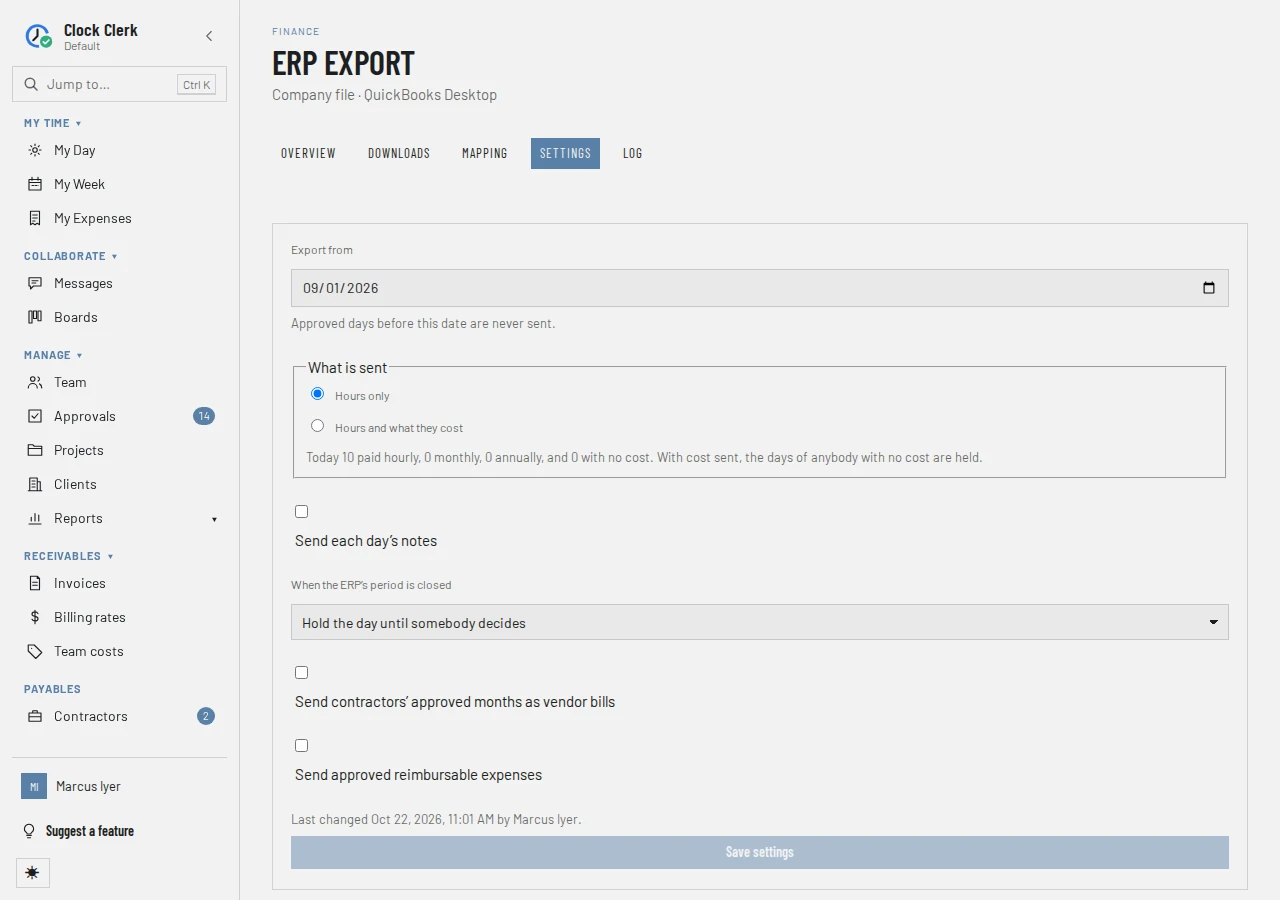
Export from, What is sent, A monthly or annual cost (once cost is sent), Send each day's notes, When the ERP's period is closed, Send contractors' approved months as vendor bills and Send approved reimbursable expenses, each described in the workflow. An option the ERP cannot take is not on the form: Dynamics 365 Project Operations takes no cost and no bills, SAP takes no expenses, Business Central takes no expenses while its hours go to the job journal, and Workday without Financials takes hours only. To their cost center, as one amount is there only where the ERP has cost centers. The foot says when the settings were last changed, and by whom.
Log
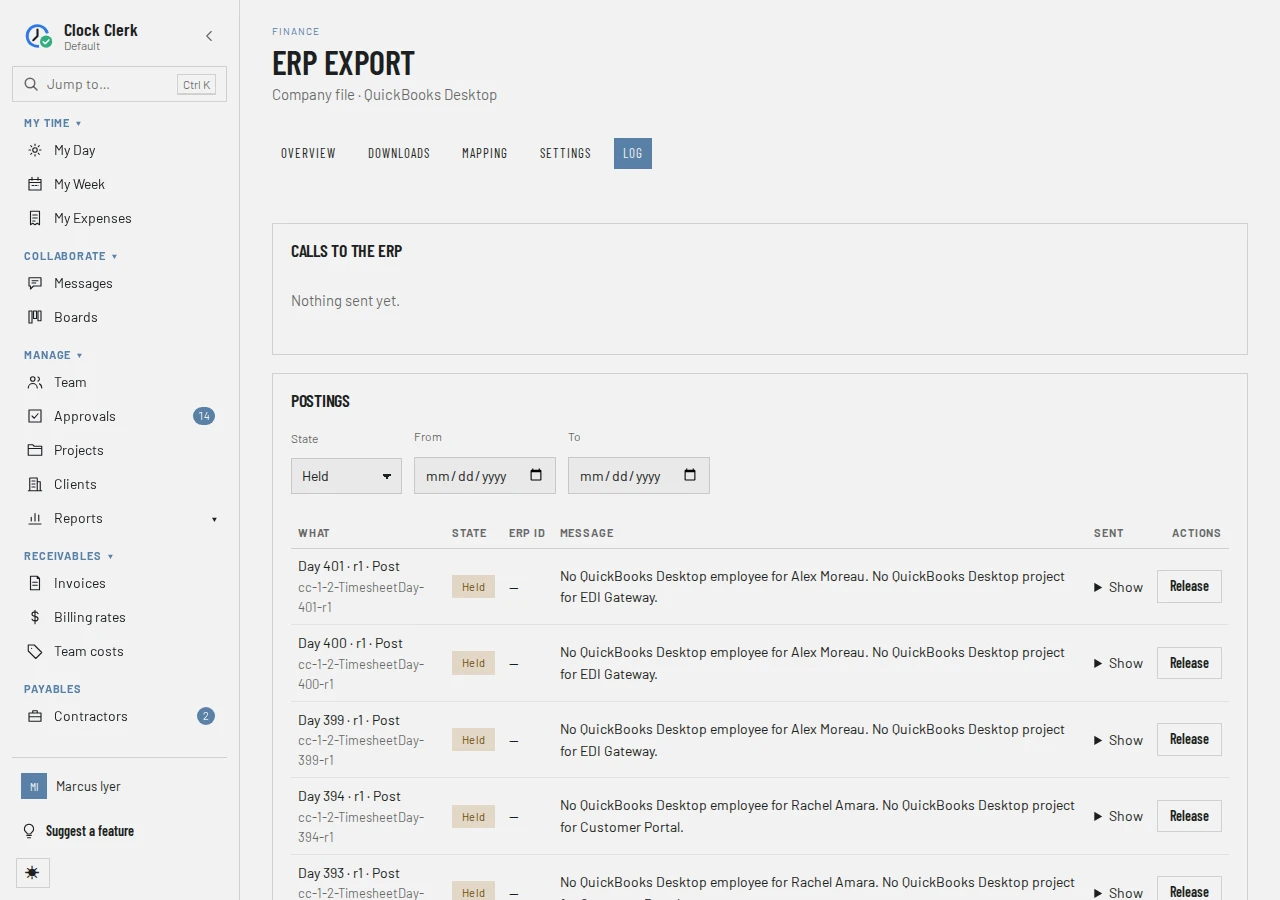
- Calls to the ERP: the latest calls, with Started, Why (On approval, Scheduled, Retry, or Downloaded as a file), and how many were Sent, Accepted, Rejected or got No answer.
- Postings, filtered by State, From and To, newest first, with Newer and Older. Each says What it is (Day, Cost month, Contractor month or Expense, its revision, and Post or Reversal) with its reference; its State, and who released or resolved it; its ERP id; its Message, the hold reason or what the ERP last said; and, under Show, exactly what was Sent.
Buttons and when they appear
| Button | What it does | When you have it |
|---|---|---|
| Add one | Opens the Integrations tab to connect an ERP. | For an administrator, while there is no connection. |
| Match automatically, Save ticked, Discard | Proposes matches, saves the ticked ones (Mappings saved: ….), or drops them. | Mapping. |
| Map, Change | Picks the ERP's record for one of yours. The app says Mapped … to …. | On each row whose record still exists. |
| Remove | Removes a mapping after Remove this mapping?: what is in the ERP stays, and hours from the next approval are held until it is mapped again. | On a mapped row. |
| Upload lists from QuickBooks | Stores the lists in an IIF file exported from QuickBooks Desktop. | Mapping, for QuickBooks Desktop. |
| Save settings | Saves the settings. The app says Export settings saved. | Settings, once something is changed. |
| Retry | Queues a rejected posting to be sent again: Queued to be sent again. | Log, on a Rejected posting. |
| Release | Marks a held posting as entered in the ERP by hand, so it is never sent, after Release this posting?. It cannot be undone. | Log, on a Held posting. |
| Resolve | Opens What did the ERP say?: It is in the ERP with Its id in the ERP, or It is not in the ERP — send it again, then Record it. | Log, on an Unresolved posting. |
| Download for QuickBooks Desktop | Makes a file of everything waiting and downloads it. What it holds counts as sent. | Downloads; turned off while the connection is off. |
| Download again | Downloads a file already made, as it was. Changes nothing. | Downloads, on every file. |
| Undo | After Undo this file? and Undo the file, puts its postings back in the queue for the next file. Only for an import that failed. | Downloads, on the newest file not undone. |
While the organization is read-only, every action on the tabs but Download again is gone (an administrator still has Add one), and the settings cannot be changed; the tabs can still be read (see Roles).