Screens
My Expenses
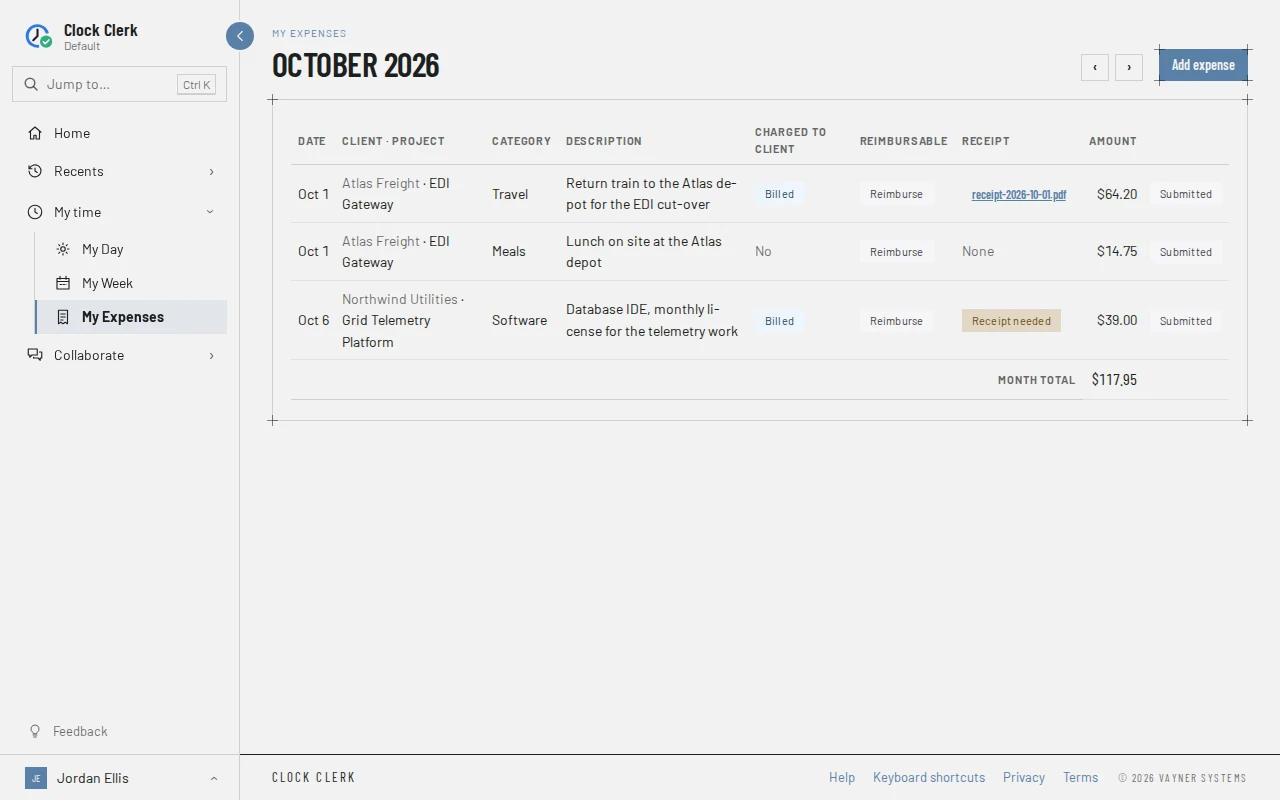
Your own expense claims, a month at a time: what you spent, on which project, whether the client is charged and whether you are paid back, with the receipts. How a claim is approved, billed and paid back is in Expenses and reimbursements.
Who sees it
Everyone in your organization except guests, contractors included. It is My Expenses in the menu, under My time, at /expenses, and Expenses this week on My Week opens it on that week's month. It is on every plan.
It only ever holds your own claims. Nobody else can open them here, an administrator included; a reviewer sees them on Approvals with the week they are dated in.
An administrator can turn Expenses off for the whole organization. While they are off, My Expenses is gone from the menu and from Jump to, Expenses this week is gone from My Week, and opening /expenses takes you to Home. Nothing is deleted: claims you already submitted still go on to be approved and paid back, and when Expenses is turned on again every claim is here as you left it. A claim you had not submitted yet is submitted with its week as it stands, without asking for its receipt.
The top bar
- The month, under My expenses. ‹ and › go to the month before and after, and This month comes back when you are elsewhere.
- Reimbursements, for Finance users and administrators: the same month's reimbursement run, on Reimbursements.
- Add expense, once your organization has expense categories.
The claims
One row per claim dated in the month:
- Date, Client · Project, Category and Description. The date is the day and month alone, such as Oct 1, since the month is in the title. A claim a reviewer declined says Declined under its description, with their reason and name.
- Charged to client: Billed if the client will be charged, Not billed if it is ticked billable but its project is not billed to the client, and No otherwise.
- Reimbursable: Reimburse if you paid it yourself and are to be paid back, No otherwise.
- Receipt: the file's name, which downloads it, with Replace and Remove; or Attach receipt. Receipt needed marks a claim over the receipt threshold with none; the week it is in cannot be submitted until it has one. A claim submitted before its threshold was lowered can still say Receipt needed beside Submitted, as the database IDE license does above: a lower threshold never reaches back into a week already submitted, and there is no Attach receipt until the week is reopened. None means none is needed or attached.
- Amount, and at the foot, the Month total.
- Last, Edit and Delete while you can still change the claim, or a tag saying why you cannot: Submitted (submitted with its week), Billed and an invoice's number, Paid back and a contractor protocol's number or a reimbursement batch, or Sent to and your ERP's name. A claim can carry two, such as billed to the client and paid back to you. Why an expense cannot be changed says what lifts each.
On a phone, or any window too narrow for the table, each claim is a card instead of a row: its date and amount at the top, then each value labeled with its column's name, and last its Edit and Delete, or the tag saying why it cannot be changed. The Month total sits on its own line under the cards. A printout is always the table.
A month with no claims says, for example, No expenses in October 2026. Use Add expense to record one. Before an administrator has added any expense categories, it says Nothing can be claimed yet: an administrator needs to add expense categories first. and there is no Add expense.
An administrator also sees a Create expense category link after that message, which opens Expense categories with a new category ready to fill in. While your organization is read-only, there is no link.
Adding and editing a claim
Add expense opens Add an expense, and Edit opens Edit expense, with the same fields:
- Date: a new claim starts at today, or at the first of the month you are looking at.
- Amount: over zero, to the cent, in your organization's currency.
- Project: the projects you can book time to, grouped by client.
- Category: your organization's active categories. A claim made under a category that has since been retired keeps it.
- Description: what it was for, up to 500 characters. A client reads it on their invoice if the claim is billed.
- Billable to the client, which starts from the category's default, and Paid out of my own pocket, which starts ticked.
Add expense or Save changes is disabled until every field is filled in with an amount over zero. A claim cannot be dated in a week that is already submitted.
Buttons and when they appear
| Button | What it does | When you have it |
|---|---|---|
| ‹, ›, This month | Move between months. | Always; This month away from the current month. |
| Reimbursements | Opens the month's reimbursement run. | Finance users and administrators. |
| Add expense | Opens Add an expense. | Once there are expense categories. Disabled while your organization is read-only. |
| Edit | Opens Edit expense. | On a claim not yet submitted, billed, paid back or sent to your ERP, unless your organization is read-only. |
| Delete | Asks Delete this expense?, then Delete expense removes it. | As for Edit. |
| Attach receipt | Picks a photo (JPEG, PNG or HEIC) or a PDF, up to 5 MB, and attaches it. | On a claim with no receipt, as for Edit. |
| Replace | Swaps the receipt for another file. | On a claim with a receipt, as for Edit. |
| Remove | Asks Remove this receipt?, then Remove receipt takes it off. | As for Replace. |
| The receipt's file name | Downloads the receipt. | Whenever the claim has one. |
Each change is checked again when you press it, so a claim whose week was submitted in another tab is refused with the app's reason. Your own claims are the only ones you can change (see Your own work).