Screens
Invoices
The invoices your organization has raised, what is still owed, and the hours and expenses ready to bill. From here Finance generates drafts, issues and sends them, and records payments, as described in Bill a client.
Who sees it
Finance users and administrators, on the Team and Enterprise plans and during the trial. It is Invoices in the menu, under Receivables, at app.clockclerk.com/invoices. Managers and Users do not have it, and the app refuses it to them. Above every part of it are four sections: Invoices, Generate, Templates and Customer settings.
While your organization is read-only, everything here can be read and printed, but nothing new can be generated, issued or changed (see Roles).
The list
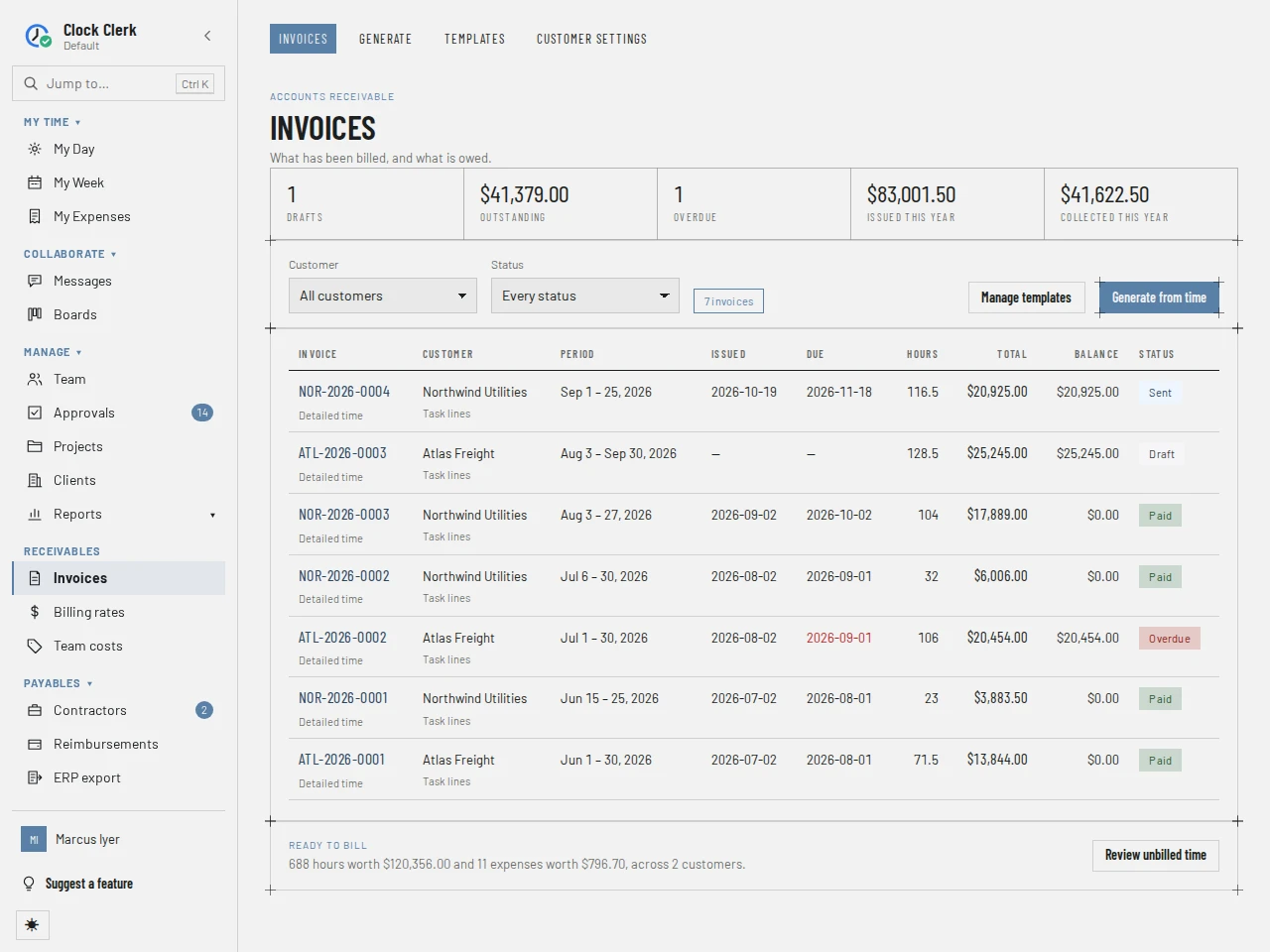
- The tiles: Drafts, Outstanding (what is still owed), Overdue, Issued this year and Collected this year (paid against this year's invoices). They count every invoice except voided ones, whatever the filters show.
- Customer and Status filter the list.
- The list: each invoice's number and template, customer and line grouping, period, Issued and Due dates, hours, Total, Balance and status, with when it was last emailed. The due date is red on an overdue invoice; a voided invoice, or a discarded draft, is struck through.
- Ready to bill: the hours and expenses on no invoice yet, and what they are worth.
| Status | Means |
|---|---|
| Draft | Not issued yet. Its lines can still change. |
| Sent | Issued, nothing paid, not yet due. |
| Part paid | Issued, some paid, not yet due. |
| Overdue | Past its due date with money still owed. |
| Paid | Nothing left to pay. |
| Void | Voided after issue, or a draft that was discarded. It stays in the list, struck through, with its number used, and its hours are back in unbilled time. |
Sent means issued, whether or not it has been emailed. The status follows the payments and the date by itself; nobody sets it.
Unbilled time
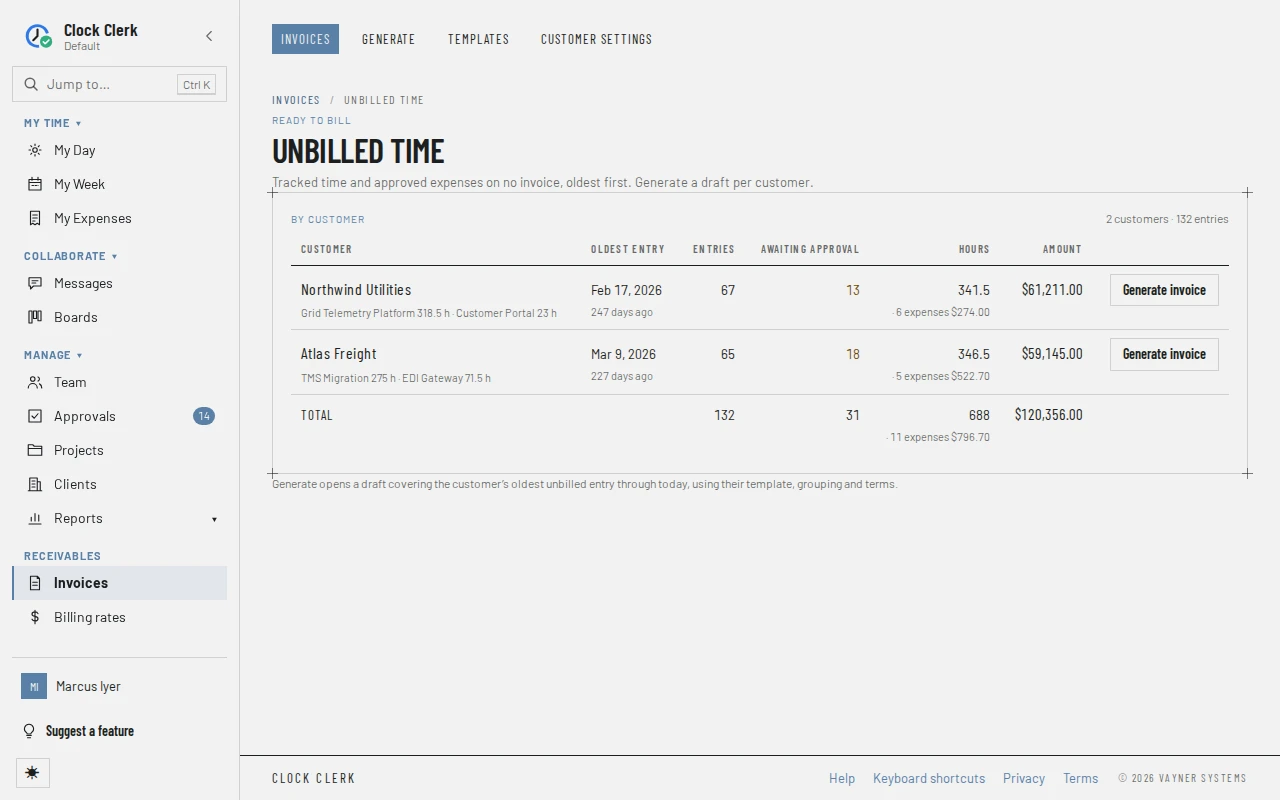
Review unbilled time opens a row per customer, oldest first: the hours per project, the oldest entry and how long ago it was, the number of entries, how many are Awaiting approval, the hours and expenses, and what they are worth. Generate invoice opens Generate for that customer, from their oldest unbilled entry to today.
Generate
One customer's unbilled hours and expenses in one period, priced at the rate cards and grouped into lines, ready to become a draft.
- Draft setup: Customer, Billing period with From and To, Approved time only and Line grouping, and under the customer, the template, terms and tax the draft will start with.
- The lines: each with a tick, its entries, hours, rate and amount, and the claims under Expenses. Untick what you do not want to bill now.
- Held back: hours in the period that are not approved, while Approved time only is ticked, with a link to the Awaiting approval report (see Standard reports). Expenses held back counts the claims.
- The totals: Selected hours, Subtotal, tax and Draft total.
A picture of it is in Bill a client.
An invoice
Choosing an invoice's number opens it: the document as the customer sees it on the left, and on the right what can be done with it.
- The document: your seller block, Billed to, the issue and due dates, the period, the PO reference, the lines, the totals and the balance due, the terms and where to pay. With Attach the time detail, every recorded day follows on a page of its own.
- Draft actions, Issued invoice or Withdrawn: the buttons for its state (see Buttons).
- Line items: on a draft, a % off and a remove button on each line, with Add line and Add discount. Once issued, the lines are fixed.
- Presentation: Template, Line grouping, Tax %, Terms, PO reference, Notes and Attach the time detail. They can be changed on a draft only.
- Source time: how many recorded days the invoice bills, and the hours per project.
- Payments, once there are any, and History: created, issued, sent, payments recorded, voided or discarded, with who and when.
Templates
Which columns an invoice prints. Detailed time prints the dates, hours and rate on every line; Summary, hours and an amount; Fixed fee, a description and an amount only. Each card says how many customers and invoices use it. Make this the default sets the template new drafts start with, unless the customer has their own.
Customer settings
- The seller block: Legal name, Tax id, Address and Remit to, printed on every invoice, and the house defaults: Default layout, Default grouping, Default terms, Default tax % and Number prefix. Save profile saves them, and so does Ctrl + Enter (⌘ + Enter on a Mac) from any of them, the address included, where Enter starts a new line. Nothing can be issued until there is a legal name. Each invoice keeps the block it was issued with.
- Per-customer defaults: for each client, a Template, Line grouping, Terms, Tax %, a numbering prefix with the next number, a PO reference, Approved only (bill approved time only) and the receipt threshold for their expenses (Receipt above). Each saves as you change it. A customer nobody has changed uses the house defaults.
An invoice's number is the customer's prefix, or else the house prefix, or else the client's code, then the year and a count that starts at 1 each year: NOR-2026-0001. The billing email and the invoice language are set on the client, under Clients, by an administrator.
Buttons
| Button | What it does | When it appears |
|---|---|---|
| Generate from time | Opens Generate. | On the list, unless the organization is read-only. |
| Manage templates | Opens Templates. | On the list. |
| Review unbilled time | Opens Unbilled time. | Under the list. |
| Generate invoice | Opens Generate for one customer, from their oldest unbilled entry to today. | On each customer in Unbilled time, unless read-only. |
| Create draft invoice | Makes a draft of the ticked lines and expenses. | On Generate, unless read-only. Disabled until a customer is chosen, the dates are in order and something is ticked. |
| Reset to customer defaults | Puts the line grouping and Approved time only back to the customer's settings, and the period back to Last month. | On Generate. |
| Issue invoice | Issues the draft, dated today. | On a draft, unless read-only. |
| Discard draft | Withdraws the draft: it stays in the list as Void, struck through, with its number used, and its hours go back in unbilled time. | On a draft, unless read-only. |
| Add line, Add discount, % off, × | Add a manual line or a discount, write a line off, remove a line. | On a draft. |
| Record payment | Records money received. | On an issued invoice with money still owed, unless read-only. |
| Send to customer, Send again | Emails the invoice to the client's billing email. | On an issued invoice, unless read-only, when the client has a billing email that has not bounced and your deployment can send email. |
| Send reminder | Emails a reminder of the balance. | As Send to customer, while money is still owed. |
| Void invoice | Withdraws an issued invoice and puts its hours back in unbilled time. | On an issued invoice, unless read-only. |
| Prints the document, or saves it as a PDF, through your browser. Leave Margins on Default under More settings in the print dialog, so the printout keeps its own margins. | On every invoice. | |
| Make this the default | Sets the template new drafts start with. | On each template on Templates. It reads Already the default, disabled, on the default, and is disabled while read-only. |
| Save profile | Saves the seller block and house defaults. | On Customer settings, unless read-only. |