Screens
Messages
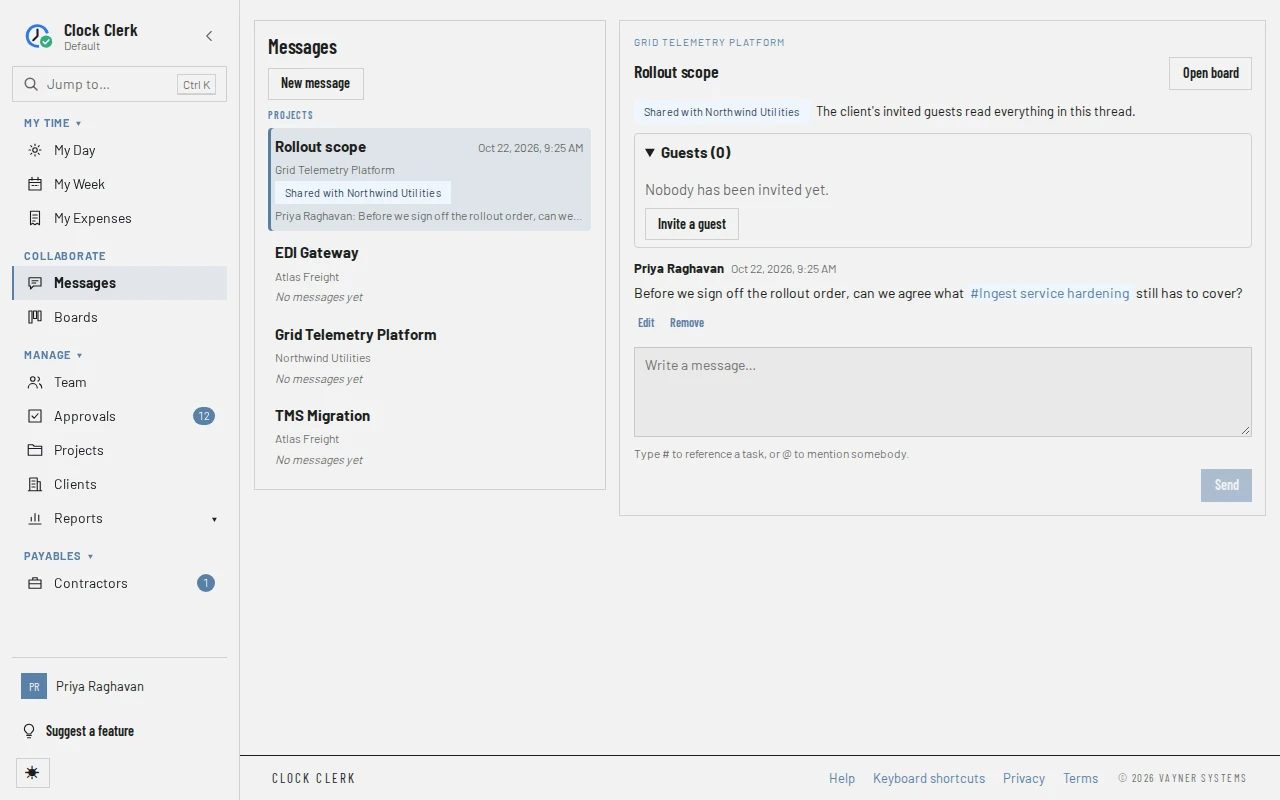
Everybody's one place to talk: the conversations you can open, listed beside the one you are reading. How to message people, mention them, and share a thread with a client is in Talk with your team and clients.
Who sees it
Everybody who signs in: Messages is in the menu under Collaborate, beside Boards, for every role, with the number of messages waiting for you beside it. The conversations listed are the ones you may read (who reads and writes where). A conversation's address can be shared; opening one you may not read says This conversation isn't one you can open. Client guests have a screen of their own instead.
The list
- New message opens Find a person… and the people you can message: everybody else in the organization who hasn't left, with their job titles. Choosing one opens your conversation with them.
- Direct messages: your conversations with one other person, once either of you has written.
- Projects: the own conversation of each project you are on or manage (an administrator's is every project), the threads shared with its client, tagged Shared with and the client's name, and each card's conversation you have written in. A finished project's appears only once somebody has written in it.
- Shared with you: conversations other organizations share with you as their guest, once you have linked your guest address on your profile (below).
Each row shows the conversation's title, what it is under, the latest message's author and first line, when it was written, and how many messages you haven't read. What it is under is the client for a project's conversation, Card on and the project for a card's, the project for a shared thread, and Direct message for a direct one. A row under Shared with you shows only the thread's title and the other organization and project, with no message, time or count. The newest are at the top, then those with no messages yet. The list keeps itself up to date as people write.
A conversation
On a wide screen the conversation opens beside the list; on a phone it takes the screen, and All conversations goes back. Its head names the project and client, and has Open board, or Open card for a card's conversation. While an administrator has Boards turned off, neither is there, a task referenced in a message is its name with no link, and a card's conversation can be read but takes no new messages.
- Messages, oldest at the top, each with its author and time. Show earlier messages reads further back.
- (edited) on a changed message lists its earlier versions, each with when it was replaced.
- A removed message keeps its author and time and says Removed by … at …, with no text.
- From task: marks a message moved up from a task that was deleted.
- In a message, # and a name is a task, linked to its card if you can see it, or a task you can't see; @ and a name is a person mentioned.
- Who is typing, under the messages.
- The box to write in, with Type # to reference a task, or @ to mention somebody., and Send. Ctrl + Enter (⌘ + Enter on a Mac) sends too; Enter starts a new line. Where you can't write, it says why instead: This person has left the organization, so new messages can't be sent to them. or You can read this discussion but not post to it.
Opening a conversation marks what is in it as read.
A thread shared with the client
Its head is the thread's own title, and above its messages it says Shared with the client and The client's invited guests read everything in this thread. For the project's managers it also has a Guests panel, with how many guests are in it:
- Each guest, with their address, Invited by … and when, and how their invitation email fared: Invitation sending, Invitation sent, Invitation couldn't be sent, Invitation bounced or Invitation marked as spam.
- A guest taken out says Removed and the date; one added to your organization as a person says Added to your organization.
- Remove, then Confirm removal, takes a guest out of the thread.
- Invite a guest opens a dialog with Name and Email, filled in from the client's contact, and Send invitation.
The panel opens by itself while nobody is in the thread.
Shared with you
If you are also a guest of another organization, link that address under your profile and confirm it from the email it sends. Then each thread that organization shares with you is listed here, with the organization and project under its title. Choosing one opens it on the guest screen, as their guest; Back to your messages returns here. If one has stopped being shared, the list says That conversation isn't shared with you any more.
Buttons and when they appear
| Button | What it does | When you have it |
|---|---|---|
| New message | Picks a person and opens your conversation with them. | Everybody. |
| Send | Adds your message. | Everybody who can read the conversation, unless the other person has left, or it is a shared thread and your plan no longer includes guests. |
| Edit | Changes your message, keeping the earlier text. | On your own messages only, at any role; in a shared thread, not once your plan no longer includes guests. |
| Remove | Removes a message, after Confirm removal, leaving a note of who removed it. | On your own messages; and on everybody's, for the project's managers, in a project's, card's or shared conversation. In a direct conversation, each person removes only their own. |
| Retry, Discard | Sends again, or drops, a message that was not sent. | On your own message marked Not sent. |
| Open board, Open card | Opens the project's board, or the card on it. | On a project's, shared or card's conversation, unless Boards is turned off. |
| Share with client | Starts a new thread on the project that the client's people can be invited into. | On a project's own conversation, for its managers, on a paid plan. Not during the free trial, on the live demo, or while the organization is read-only. |
| Guests panel, Remove | Lists a shared thread's guests; takes one out. | On a shared thread, for the project's managers, on any plan, but not while the organization is read-only. |
| Invite a guest | Emails somebody at the client a link into this thread. | As for Share with client. |
A project's managers are its administrators, and the Manager and Finance users whose grant gives them Manager access to it; a User given that access is a member here. While your organization is read-only, conversations can be read, and anything you write is refused.
When Messages is turned off
An administrator can turn Messages off for the whole organization, when it only tracks time. While they are off, Messages and the number beside it are gone from the menu and from Jump to, and opening /messages or a conversation's address takes you to Home. Nobody has Message on Team, Discussion on a board, Discussed in on a card, or Share with client. Nobody can start a conversation, write in a project's, direct or shared one, share a thread with the client, or invite a guest. Trying anyway is refused with An administrator has turned Messages off for this organization. Everything already in it is kept, and comes back when it is turned on again.
A card's Comments go with Boards, not Messages, so while Boards is on they still work on the card. The client's guests can still sign in and read their threads, but cannot write, edit or remove anything, and their screen says the organization has paused messages (The guest screens). No email about unread messages goes out, not even about a mention on a card, and none waiting from before is sent. Nothing is deleted: when Messages is turned on again, every conversation, message and guest is back as it was.