Screens
Keyboard shortcuts
Time can be booked without the mouse. Tab moves from one control to the next everywhere; these are the keys that do more than that.
Where to find them in the app
The app lists the same keys on its Keyboard shortcuts page, open to everyone. It is linked from the footer of every screen and from the Help page, and Ctrl + K finds it by name. The keys work the same for every role.
Ctrl + K opens Jump to from any screen. So do Jump to… at the top of the menu and the Search pages and reports field across the top of Home: all three open the same list.
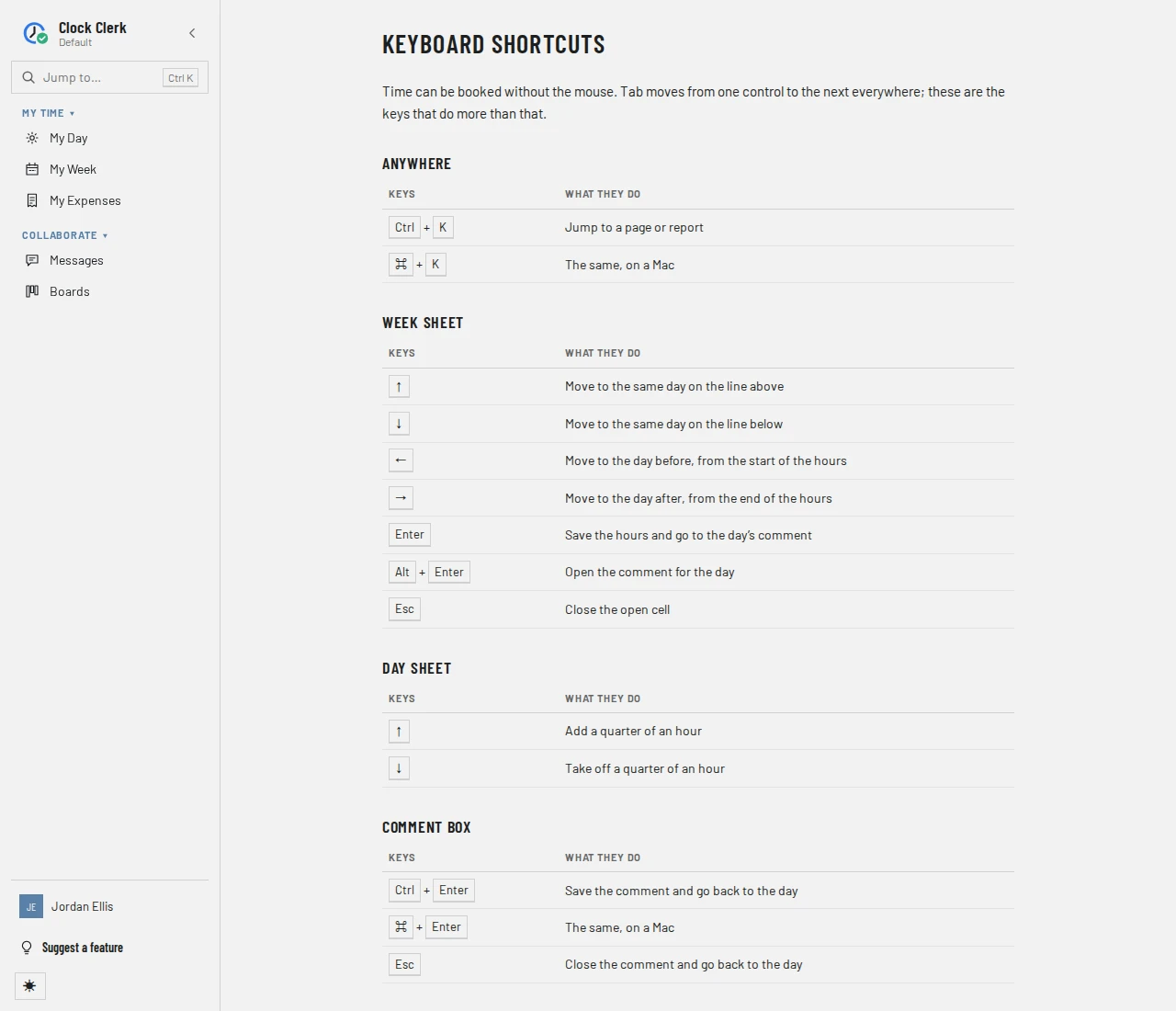
Anywhere
| Keys | What they do |
|---|---|
| Ctrl + K | Jump to a page or report |
| ⌘ + K | The same, on a Mac |
Jump to opens on the places you went last, under Recents, the same list as at the top of the menu, followed by every page you can open. The arrow keys and Enter take you back to one, a report with the settings it was opened with. Typing anything leaves out the recent places and lists only the pages and reports whose names match.
Week sheet
| Keys | What they do |
|---|---|
| ↑ | Move to the same day on the line above |
| ↓ | Move to the same day on the line below |
| ← | Move to the day before, from the start of the hours |
| → | Move to the day after, from the end of the hours |
| Enter | Save the hours and go to the day’s comment |
| Alt + Enter | Open the comment for the day |
| Esc | Close the open cell |
Day sheet
| Keys | What they do |
|---|---|
| ↑ | Add a quarter of an hour |
| ↓ | Take off a quarter of an hour |
Comment box
| Keys | What they do |
|---|---|
| Ctrl + Enter | Save the comment and go back to the day |
| ⌘ + Enter | The same, on a Mac |
| Esc | Close the comment and go back to the day |
Message box
| Keys | What they do |
|---|---|
| Ctrl + Enter | Send the message, or save the one you are editing |
| ⌘ + Enter | The same, on a Mac |
This is the box you write in on Messages, under a card's comments and on the guest screen. Enter on its own starts a new line. While the list that @ or # opens is showing, Ctrl + Enter picks the highlighted suggestion instead, and pressing it again sends. An empty message isn't sent.
Menus and dialogs
| Keys | What they do |
|---|---|
| ↓ | Open a menu from its button, or move to the next item |
| ↑ | Move to the previous item |
| Home | Move to the first item |
| End | Move to the last item |
| Esc | Close the menu or cancel the dialog |
| Ctrl + Enter | Save or send the open dialog |
| ⌘ + Enter | The same, on a Mac |
Ctrl + Enter works in a dialog you fill in, such as recording an expense or a payment, and only once its button is available. A dialog that only asks you to confirm a delete, a removal or a plan change ignores it, so the keys never carry one out by accident.
In the menu down the left, Tab goes from a group's heading to the links under it. Enter or Space on a group's heading, or on Recents, opens or closes the list under it.
With the mouse wheel
Scrolling over the hours you are typing in adds or takes off time: a quarter of an hour unless you have picked another step (0.1, 0.5 or 1 hour) under Hours per scroll notch on your profile. It works on My Week and My Day.
How the keys fit into filling in a week is in Record and submit your week.