Screens
My Week
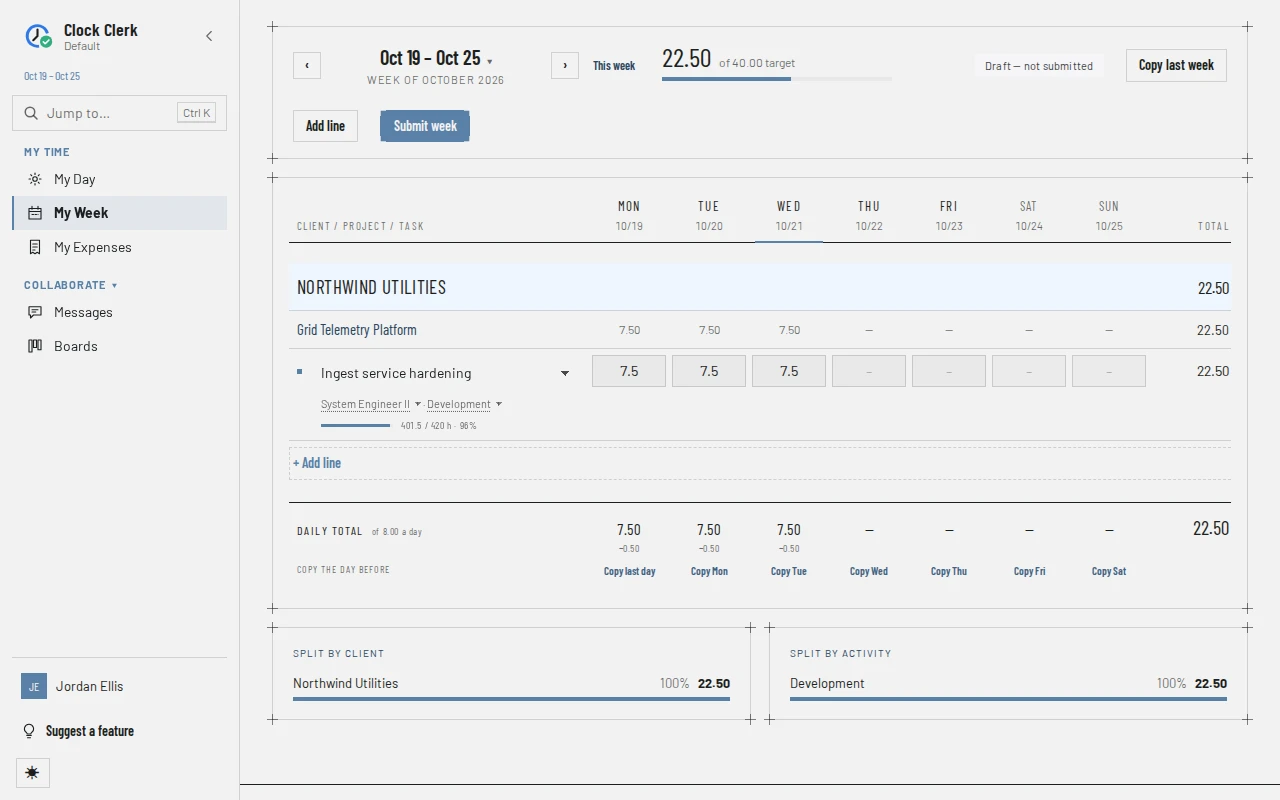
The week sheet: your hours for one week, Monday to Sunday, one line per task. It is where most people spend their time in Clock Clerk. The steps for filling it in are in Record and submit your week.
Who sees it
Everyone who signs in to the organization, whatever their role. It is My Week in the menu, and /week goes to the current week; signing in lands on Home, where the My week column, or the My week: line above a reviewer's columns, shows this week's hours and status and opens it. Each week has its own address, ending in the date of its Monday (/week/2026-10-19), so a week can be bookmarked or shared. You only ever see your own week here; managers see other people's weeks under Team and Approvals.
The top bar
- ‹ and › go to the week before and after. The week's dates, in the middle, open a calendar to pick any week. This week comes back to the current one.
- The total against the target, for example 22.50 of 40.00 target, with a bar that fills as you go. The target is your Daily target hours (on your profile) times the week's working days, less paid holidays. Where some hours are not billed to the client, a line under it splits them into billable and non-billable.
- Expenses this week, with their count and total, where you have expenses dated in the week. It opens My Expenses. Receipt needed beside it means one of them needs a receipt before the week can be submitted. It is not shown while an administrator has turned Expenses off for your organization.
- The status: Draft — not submitted, Submitted for approval, Approved or Sent back for changes. A week that runs into a new month has one short status per month instead, such as Sep · Draft.
- Saving… while an entry is being written.
- The week's buttons: Copy last week, Add line, Reopen week and Submit week. See when each appears.
Under the bar, a week sent back shows a notice, Sent back by …, with the reviewer's reason. An approved week says Approved by … on … — this week is closed.
The sheet
- Columns: the task, one column per day, the line's total and a ⋯ menu. Today's column is underlined. A holiday on your organization's schedule shows its name under the date.
- Client and project rows group the lines, with their totals per day and for the week.
- Lines: each is one task under one billing role and one activity. The task's name is a picker for another task in the same project; the billing role and activity under it are pickers too. A line with no hours on it keeps its task, billing role and activity once any month of the week is submitted: use Add line for another task in the month still open. Where the line's project doesn't ask for an activity, there is no activity under the task: the line is booked on your organization's default activity without you choosing it (see Activities). The one exception is two lines for the same task and billing role on different activities, booked before the project stopped asking, which keep showing their activity so they can be told apart. A finished task is marked Done, a line not billed to the client says Not billed to client, and a task with an estimate shows a bar of the hours logged against it.
- Day boxes: type the hours. A small mark means the day has a comment. Choosing a box opens the day's panel under the line, with Hours and quick-add buttons from − 15m to + 4h, Comment, the line's Billing role and, where its project asks for one, Activity, the day's total against the daily target, Clear day and Done. On a locked day (submitted, approved, invoiced, on a contractor's protocol, or while your organization is read-only) the panel still shows Hours and the day's total, but the quick-add buttons give way to why it is locked, Billing role and Activity are disabled, the comment can be read and copied but not changed, and the buttons are Copy comment and Close.
- Filed a month at a time: on a week that runs into a new month, a band over the days shows each month's hours and status, with its own Submit or Reopen button. Where the new month starts on a Saturday or Sunday and nothing is logged on those days, its band says Nothing to file: nobody is reminded about it and nothing waits on it. Add hours there and the band gets its Submit button back.
When the week has no lines, the sheet says Nothing recorded for this week yet and offers Add line. A submitted week says why it is read-only.
Below the sheet
- Daily total, each day against your daily target, with how far under or over it is.
- Copy the day before, one button per day (Copy Mon, Copy Tue and so on, and Copy last day under the first day), which copies the day before's hours and comments onto the lines that have nothing on that day. Copy last day copies the last day anything was logged, looking back into the week before.
- Billable and Non-billable rows, when some of the week is not billed to the client.
- Submission history: each time the week was submitted, reopened or sent back, with when and the reason given.
- Split by client and Split by activity, when Show the by-client and by-activity split under my week is ticked on your profile. Split by activity counts only lines that show their activity, and is left out when the week has hours but none of its lines show their activity.
Buttons and when they appear
| Button | What it does | When you have it |
|---|---|---|
| Copy last week | Adds last week's lines that are not on this week, without their hours. | Always shown. Disabled once the whole week is submitted, or while your organization is read-only. |
| Add line, + Add line, + Add project, + Add task | Open the New line dialog. + Add project and + Add task appear when you hover over a client or project. | While any part of the week is still open. Once the whole week is submitted, Add line in the top bar is disabled and the others are hidden. While your organization is read-only, Add line in the top bar is disabled but the others stay shown. |
| Submit week | Submits the week. Reads Submit… when both months of a week that runs into a new month are open, and Submit plus the month's name when only one is. | Always shown. Disabled once everything is submitted, while an entry is saving, and while your organization is read-only. |
| Reopen week | Takes the submitted week back into draft, with a reason. | Only on a submitted week in one month that has not been approved, and only if you have Can reopen a submitted week. On a week that runs into a new month, each month's band has its own Reopen instead. |
| ⋯ menu: Duplicate line, Move to another project…, Remove line… | Add the same task again, move the line and its hours to another project, or remove the line. | On each line whose hours are not locked. Hidden on a line with submitted, invoiced or protocol hours. |
| Copy Mon, Copy Tue, … | Copy the day before onto that day. | While any part of the week is open. Disabled on a locked day. |
| Clear day, Done | In an open day's panel: remove the day's hours and comment (the message that follows offers Undo), or close the panel. | On a day that is not locked. A locked day shows Copy comment and Close instead. |
No role adds or removes a button here: a User, a Manager, Finance and an Admin see the same week sheet. What changes it is the state of the week and the Can reopen a submitted week permission. Why a week or a day is locked is explained in Why a week cannot be edited.