Getting started
Signing in
Each organization signs in one way: with Microsoft Entra ID, with Okta or another OpenID Connect sign-in provider, or with an email address and a password. Clock Clerk works out which from your work email, so you rarely have to choose. Signing in through Microsoft, Okta or another provider is single sign-on, which comes with every paid plan and the trial; the Free plan signs in with a password.
The sign-in page
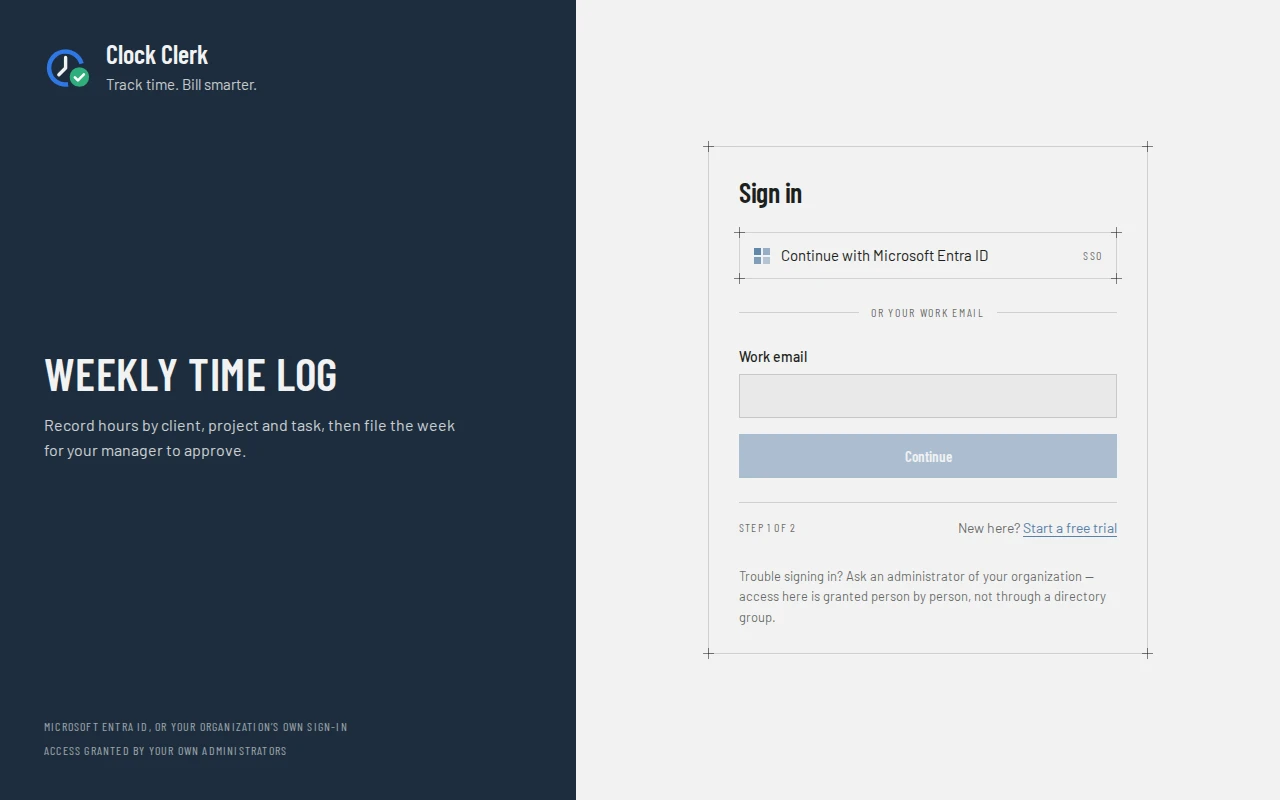
Open Sign in. Where an organization signs in with Microsoft, the page starts with Continue with Microsoft Entra ID. Below it, under or your work email, type your Work email and choose Continue. The second step depends on your organization:
- Password: a Password field, a Forgot password? link and Sign in.
- Okta: Continue to Okta, which takes you to your organization's Okta page and back.
- Another sign-in provider: Continue to …, naming your organization's sign-in page, such as
login.yourcompany.com, which takes you there and back. - Google Workspace: Continue to accounts.google.com. Choose your work Google account; a personal Gmail account is refused.
- Microsoft: where your email's domain belongs to an organization that already uses Clock Clerk with Microsoft Entra ID, or your address is already in an organization that signs in with Microsoft, you go straight on to Microsoft.
- Its own address: some organizations sign in at an address of their own, such as
yourcompany.clockclerk.com. The page says Your organization signs in at … and offers Continue to …, carrying your email with you.
Change beside your address takes you back to the first step. An address Clock Clerk does not know is also offered the password step, so the page never gives away who has an account.
On your organization's own address the page shows its logo and name, and offers only its own way in, with Work email and Password on one step for a password organization. Switch takes you to the main sign-in page, for another organization.
Signing in with Microsoft
Choose Continue with Microsoft Entra ID and sign in with your work account as you do for Office. Your password stays with Microsoft; Clock Clerk never sees it. What you can do once you are in, your role and the projects you book time to, is set by an administrator of your organization, not by Microsoft (see Roles).
If nobody from your Microsoft directory uses Clock Clerk yet, the page says No organization signs in to Clock Clerk with your Microsoft work or school account yet. Your account is fine; there is just no organization for it to sign in to. Where your deployment offers trials, Start a free trial for your organization beneath the message takes you to the sign-up page, where you can start one with Continue with Microsoft (see Signing up with Microsoft) or your work email. Colleagues who sign in after that arrive as plain users, and an administrator sets their roles.
An organization can also be set up with full Microsoft Entra ID sign-in, where one of its Microsoft Entra administrators chooses Grant admin consent and becomes its first Clock Clerk administrator (see Admin consent). On a deployment that does not offer the name-and-email sign-in, an unserved directory lands on Your organization is not set up yet instead, and Copy these instructions gives you the steps to send to that administrator.
Organizations set up without an administrator
An organization started with Continue with Microsoft on the sign-up page (see Signing up with Microsoft) signs in with Microsoft too, but Clock Clerk asks Microsoft only for your name and email, which you can agree to yourself. Use the same Continue with Microsoft Entra ID button. Microsoft may ask you once to let Clock Clerk View your basic profile; accept it, and you come back signed in. Colleagues from the same Microsoft directory sign in the same way and arrive as plain users.
The button works for both kinds of organization: Clock Clerk asks Microsoft which directory your account is in, and where that organization has granted admin consent, sends you on to Microsoft's full sign-in without asking for your address again. On your organization's own address, its Continue with Microsoft Entra ID takes you to the main sign-in address first, where every Microsoft sign-in starts.
Signing in with a password
Type your work email and password and choose Sign in. If they do not match, the page says That email and password don't match an account here. It says the same whatever the reason, so check both, or reset your password.
To check what you typed, choose Show password, the eye at the right of the Password field. The password shows as plain text, and the button becomes Hide password, which hides it again. It is hidden once more when you choose Sign in, and whenever the page opens. Every field where you type a password has the same button: choosing one, resetting one, unlocking your account and changing it on your profile.
- Five wrong passwords in a row lock the account for 15 minutes, and you are emailed a link that gets you in anyway (see A locked account).
- If your address belongs to more than one organization, the page asks Which one? and lists them.
- You stay signed in on that browser until you have not used Clock Clerk for 14 days.
A locked account
Anyone who knows your address can type wrong passwords, so a locked account is not a sign that somebody got in. Whenever wrong passwords lock it, Clock Clerk emails you Your Clock Clerk password is locked for now, so you are never kept out:
- Choose Sign in with your password in the email.
- On Sign in with your password, type your password and choose Sign in. You are signed in and the lock is lifted, even if somebody is still typing wrong passwords for your address.
The link works once, for a day, and only with your own password: a wrong one says That password is wrong and leaves the link working, though after five wrong tries you wait a while. While a link is unused you are not sent another, however often the account locks again. If you have forgotten your password, or think somebody else knows it, use the email's second link, or Forgotten it? Choose a new password on the page, to reset it.
Emails about your sign-in
Clock Clerk emails you whenever something changes about how you sign in with a password, so you hear of it if it was not you:
- New sign-in to your Clock Clerk account, whenever somebody signs in with your password, from the sign-in page or a locked account's link. Staying signed in on a browser sends nothing; signing in again after you signed out, or after 14 days away, does.
- Your Clock Clerk password was changed, when it is changed on your profile or reset with a Forgotten password link. Choosing your first password from an invitation sends nothing.
- Two-step sign-in was turned on for your Clock Clerk account, when it is turned on on your profile, or when you set it up at sign-in because your organization requires it, instead of the new sign-in email.
- Two-step sign-in was turned off for your Clock Clerk account, when it is turned off on your profile.
- A recovery code was used to sign in to Clock Clerk, when one of your recovery codes signs you in, instead of the new sign-in email.
- Your Clock Clerk recovery codes were replaced, when new ones are made on your profile.
- A passkey was added to your Clock Clerk account, when one is added on your profile.
- Your Clock Clerk two-step sign-in was reset, when an administrator, whom it names, or Clock Clerk support resets it.
Each one says when it happened, in your own time zone, and, except for a reset, the internet address and browser it came from. If it was you, there is nothing to do. If it was not, choose Choose a new password in the email: setting a new one signs out everybody using the old one. If it was two-step sign-in being turned on, somebody else's app now asks for the code, so also ask an administrator to reset it. These emails cannot be turned off.
A password here is not your Microsoft password. If your organization signs in with Microsoft, use Continue with Microsoft Entra ID instead.
Two-step sign-in
If your organization signs in with a password, you can ask for more than the password: a six-digit code from an authenticator app on your phone, such as Microsoft Authenticator, Google Authenticator or 1Password. Then a password somebody else learns is not enough to get in. It is off until you turn it on, for your account only, unless an administrator has made it a requirement for everybody (see When your organization requires it). Organizations that sign in with Microsoft, Okta or another provider set up a second step there instead.
Setting up an authenticator app
- Open My profile and, under Two-step sign-in, choose Set up an authenticator app.
- In your app, scan the QR code the card shows. If you can't scan it, type the setup key beneath it into the app instead.
- Type the six-digit code the app now shows for Clock Clerk and choose Turn on.
- The card shows ten recovery codes, once. Choose Copy or Download, keep them somewhere safe away from your phone, and choose I've saved them.
Until you choose Turn on, nothing changes at sign-in. Cancel, or setting up again, starts over with a new QR code.
Signing in with it
After the right password, the page asks you to Enter your code. Type the code your app shows and choose Sign in. Each code works once, and still works for a short while after the app has moved on to the next. The step lasts five minutes; after that the page says Sign in again, and you start from the password.
If you have added a passkey, the page also offers Use a passkey instead.
The code is also asked for after you reset your password or follow the unlock link, since each of those is a way in. Five wrong codes in a row lock the account for 15 minutes, like wrong passwords, but no unlock email is sent: whoever typed them knew your password. If that was not you, reset your password.
Recovery codes
If your phone is lost or out of reach, choose Use a recovery code instead at the code step and type one of your recovery codes; capitals, spaces and hyphens do not matter. Each code works once, and using one signs you out of every other browser, in case the phone or the paper has gone astray. Your profile says how many you have left.
- Make new recovery codes on your profile asks for a code from the app or a recovery code, then shows ten new ones. Every older code stops working.
- Turn off asks for the same, and signs you out of every other browser. You stay signed in on this one.
- If you have lost your phone and every recovery code, and have no passkey, there is no way past the code step on your own: see If you lose your phone. Keep the codes safe, and make new ones before you run out.
Passkeys
Once two-step sign-in is on, you can add a passkey: a key kept on your phone, your computer or a security key, which your browser offers in place of the app's code. After the right password, choose Use a passkey instead at the code step and confirm with your fingerprint, face, PIN or key, as your device asks. The code field stays, for a prompt you closed or a key left at home.
- On My profile, under Passkeys in the two-step sign-in card, choose Add a passkey.
- Give it a name you will recognize, such as Work laptop, type a code from your app or a recovery code, and choose Continue. The code is used up even if you then close the browser's prompt.
- Your browser asks where to keep the passkey. When it is made, the card lists it: Passkey added. Next time you sign in, you can use it instead of a code.
- A passkey works only on this Clock Clerk's own pages, so a look-alike site cannot use it, and only for your account. Each person can have up to ten.
- Remove beside one stops it working at once, and asks for no code: you still have your app and your recovery codes.
- A passkey belongs to your two-step sign-in, not beside it: turning two-step sign-in off, or an administrator resetting it, removes every passkey too. Passkeys do not yet replace your password, or the app.
- A passkey can be added only where Clock Clerk has a public address for it to belong to; on a deployment that has none, the card does not offer one.
When your organization requires it
An administrator can require two-step sign-in of everybody in an organization that signs in with a password, on the Organization tab. Nobody is signed out when it is switched on: somebody already signed in stays signed in until they sign out, or are away long enough to be signed out. What changes is the next sign-in:
- If you already have it on, nothing changes: you type your code as before.
- If you do not, the right password takes you to Set up two-step sign-in before you get in. Scan the QR code with your authenticator app (or type the setup key beneath it), type the six-digit code it shows, and choose Turn on and sign in. You are shown ten recovery codes, once: choose Copy or Download, keep them somewhere safe away from your phone, then choose I've saved them, continue. The step lasts five minutes, like the code step; after that you sign in again from the password.
- You cannot turn it off on your profile while it is required. Making new recovery codes still works.
If you lose your phone
Sign in with one of your recovery codes, or with a passkey if you have one on another device, then set the app up again on your new phone: on your profile, turn two-step sign-in off and on again. Turning it off asks for a recovery code, and removes every passkey with the app, so add them again once the new phone is set up. If your organization requires two-step sign-in, or you got in with a passkey and have no recovery codes left, ask an administrator to reset it instead. If you are an administrator yourself, ask another administrator, or Clock Clerk support if you are the only one.
If you have lost your phone and every recovery code, and have no passkey, ask an administrator of your organization to Reset two-step sign-in on your page of the People tab. It stops your old app, codes and passkeys working and signs you out everywhere. Then you sign in with your password alone, and, if your organization requires it, set up the app again on the way in. An administrator cannot reset their own: an administrator who has lost them all asks another administrator, or, if there is none, Clock Clerk support, who can reset it once they are satisfied the request is yours.
Accepting an invitation
An administrator adds you to the organization, and you get an email from them through Clock Clerk, which may carry a note of theirs. What you do with it depends on how your organization signs in.
Organizations that sign in with Microsoft
The email's Open Clock Clerk button opens Clock Clerk's sign-in page with your work email filled in, and you continue to Microsoft from there. There is nothing to install and no new password. The link does not expire. Your role and projects are already waiting for you when you arrive.
Organizations that sign in with a password
- Choose Choose your password in the email. The link works once, within 7 days.
- On Set up your account, choose a Password. It must have at least 8 characters, with a number and a special character, and must not be your email address. The page tells you what is still missing as you type. Show password in the field shows what you have typed, and Hide password hides it again. A password known from a data breach elsewhere is refused too, and you choose another. It also shows the name you will appear under, as the administrator typed it. If that is wrong, ask them to correct it on the People tab.
- Choose Join followed by your organization's name. You are signed in, pick a look for the app, and choose Start logging.
If the link has expired or been used, the page says This link no longer works. Ask whoever invited you to send the invitation again: a new one cancels the old.
Organizations that sign in with Okta or another provider
There is no invitation email. Once an administrator has added you, sign in with your work email and Continue to Okta, or, for another provider, Continue to … its sign-in page.
Someone starting a new organization can start it on Okta from the emailed sign-up link, by choosing Use my organization’s Okta and passing a test sign-in through it. It needs an Okta-hosted issuer (on okta.com or oktapreview.com), and the organization's address is assigned from the email's domain rather than chosen. Everyone then signs in at that address. That is for a trial, not for Start on Free: the Free plan signs in with passwords only, so its link starts with a password (see the message). See Starting on your organization's Okta.
If Clock Clerk's app integration in your Okta has only one sign-in redirect URI, https://workspace/login, your Okta administrator adds a second, https://workspace/api/auth/oidc/callback, and keeps /login, which Okta still returns test sign-ins to. Until then, sign-ins stop at Okta's redirect_uri error. The audience, the access_as_user scope and the custom claims are no longer used.
Forgotten password
- Choose Forgot password? on the sign-in page.
- On Reset your password, enter the email you sign in with and choose Send link.
- Open the email Reset your Clock Clerk password and choose Choose a new password. The link works once, for an hour, and only the newest link you were sent works.
- Type the New password twice, using Show password in either field to check what you typed, and choose Reset password and sign in. Setting it signs you out everywhere else you were signed in. With two-step sign-in on, the page then asks for your code.
The page answers the same way whether or not the address has an account, so nobody can use it to find out who does. If nothing arrives, check your junk folder. You can ask for about one link every five minutes.
If your organization signs in with Microsoft, Okta or another sign-in provider, there is no password in Clock Clerk to reset. You get an email saying how to sign in instead; your organization's IT team resets that password.
Client guests
A client contact can be invited into a project's shared conversation as a guest. Guests have no account and no password.
- The invitation email, … invited you to a conversation with …, has an Open the conversation button. Its link works once, for 14 days.
- The page it opens says You've been invited to a conversation. Choose Open the conversation. Nothing is used up until you do, so a mail scanner opening the link does not spend it.
- You see only the conversations shared with you, and stay signed in on that device for 12 hours.
To come back later, open the guest sign-in page, enter the address you were invited at and choose Email me a link. That link works once, for 30 minutes. A guest has a Sign out button at the top of the page.
Guests are available on paid plans, not on Free or during a trial. The guest screens describes each of these pages.
Signing out
To sign out, choose your name at the foot of the menu, then Sign out. Signing out of a Microsoft account also signs you out at Microsoft. Someone who signs in with a password also has Sign out everywhere on their profile, which ends their sessions in every browser, and Change password, which does the same for the other browsers.
There is no switch between organizations inside the app: sign out and sign in again with the other one's address.
When it does not work
- There is no way in here for that address. Check the address, use Continue with Microsoft Entra ID if your organization uses Microsoft, or ask an administrator of your organization to add you. Access is given person by person, not through a directory group.
- No organization signs in to Clock Clerk with your Microsoft work or school account yet. Nobody from your Microsoft directory uses Clock Clerk. To start your organization, choose Start a free trial for your organization beneath the message, then Continue with Microsoft. If your organization signs in with a password or another provider, sign in with your work email instead. See the message.
- That’s a personal Microsoft account. You chose an Outlook.com or other personal account at Microsoft. Sign in again and choose your work or school account. See the message.
- Your organization signs in at another address. Your organization has its own address; use the Sign in at … link. A session started at one address does not carry over to another.
- Your organization signs in another way. Sign out, then enter your work email on the sign-in page, and it offers the right way in.
- That Google account isn’t in your organization’s Google Workspace. You chose a personal Gmail account, or one from another Workspace, at Google. Sign in again and choose your work account. See the message.
- Your access has ended. Your time with the organization is over. Ask its administrator if you should still have access.
- Your session has ended. Sign in again; you go back to the page you were on.
- Okta says “You are not allowed to access this app.” Okta turned you away before Clock Clerk was reached, often just after you signed in there. Ask whoever runs your Okta to check that the Clock Clerk app is assigned to you and, if its issuer is a custom authorization server, that one of that server’s access policies names the app (see Set up single sign-on).
- Too many sign-in attempts just now. Wait a few minutes and try again.