Workflows
Expenses and reimbursements
Everybody who records time records what they spend on a project under My Expenses: the date, the amount, the category and, above a set amount, a receipt. A claim is submitted with the week it is dated in and approved with it. From there a billable claim can go on the client's invoice, and a claim you paid for yourself is paid back to you, by Finance's reimbursement run or, for a contractor, with their month.
Who does what
| Step | Who | Where |
|---|---|---|
| Record claims and attach receipts | Everybody who records time, for their own claims only. | My Expenses |
| Submit them | The claimant, by submitting the week. | My Week |
| Approve, or decline one claim | Whoever reviews the week: a manager of the claim's project, Finance or an administrator. Nobody decides their own claim. | Approvals |
| Bill a claim to the client | Finance and administrators, on a plan with invoicing. | Invoices → Generate |
| Pay claims back to employees | Finance and administrators. | Reimbursements |
| Pay a contractor's claims back | With the contractor's month, accepted and paid like their hours. | My Month |
Nobody else opens your My Expenses, an administrator included. A reviewer sees the claims of a week they review, and Finance sees the approved claims it pays back. Roles says who is a manager, Finance or an administrator.
Before you start
- There have to be expense categories. A new organization has none, and until an administrator adds them nobody can claim anything: My Expenses says Nothing can be claimed yet: an administrator needs to add expense categories first. and has no Add expense button. An administrator sees a Create expense category link after that message, which opens a new category on Expense categories. Administrators set them up on Expense categories, as in Set up your organization, along with the amount above which a receipt is needed.
- You claim on your own projects. The project list is the projects you can book time to, by client. If one is missing, ask whoever runs it to put you on its team.
1. Record an expense
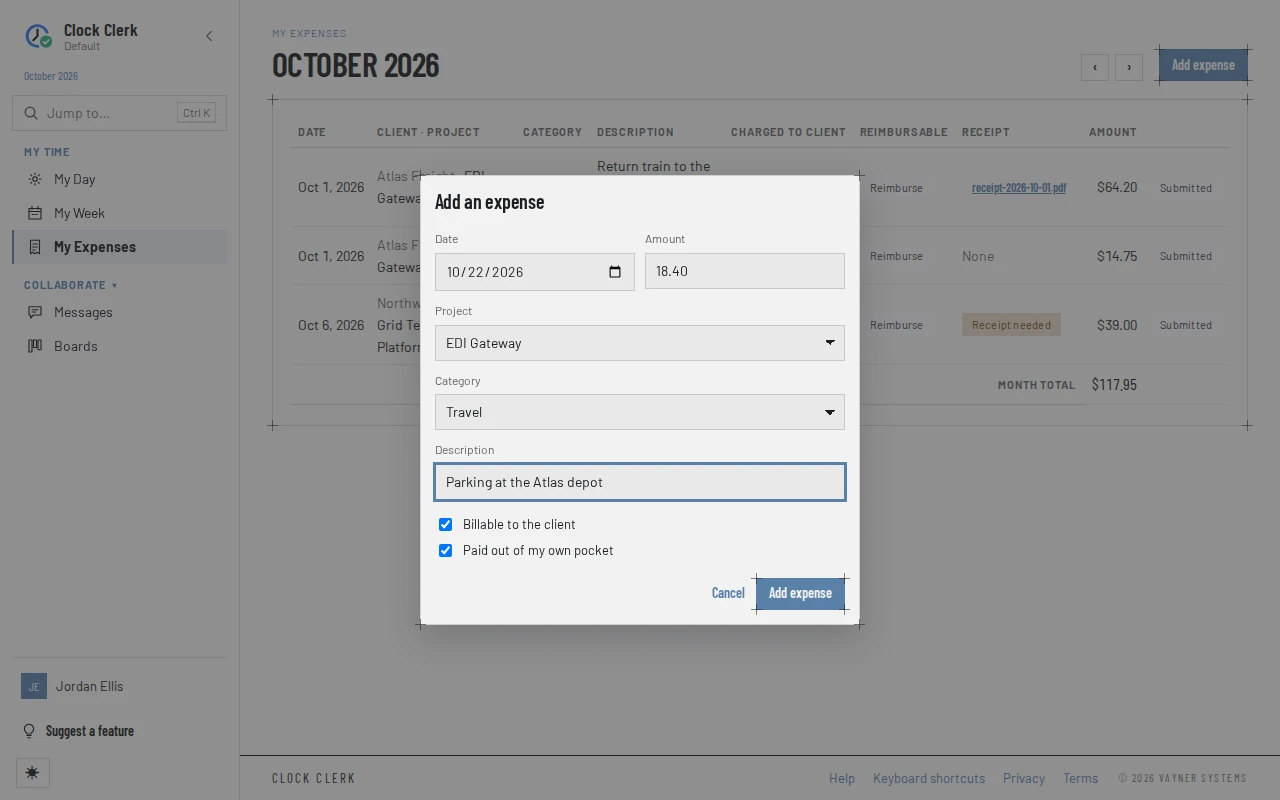
- Choose My Expenses in the menu, under My time. It opens on this month; ‹ and › move a month at a time and This month comes back.
- Choose Add expense. Add an expense opens, its Date set to today, or to the first of the month you are looking at.
- Fill in the Amount, in your organization's currency, and choose the Project and the Category.
- Under Description, say what it was for, such as Train to the client's office. A client reads it on their invoice if the claim is billed, so write it for them. It can be up to 500 characters.
- Check the two ticks. Billable to the client starts from the category's default. Paid out of my own pocket starts ticked: clear it for something paid on a company card, so nobody is paid back for it.
- Choose Add expense. It is disabled until there is a date, a project, a category, an amount over zero and a description. The app says Expense added. and the claim is listed in its month.
The two ticks answer different questions: is the client charged, and are you paid back. Both, either or neither can be true. A claim ticked billable on a project that is not billed to the client says Not billed, because it never will be.
Until the claim is submitted, Edit changes it and Delete removes it, after Delete this expense? and Delete expense. A claim keeps the category name and billing it was made with, so renaming or retiring a category later does not change it.
2. Attach the receipt
- In the claim's Receipt column, choose Attach receipt and pick the file: a photo (JPEG, PNG or HEIC) or a PDF, up to 5 MB.
- The app says Receipt attached. and the column shows the file's name. Choosing the name downloads it.
A claim has one receipt. Replace swaps it for another file; Remove asks Remove this receipt?, and Remove receipt takes it off.
Receipt needed marks a claim that is over the receipt threshold and has none. The threshold is the client's, where its customer settings give one, and otherwise your organization's, set on Expense categories. A claim of exactly the threshold needs none. A claim can wait for its receipt while you are recording the week; the week cannot be submitted without it. A lower threshold never reaches back into a week already submitted, so a claim filed before it changed can say Receipt needed with no Attach receipt until the week is reopened.
3. Submit it with your week
There is nothing to submit on My Expenses. A claim belongs to the week its date falls in, or, in a week that runs into a new month, to that month's part of it. Submit week on My Week submits the claims dated in the week along with the hours, as in Record and submit your week.
- In its top bar, My Week shows Expenses this week with their count and total, which opens My Expenses, and Receipt needed when one of them needs a receipt.
- While a claim in the week needs a receipt, the submit is refused with Attach the receipt for this expense before submitting: … or Attach the missing receipts before submitting (…): …, naming each claim. Attach them and submit again.
- Once the week is submitted, its claims say Submitted and lose their Edit, Delete and receipt buttons. A new claim dated in it is refused too. To change one, reopen the week, or ask your reviewer to send it back.
4. Review the claims
For whoever reviews the week on Approvals: a manager of the projects the claims are on, Finance, or an administrator. Reviewing the week itself is covered in Review and approve time.
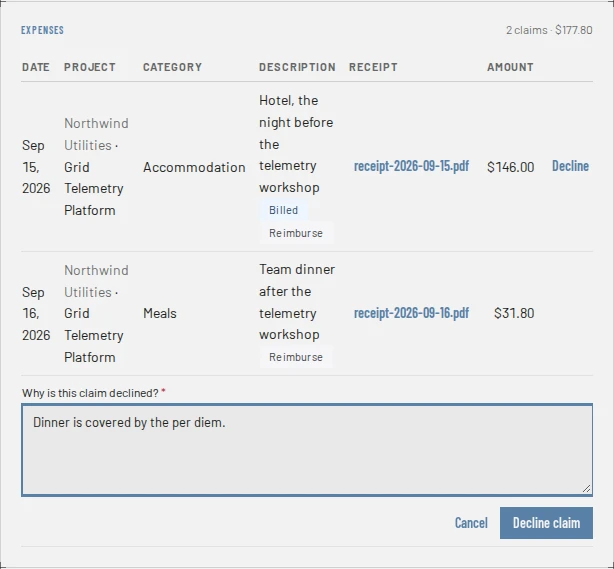
- In the review queue, a week with claims shows how many and their total, with Receipt missing and … declined where they apply.
- Open the week. Under the sheet, the Expenses card lists its claims on projects you review: the date, project, category and description, tagged Billed if the client will be charged and Reimburse if the claimant is to be paid back, the receipt, which you can download, and the amount.
- Approve the week as usual. Approving it approves its claims: there is no separate approval. Claims never keep a week out of Approve clean weeks.
- To refuse one claim without sending the week back, choose Decline on it. Under Why is this claim declined?, give a reason, which is required and can be up to 1,000 characters, and choose Decline claim. The app says Claim declined.
The claimant sees Declined on the claim in My Expenses, with your reason and name. A declined claim is never billed or paid back, and it needs no receipt. Allow on it puts it back, and the app says Claim allowed. The card says who decided, such as Declined: Dinner is covered by the per diem. — Priya Raghavan.
- Only a submitted claim can be declined. Before that it is still its owner's to change.
- Never your own, at any role. An administrator approves their own week, but their own claims have no Decline; the card says Decline isn't offered: You cannot decline or allow your own expense.
- Finance and administrators have the last word. Either can allow what a manager declined, or decline what a manager allowed, and the card then says, for example, Allowed by Alex Moreau (overriding Priya Raghavan). A manager cannot change a decision Finance or an administrator made.
- Not once it has gone out: a claim already on an invoice, on a contractor's protocol, paid back or sent to your ERP has no Decline, and its tag says why.
A claim on a project you do not manage counts like a line of hours there: you are not shown it, and the week is not yours alone to approve (see Who reviews whose time).
5. Bill it to the client
For Finance and administrators, on a plan with invoicing. The rest of an invoice is covered in Bill a client.
- On Invoices → Generate, the claims you can bill to the chosen customer in the chosen dates are listed under their own Expenses heading, below the hours, each with a tick.
- A claim is offered when it is ticked billable, its project is billed to the client, it is not declined and not on an invoice yet. Where the client's customer settings tick Approved only, its week also has to be approved; the others are counted under Expenses held back, such as 1 expense awaiting approval is not shown.
- Each claim is a line of its own on the invoice, at what it cost, inside the subtotal, so tax and discounts reach it as they reach the hours.
- From then on the claimant sees Billed and the invoice's number, and the claim cannot be changed. Removing its line, discarding the draft or voiding the invoice puts it back among the unbilled claims.
6. Pay it back
For Finance and administrators, on any plan. Employees are paid back here. Contractors are paid back with their month (below).
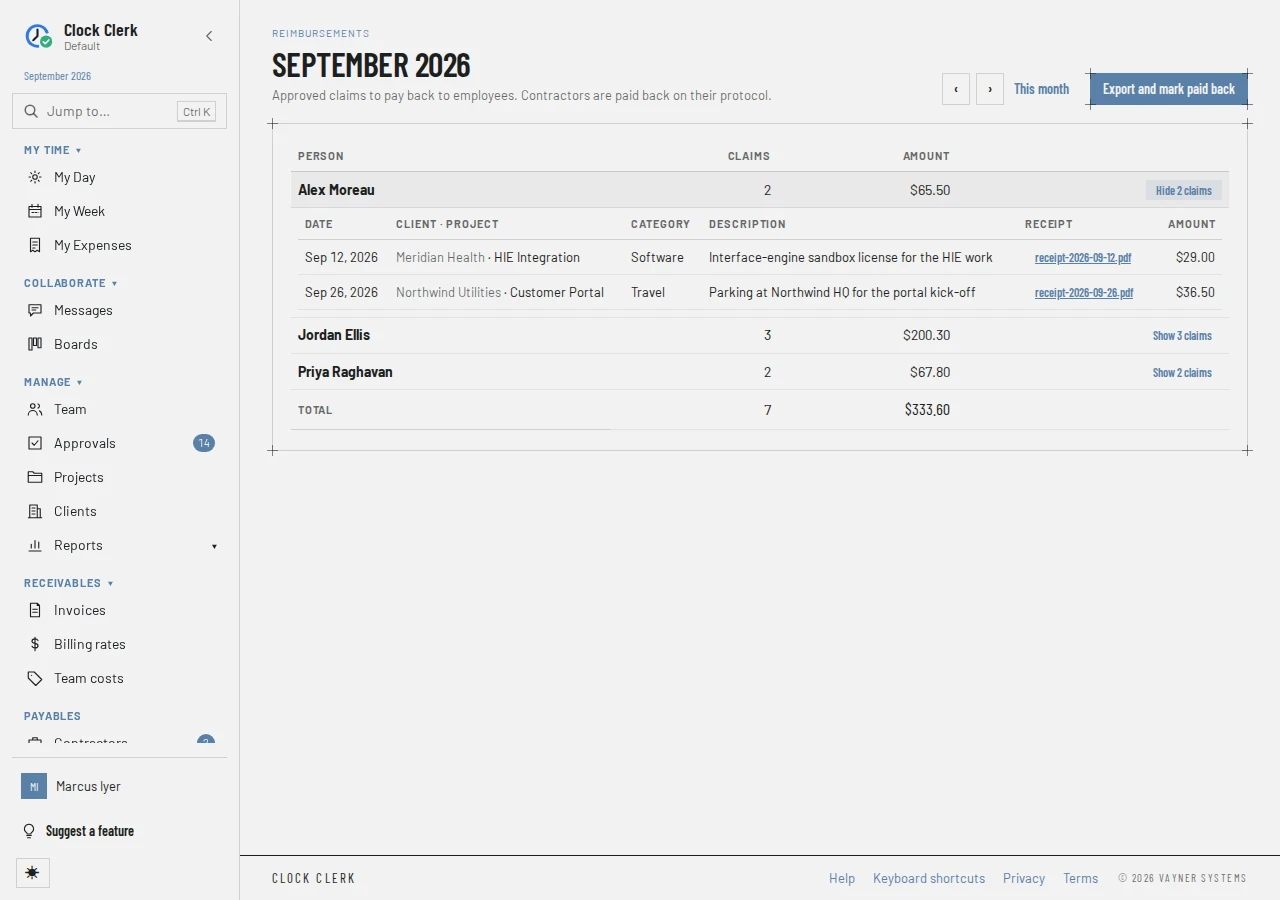
- Choose Reimbursements in the menu, under Payables, or the Reimbursements button on My Expenses. Move to the month to pay with ‹ and ›.
- Each person owed something is listed with their number of claims and the amount. Show … claims lists the claims, with their receipts to download. A claim is owed when it is ticked Paid out of my own pocket, is not declined, has not been paid back, and its week is approved.
- Claims whose week is not approved yet are counted above the list, such as 2 expenses ($84.10) are waiting for their week’s approval. They join the run once their weeks are approved.
- Choose Export and mark paid back. The dialog says how many claims, for how much, go into the file, and that their claimants can no longer change them. Choose Export and mark paid back again.
- A CSV file downloads, with one row per person: payee, email, amount, number of claims, month and batch. Every claim in it is marked paid back, under a batch named RMB- and the date and time.
- Pay the people from the file through your payroll or your bank. Clock Clerk does not move the money.
The people paid leave the list, and the run is listed under Earlier exports, where Download gets the same file again. Each claimant sees Paid back and the batch on the claim, and it is final: nothing undoes a run. A claim approved later in the month is in the next run, and none is paid twice.
Where your organization's ERP export sends expenses, an approved claim goes to the ERP as an expense report line instead. Reimbursements then lists it under Paid back through the ERP, marked as sent to the ERP and left out of the totals, and the claimant sees Sent to and the ERP's name. That is covered in Export to an ERP or QuickBooks.
Contractors' expenses
A contractor records claims on My Expenses like anybody, and submits them with the week. They are not in the reimbursement run. Instead, the contractor's claims dated in the month that are ticked Paid out of my own pocket and not declined are printed under Expenses on the month's acceptance protocol and invoice, at what they cost. The contractor's tax is charged on the hours only. See My Month.
- Submitting the month takes them with it, and each then says Paid back with the protocol's number.
- To leave one off, the reviewer returns the month, declines the claim, and the contractor submits the month again.
- While the month is submitted, deciding on a claim dated in it but left off it, such as a declined one, is refused with This expense's month went out on acceptance protocol … without it. Ask for the month to be returned before declining or allowing the expense.
Paying contractors is covered in Pay contractors.
Why an expense cannot be changed
Once a claim has been submitted or has gone out, its buttons are replaced by a tag saying why. Changing it then is refused with the message shown here.
| The claim says | The app's message | What lifts it |
|---|---|---|
| Submitted | … has been submitted for approval, and its expenses with it. Reopen it before changing them. | Reopening the week, or its reviewer sending it back. |
| Billed · and the invoice's number | This expense is on invoice … Void it before changing the expense. | Finance or an administrator voids the invoice, or removes the claim's line from a draft. |
| Paid back · and a protocol's number | This expense is on acceptance protocol … Ask for it to be returned before changing the expense. | The contractor's month being withdrawn or returned. Once it is approved for payment or paid, it is final. |
| Paid back · and a batch, RMB-… | This expense was paid back in reimbursement batch … It is final. | Nothing. |
| Sent to and your ERP's name | This expense was sent to …, which may have paid it. Change it in … instead. | Nothing in Clock Clerk; change it in the ERP. |
A claim on an invoice or a protocol also keeps its week shut: reopening it, or sending it back, is refused with This week has hours or expenses on invoice … Void the invoice first — reopening it afterwards is the right order. or This week has expenses on acceptance protocol … Withdraw or return the protocol first — reopening it afterwards is the right order. A claim paid back in a run does not: its week can still be reopened for its hours, and the claim stays as it was.
When Expenses is turned off
An administrator can turn Expenses off for the whole organization, when it only tracks time. While they are off:
- My Expenses and Expense categories are gone from the menu and from Jump to, and Expenses this week from My Week. Opening either address takes you to Home.
- Nobody can add, change or delete a claim, or attach or remove a receipt, and the categories and the receipt threshold cannot be changed. Trying anyway is refused with An administrator has turned Expenses off for this organization. Everything already in it is kept, and comes back when it is turned on again.
- Submitting a week no longer asks for receipts, since nobody could attach them. A claim not yet submitted goes in with its week as it stands, and its reviewer still sees Receipt missing and may decline it.
- Everything already submitted finishes its way: it is reviewed and approved on Approvals, billed to the client, paid back on Reimbursements, which stays in the menu, or with a contractor's month, sent to an ERP, and reported on.
Nothing is deleted. When Expenses is turned on again, every claim, receipt and category is back where it was.
When something goes wrong
- Nothing can be claimed yet: an administrator needs to add expense categories first. Ask an administrator to add them on Expense categories. If you are one, use the Create expense category link beside the message.
- The project is not in the list. You can only claim on projects you are on the team of.
- A receipt is a photo (JPEG, PNG or HEIC) or a PDF. or A receipt can be up to 5 MB. Take a smaller photo, or save it as a PDF.
- Attach the receipt for this expense before submitting: … A claim in the week is over the receipt threshold. Attach its receipt on My Expenses, then submit the week again.
- … has been submitted for approval, and its expenses with it. Reopen it before changing them. The claim's week is submitted. Reopen it, or ask your reviewer to send it back.
- Decline isn't offered: You cannot decline or allow your own expense. Your own claims are decided by somebody else, or simply not made.
- Decline isn't offered: This expense has not been submitted yet, so it is still its owner's to change. Wait for the week to be submitted.
- … decided this expense, and only Finance or an administrator can change their decision. Finance or an administrator decided it last. Ask them.
- One of these claims was changed on the ERP export at the same moment, so nothing was saved. Please try again. Choose Export and mark paid back again.
- No My Expenses in the menu. An administrator has turned Expenses off for your organization (above).
- No Reimbursements in the menu. It is for Finance users and administrators.
- Add expense is disabled, and there is no Edit. Your organization is read-only (see Roles).