Workflows
Review and approve time
Once people submit their weeks, someone signs each one off or sends it back with a reason. That happens under Approvals, a queue of the weeks waiting on you. Team beside it shows the same people's weeks, read-only.
Who reviews whose time
Team and Approvals are in the menu of every Manager, Finance user and administrator. A User has neither. How far each reaches depends on the role (see Roles):
- A Manager sees the people on the teams of the projects they manage, and only the hours those people booked to those projects. Which projects a manager manages comes from their grants: a Manager grant on a client covers its projects, and a project's own override can add or hold back one project. So a manager sees the people on Atlas Freight's projects if they were granted Atlas Freight, and nobody who only works for other clients.
- Finance and administrators see everyone in the organization, and every hour, without a grant.
If someone is missing from your queue, they are not on the team of any project you manage, or your grant on that client or project is not Manager. An administrator changes both on the person's page under Settings → People.
Someone on one of your projects may also have hours on projects you do not manage. Their week still comes to you, but you cannot decide it alone. The week says 1 line on projects you don’t manage is not shown, and its hours are not in these totals. Approving, sending back or reopening it is refused with Part of this period is booked to projects you do not oversee, so it is not yours alone to decide. Somebody who oversees all of it — or an administrator — has to.
Nobody decides their own week, except an administrator: see Your own week.
Approvals or Team
| Approvals | Team | |
|---|---|---|
| For | Deciding: what is waiting on you, week by week. | Reading: your people's weeks, including the ones still in draft. |
| Lists | Submitted weeks to decide, weeks you have decided, and people who have not submitted. | Everyone you reach, with their hours for the week and whether they have submitted. |
| Buttons | Approve week, Send back…, Reopen week, reminders. | None that change a week. Message opens a conversation with the person. |
| Reference | Approvals | Team |
1. Open the queue
- Choose Approvals in the menu. The number beside it counts the submitted weeks waiting on you over the last eight weeks.
- Approvals opens on the most recent week that still has something waiting, or on last week when nothing does. The row of weeks under the title shows each recent week with how many are waiting in it. Choose one, or step with ‹ and ›.
- The Review queue on the left lists the week's people, cut by the tabs above it: Pending (submitted and waiting on you), Decided, Missing (not submitted) and All.
- Choose a person. Their week opens beside the queue.
Each row shows the person's hours for the week and their status: Awaiting review, with · late when it was submitted after the Monday that follows it; Approval blocked; Approved; Sent back; or Not submitted. Small marks beside the hours count the week's review flags, and a row with expenses shows how many claims and their total, with Receipt missing where one has no receipt.
2. Read the week
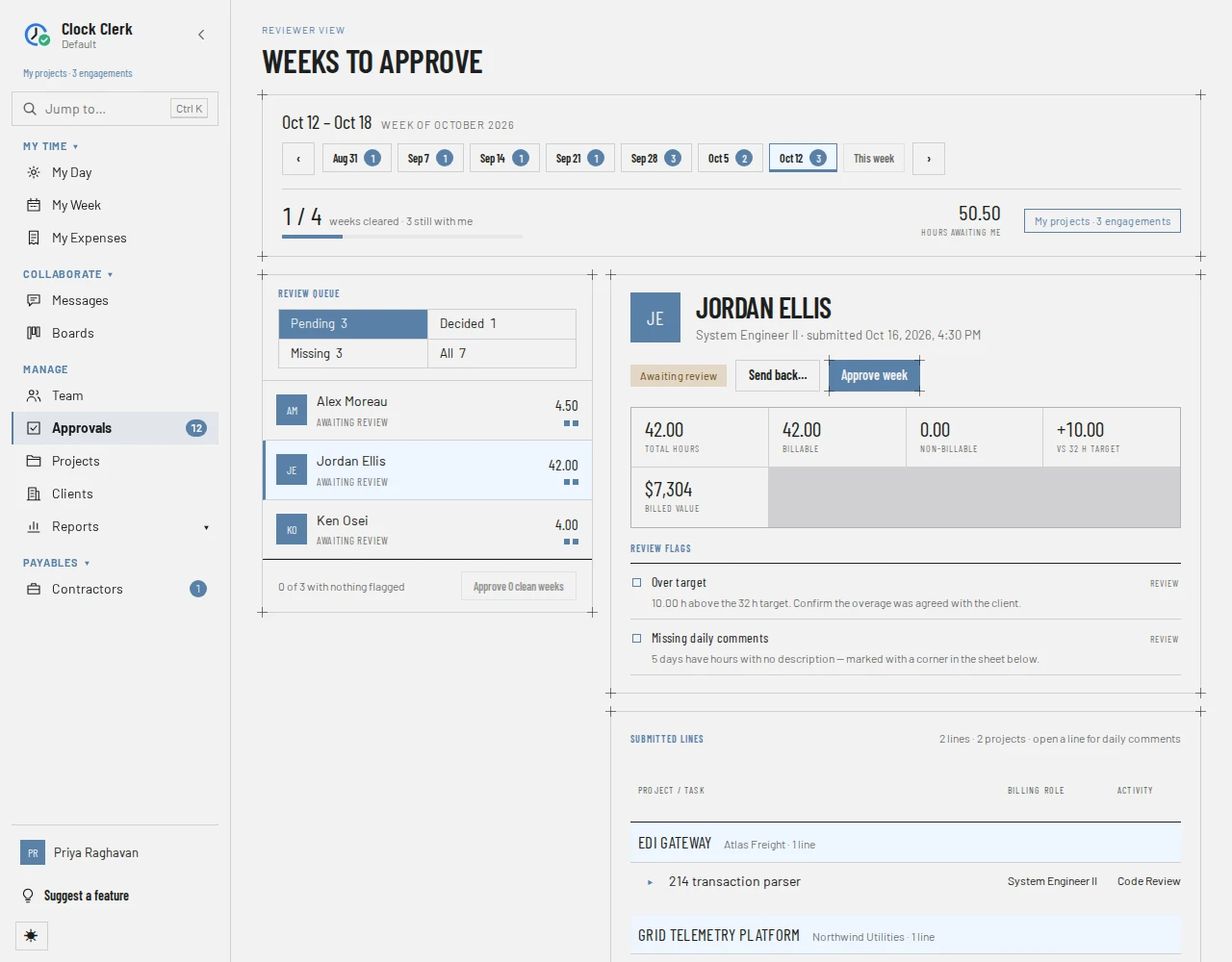
From the top, the open week shows:
- Who filed it, when it was submitted, its status and the buttons to decide it.
- Its figures: Total hours, Billable, Non-billable, the difference from the person's target, and the Billed value at the client's rates.
- Review flags, the things worth checking before you approve. Blocking flags stop the approval; the others are for you to judge.
- Billing rate missing (blocking): billable hours that neither the client's contract nor the standard rates price.
- Under target, more than two hours short; Over target, more than four hours over; Missing daily comments, days with hours and no description; No time recorded, a week submitted empty.
- Notes: Non-billable time, Weekend hours and Long day logged (more than ten hours in a day).
- Submitted lines: each line's project, task, billing role, activity and hours per day. Open a line to read its daily comments; a day with hours and no comment is marked with a corner. NB marks time not billed to the client. A public holiday's column is shaded from its header down to the daily total, and striped for a half day, with a Holiday or Half-day holiday badge in the header; point at the badge or any day in the column for the holiday's name. Weekends are dimmed but never shaded, so the two don't look alike.
- Expenses dated in the week, if there are any. Approving the week approves them too, so they are shown here; a single claim can be declined with a reason without sending the week back. That is covered in Expenses and reimbursements.
- Submission history: every submission, reopening and send-back, with its reason.
3. Approve it
- Choose Approve week.
- The app says Approved … ’s week. and opens the next person's week waiting on you.
What happens next:
- The week stays submitted and is now locked for good, unless a reviewer reopens it. The person's My Week says Approved by … on … — this week is closed. No email is sent.
- Where a client is billed for approved time only (Bill approved time only in the invoice settings), approving is what lets the hours onto an invoice. If your organization exports to an ERP, the week shows · posted to … beside its status once it has gone.
When Approve week is disabled. A week with a Billing rate missing flag shows Approval blocked and says Blocked by 1 missing billing rate. under the button, with the project and billing role that need a rate. An administrator or a Finance user sees Edit billing rate, Price for this project and Client contract beside each one, to add it from there. A manager cannot set rates and is told Only an administrator or finance user can price … Ask one to add the rate, or send the week back if the project or the billing role is the thing that is wrong.
4. Or send it back
Send a week back when the person has to change something: hours on the wrong task, missing days, a wrong billing role.
- Choose Send back….
- In the Send back for changes dialog, write under Reason sent to … what needs to change. The four buttons above it fill in common reasons, which you can then edit. The reason is required, up to 1,000 characters.
- Choose Send back. The app says Sent … ’s week back.
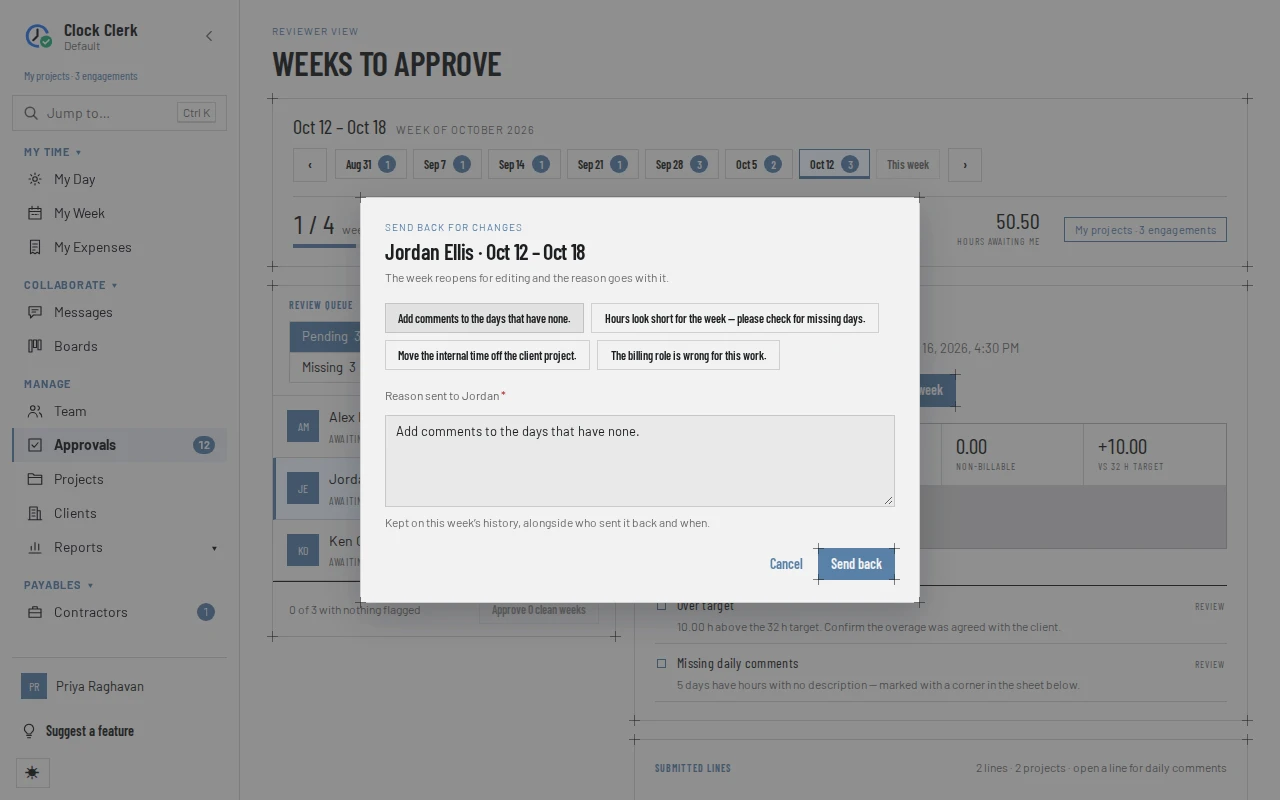
The week reopens for the person to edit: its status becomes Sent back for changes, with your reason above their sheet (see A week sent back to you). When they submit it again, it comes back to Pending in your queue. Until then it stays under Decided as Sent back, where Edit reason changes what you wrote; the person is sent the new reason.
You cannot send back a week whose hours are on an invoice or on a contractor's acceptance protocol; the app names the document, as in When something goes wrong.
Approving clean weeks together
Weeks with nothing flagged can be approved in one go.
- On the Pending tab, the foot of the queue says how many weeks have nothing flagged, for example 3 of 5 with nothing flagged, or how many are blocked.
- Choose Approve 3 clean weeks. The dialog lists the people it covers and says that weeks carrying a flag stay in the queue for you to open.
- Choose Approve 3 weeks.
Only weeks with no flag at all are included, not even a note, so the button often reads Approve 0 clean weeks and is disabled. Any week the app will not approve stays with you and is named: Still with you: …, followed by the reason.
Changing your mind
A decision can be undone from the Decided tab. Open the person and choose Reopen week. The app says … ’s week is back in your queue.
- An approved week goes back to Awaiting review. It stays submitted, so the person still cannot change it. Send it back if they need to. If the week was already exported to your ERP, the app warns first: These hours are already in … Changes post as corrections when the week is approved again.
- A week you sent back is submitted again as it stands, and the history says Send-back withdrawn by …. If the person had already resubmitted it, it is simply waiting on you again.
A week whose hours are on an invoice or a contractor's acceptance protocol cannot be reopened until the invoice is voided or the protocol is withdrawn or returned. Hours on a protocol that is approved for payment or paid are final (see What the contractor lock freezes).
Reminding someone who has not submitted
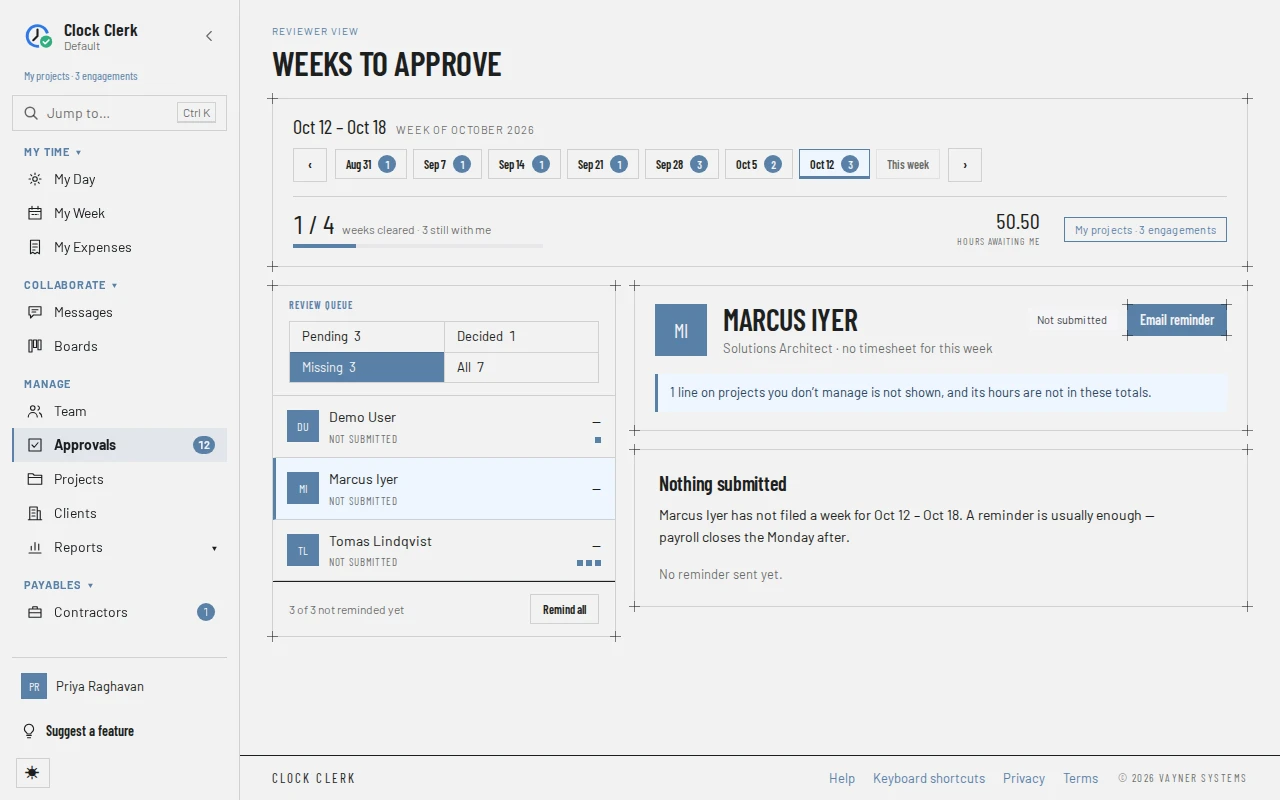
- Open the Missing tab and choose the person. The week says Nothing submitted, and whether they have been reminded.
- Choose Email reminder. The person is emailed a reminder to submit that week, and the button becomes Reminder emailed. Their row reads Not submitted · reminded.
- To remind everyone on the tab at once, choose Remind all at its foot. It skips anyone already reminded about this week.
- If your deployment of Clock Clerk cannot send email, the button reads Mark as reminded and only records that you asked, for example after a word in person.
- If the email bounces, the week says so, so you know to reach the person another way.
- Someone added to the organization who has not signed in yet shows Not signed in yet and has no reminder button. Nobody is asked for weeks before they started or after they left, which an administrator sets on their page as their start and end dates.
Clock Clerk also sends reminders on its own, except on the Free plan: on Friday, at a month end, and on Monday morning a list of anything still not submitted. Everyone gets all three unless they turn them off on their profile. An administrator can switch them all off on the Organization tab. That switch does not stop the reminders you send from here, because somebody presses a button for those.
Older weeks
A week submitted late is in no queue anyone happens to have open, so the row of weeks at the top of Approvals keeps the last eight in view, each with the number still waiting on you. A week with nothing waiting stays in the row with no number, so you can see it is done. The count beside Approvals in the menu adds them up. Choose a week to open its queue, or use ‹ and › to step back further.
Weeks that run into a new month
Time is submitted a month at a time, so a week that runs into a new month is two submissions, decided separately. Such a person is listed once in the queue with a row for each month, and the open week has a switch between the two months. The buttons name the month: Approve Sep 28 – Sep 30, Reopen Oct 1 – Oct 4. Everything shown is cut to that month's days, and a note says the other part was filed separately and is decided on its own. You can approve one month while the other is still in draft.
Your own week
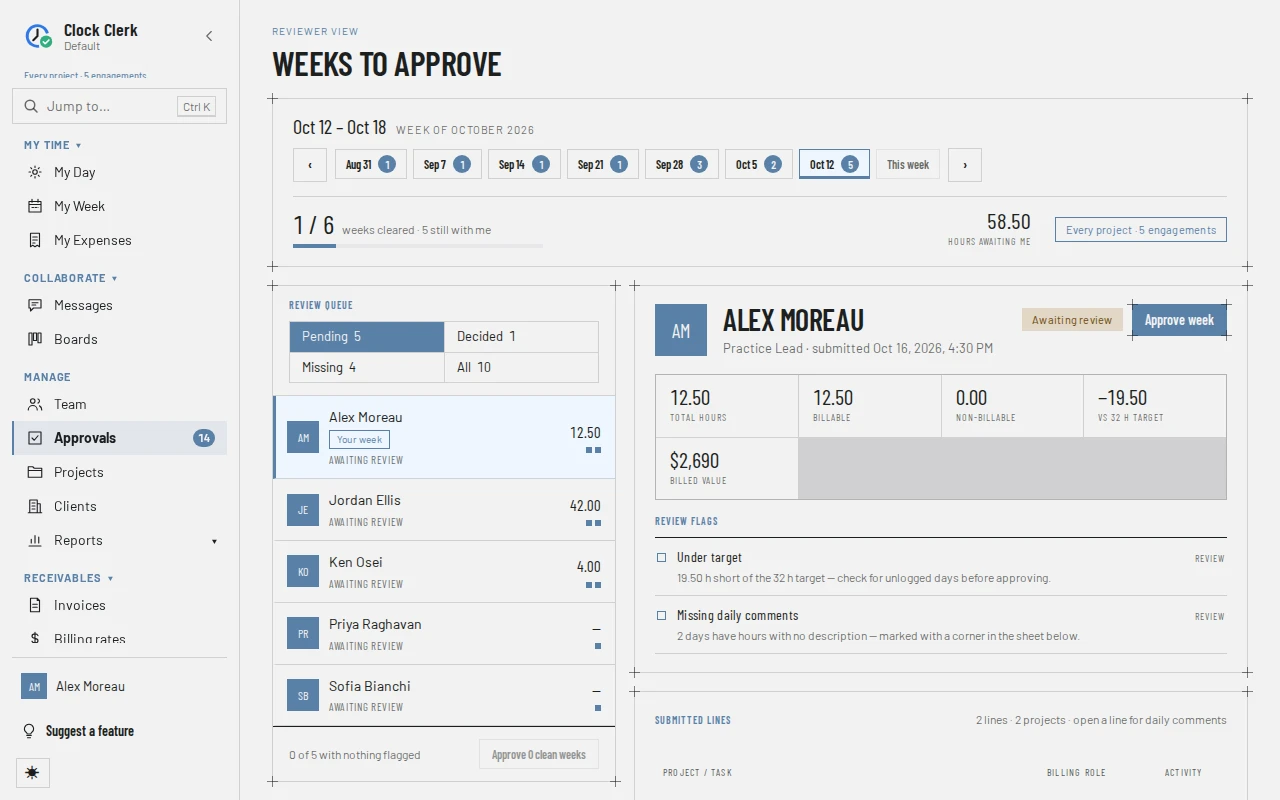
Nobody reviews their own work, with one exception: an administrator has nobody above them, so they approve their own week.
| Your role | Your own week in your queue | Approve and reopen it | Send it back or remind yourself |
|---|---|---|---|
| Manager | Not shown. Your own reviewer decides it. | No | No |
| Finance | Shown, marked Your week. | No. The app refuses with You cannot review your own week. Another reviewer decides it: someone else in Finance, an administrator, or a manager over all of its projects. | No |
| Admin | Shown, marked Your week. | Yes. The week records that you approved it. | No |
Send back…, Edit reason and the reminder button are never shown on your own week, at any role. If one is used anyway, the app says You cannot send your own week back — withdraw the submission from your own sheet instead. or You cannot remind yourself about your own week. Remind all leaves you out. To change a week you submitted, reopen it from My Week if you have the permission (see Reopening a week yourself), or ask your reviewer to send it back.
What the person is told
| You | Their week | |
|---|---|---|
| Approve | Approved, locked, with who approved it and when. | None. |
| Send back | Sent back for changes, open to edit, with your reason above the sheet and on its history. | Your reason, quoted, where your organization sends email. |
| Edit reason | The new reason replaces the old one. | The new reason. |
| Reopen an approved week | Submitted for approval again, still locked. | None. |
| Reopen a week you sent back | Submitted for approval again, locked, with Send-back withdrawn by … on its history. | None. |
| Remind | Unchanged. | A reminder to submit the week, unless your deployment cannot send email. |
When something goes wrong
- Part of this period is booked to projects you do not oversee, so it is not yours alone to decide. Somebody who oversees all of it — or an administrator — has to. The person also worked on projects you do not manage. Ask an administrator, Finance, or a manager of all of them.
- You cannot review your own week. Only an administrator decides their own week. See Your own week.
- Say what needs to change — the reason is what the week is sent back with. or Keep the reason to 1,000 characters or fewer. The send-back reason is empty or too long.
- There is nothing to approve — this week has not been submitted. or There is nothing to send back — this week has not been submitted. The person reopened the week before you decided it.
- This week has already been decided somewhere else. Another reviewer decided it while you were reading it. The queue refreshes.
- This week has hours or expenses on invoice … Void the invoice first — reopening it afterwards is the right order. Reopening or sending back the week would unlock billed hours. Finance or an administrator voids the invoice first.
- This week has hours on acceptance protocol … Withdraw or return the protocol first — reopening it afterwards is the right order. The hours are on a contractor's month. Once that month is approved for payment or paid, the app says They are final. and the week cannot be reopened.
- There is nothing to remind about — this week has been submitted. or … has not signed in yet, so there is nothing to remind them about. The person submitted in the meantime, or has not signed in for the first time.
- Someone is missing from your queue. See Who reviews whose time: they need to be on the team of a project you manage.
- Approve week is disabled. The week has a missing billing rate. See Approve it.