Workflows
Your account and your data
Everyone in an organization keeps a few settings of their own on My profile: the language Clock Clerk speaks to them, how it looks, the defaults their week starts from, which emails they get and, where the organization signs in with a password, their password. Anybody can tell the Clock Clerk team what is missing and vote on what others asked for. And when an organization wants all of its data, an administrator downloads it; when it wants to leave, an administrator asks Clock Clerk's support to close it.
Who can do what
| What | Who | Where |
|---|---|---|
| Your language, look, timesheet defaults and email | Everyone who signs in to the organization, whatever their role, contractors included. | My profile |
| Change your password | Anyone whose organization signs in with an email and password. | My profile |
| Your name, email, job title and role | Administrators, for everybody. | People |
| Suggest a feature, and vote | Everyone who signs in, whatever their role, even while the organization is read-only. | Feedback |
| The organization's language, and its reminders on or off | Administrators. | Organization |
| Download the organization's data | An administrator. | Organization: see step 8. |
| Close the organization | An administrator asks; Clock Clerk's support does it. | Not a screen: see step 9. |
Client guests have no profile and no Feedback: they see only the conversations shared with them (The guest screens).
1. Open your profile
Choose your name at the foot of the menu, then Account settings, or type profile in Jump to (Ctrl + K). My profile opens with your name as its heading and how you signed in beside it, such as Signed in with Email and password.
Account details shows your Full name, the address you sign in with and your Job title. You cannot change them here: as the screen says, Your name, title and role are maintained by an administrator on the People tab. Ask an administrator to change them on People.
Everything else on the screen is yours to change, and saves as soon as you change it. The foot of Timesheet defaults says Preferences save automatically, then Saved and the time. The My profile reference page goes through every part.
2. Choose your language
- Under Timesheet defaults, open Language.
- Choose Organization default, which names the language your administrator chose for everybody, or one of the sixteen languages, each written in its own name: English (US), English (UK), Español, Français, Deutsch, Nederlands, Italiano, Português (Brasil), Português (Portugal), Svenska, Dansk, Norsk bokmål, Polski, Українська, Русский and 简体中文.
- The page reloads in the language you chose.
A language also sets how dates and numbers are written, which is why English and Portuguese each appear twice. As the hint under the list says, Translations are rolling out, so most screens are still in English for now. A screen that is not translated yet stays in US English.
How Clock Clerk chooses a language.
- Once you are signed in: the language you chose on your profile; otherwise, the language you picked on this website just before signing in, for that visit; otherwise, your organization's.
- Before anybody is signed in, on the sign-in page: the language this browser last showed Clock Clerk in; otherwise the closest of your browser's languages, so a browser set to Portuguese gets Português (Brasil); otherwise US English.
- Your organization's language is US English until an administrator changes it on the Organization tab.
Email follows the same choice: your reminders, digests and invitations are written in your language, or your organization's if you have not chosen one. An invoice is written in its client's language instead (Bill a client).
3. Choose how it looks
- Skin, under Appearance on your profile, sets the shapes and the type: Canvas, rounded cards and pill buttons, which you have until you choose, or Blueprint, square frames in a condensed typeface.
- Theme sets the colors: System, which follows your computer's light or dark setting, Light, Dark, Grove and Dawn; Solarized Light, Solarized Dark, Nord and Dracula; Latte, Frappé, Macchiato and Mocha; and High Contrast Light and High Contrast Dark. Any theme goes with either skin.
- The theme can also be changed from anywhere: choose your name at the foot of the menu, then Appearance, which shows the theme you have, to open the list, and the app takes on each theme as you point at it. Choosing one keeps it; closing the list without choosing puts yours back.
- The menu down the left can be arranged too. Choosing a group's heading, such as Payables, opens or closes the links under it; the arrow at the end of the heading points down while the group is open. Every group starts closed, except the one holding the page you are on, which opens for that page, and the menu remembers which ones you open. A link with pages of its own, such as Invoices, goes to the first of them, and the tabs along the top of that page lead to the rest. Recents, at the top of the menu, lists the last few places you went, newest first, each with where it sits under its name (Templates, under Invoices). A project, client, invoice, person, board, conversation or contractor's month is listed by its own name, with what it belongs to under it (a project under its client and Projects), and takes a new name once you save one. It leaves out the page you are on and any page you can no longer open, and the list is your own: nobody else signing in on the same browser sees it, and signing out clears it. Choose Recents to open or close the list. Jump to lists the same places first, before you type anything. The button beside the Clock Clerk name folds the menu down to an icon for each group heading, without the links under them or Recents. Rest the pointer on the folded menu, or move to it with the Tab key, and it opens at full width over the page, as you left it, without moving the page; it folds again when you move away, or when you press Escape. The same button opens it for good.
The skin, the theme and how the menu is arranged are kept in this browser, not on your account, so each computer or phone can have its own. Someone invited to an organization that signs in with a password picks a theme on their first sign-in, on Pick a look.
4. Set your timesheet defaults
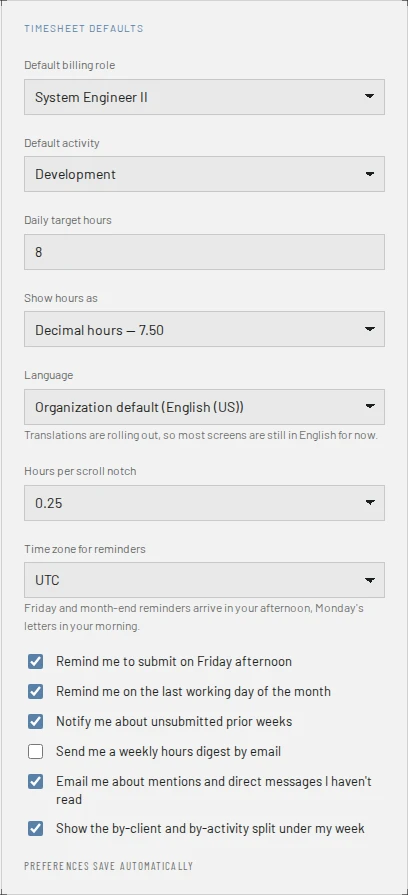
- Default billing role and Default activity: what a new line on your week starts with. Default activity is hidden while your organization doesn't ask for an activity.
- Start each new week with last week's lines (no hours): off unless you tick it. When it's on, an empty week fills once, the first time you open it, with the lines of your most recent filled week in the four before it, without their hours. A week you have cleared stays empty.
- Daily target hours: what a full day is measured against, from 1 to 24.
- Show hours as: Decimal hours — 7.50 or Hours and minutes — 7h 30m.
- Hours per scroll notch: how much one turn of the mouse wheel adds to an hour cell, 0.1, 0.25, 0.5 or 1.
- Show the by-client and by-activity split under my week: the totals under My Week.
Record and submit your week shows where each one takes effect.
5. Choose the email you get
The boxes at the foot of Timesheet defaults decide the email Clock Clerk sends you on its own. Untick one to stop that kind; nothing else changes.
| Box | What it sends | Starts |
|---|---|---|
| Remind me to submit on Friday afternoon | A reminder about this week, if it is not submitted. | Ticked |
| Remind me on the last working day of the month | A reminder about the month's weeks still not submitted. | Ticked |
| Notify me about unsubmitted prior weeks | On Monday morning, a list of earlier weeks still not submitted. | Ticked |
| Send me a weekly hours digest by email | On Monday, a summary of the week just finished. | Not ticked |
| Email me about mentions and direct messages I haven't read | One email when a message that mentions you, or was sent to you alone, has waited about ten minutes unread. | Ticked |
| Email me when the organization's free trial is ending | Administrators only: a notice seven days, three days and one day before a trial ends, and on the day. | Ticked |
- Time zone for reminders decides when they arrive: Friday's and the month end's in your afternoon, Monday's in your morning. Until you or the app set one, Clock Clerk fills it in from your browser when you sign in; choose another if you travel or it is wrong.
- The first four boxes are only there on plans that send reminders and the digest: Team, Enterprise and a trial. On Free and Starter they are gone, and a note says the plan doesn't send them.
- An administrator can turn the reminders, the digest and the unread-message email off for everybody at once, on the Organization tab. Your boxes then change nothing until it is turned back on.
Unsubscribing from an email. Each of these emails ends with an Unsubscribe link, and most mail programs show an unsubscribe button beside it. Either one turns off that kind of email alone, with no sign-in, and shows You're unsubscribed: We've turned off … for you. Nothing else has changed — your timesheet and your other email settings are exactly as they were. To have it back, tick its box on your profile again. A link stops working after 90 days; your profile always works.
Email you cannot turn off, because somebody pressed a button to send it or it is about your account: an invitation, a password reset link, a reviewer's Remind, a week sent back with its reason, the email about a contractor's month (submitted, sent back, or a reminder to countersign), and an administrator's notice that somebody asked to join.
6. Change your password
Only where your organization signs in with an email and password. Under Session & security:
- Choose Change password.
- Type your Current password, then a New password and the same again under Confirm new password. The new one needs at least 8 characters, or more where your organization's sign-in asks for more, with a number and a special character, and must not be your email address. The hint says what is still missing as you type. A password that has turned up in a known data breach elsewhere is refused too, even if it meets those rules.
- Choose Change password. The screen says Your password is changed. Every other browser you were signed in on has been signed out. This one stays signed in.
If you have forgotten your current one, choose Forgot your current password?, which emails you a link to set a new one (Forgotten password).
If you sign in with Microsoft, your password is Microsoft's: Manage in Microsoft account opens your Microsoft account in a new tab. If you sign in with Okta, change it in your organization's Okta.
Sign out everywhere, on a password account, ends your sessions in every browser at once. With Microsoft or Okta, Sign out ends this browser's session only.
7. Suggest a feature, and vote
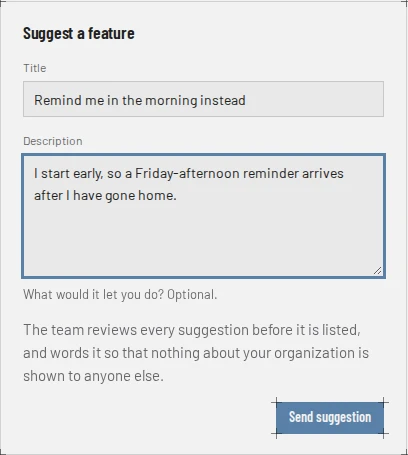
Feedback, above your name at the foot of the menu, opens Feedback for everyone who signs in, whatever their role. It stays open when the organization is read-only because its trial ended or its subscription lapsed: that is when the team most wants to hear what is missing. Administrators also find it under Missing something? Tell us on the trial's strip.
- Under Suggest a feature, give it a Title of up to 120 characters, and if you like a Description of up to 2,000 saying what it would let you do.
- Choose Send suggestion. It says Thanks. Your suggestion is waiting for review, and the team’s answer will appear under Your suggestions.
- Watch for the answer under Your suggestions, which only you and the Clock Clerk team can read. Not even your administrator sees them. Each one is Waiting for review until the team decides, then:
- Listed: it is on the shared list, On the list as “…”, worded by the team so that nothing about your organization shows.
- Merged: somebody had already asked for it, Merged into “…”.
- Declined, with the team's reason.
To vote, choose Vote beside a request under Feature requests; it shows a tick while your vote stands, and choosing it again takes the vote back. The list is shared by every organization that uses Clock Clerk, so its counts are everybody's votes; who voted is never shown, to anyone.
8. Export your organization's data
An administrator downloads it: Download your data on the Your data card of the Organization tab saves the file. It is the same file Clock Clerk's support would send, so there is nothing to ask for.
- It is one file holding everything your organization put into Clock Clerk, table by table: people and their settings, clients, projects, boards and tasks, every hour and comment, approvals, expenses with their receipts, rates and costs, invoices and payments, contractors' months, conversations and their guests, saved reports, the log of email sent, feature suggestions and votes, and the organization's own settings and billing record.
- It is JSON, one of the formats most tools read, so it can be loaded into a spreadsheet tool, a database or another system.
- Downloading changes nothing: everyone goes on working, and the organization stays as it was. It works while the organization is read-only too, after a trial or a subscription ends.
- Each download is recorded on the Audit log, with who took it.
Some of it you can take yourself at any time. Every hour in a report's filters is in its All entries download (Build and save reports), Finance can export hours and costs to an ERP (Export to an ERP or QuickBooks), and an administrator downloads the people each billing period charged for from Billing usage.
9. Close your organization
An administrator deletes the organization from the Organization tab, and it is removed 30 days later unless an administrator undoes it. An organization already due to be removed sooner for want of payment (Removal after 90 days) keeps that earlier day.
- Cancel the subscription first, if there is one: Cancel subscription on the Organization tab. That sets the subscription to end with the period already paid for; it does not end it now. Until the period's last day everyone goes on working. An organization cannot be deleted while its subscription is still running, so the deletion waits for that day.
- Download your data (step 8), if you want it. You can still do this until the day it goes; after removal there is nothing left to download.
- Choose Delete organization on the Organization tab and type its name. From then on the organization is read-only, every administrator is emailed, and any administrator can choose Undo deletion until the day it goes.
- On the day, it is removed. Every record the organization holds is deleted: its people, clients, projects, hours, invoices, conversations and settings. This cannot be undone. The links it emailed to guests stop working, and a guest no other organization has invited loses their guest account with it. Requests its people sent through the contact form while signed in are deleted too. Its data leaves Clock Clerk's backups within 30 days after that, so it is gone everywhere at most 60 days after you asked.
What is kept after removal:
- The record that your email domain held an organization, so that the same domain cannot start another free trial. Personal addresses such as Gmail or Outlook are never recorded.
- A client guest's own account, without anything of yours, but only if another organization has invited the same person too.
- The record that an administrator accepted the terms, and any guest's own choice to get Clock Clerk's news, which they can withdraw at any time.
- The shared list of feature requests, worded by the team. Your organization's suggestions and votes are removed with it, and the counts drop.
- The nightly backups taken before the removal, until they age out, within 30 days. They are only ever used to restore the service.
The privacy notice says how long everything else is kept, and the terms say the same of your data after you leave.
Not paying is not closing straight away. When a trial ends without a plan, or a subscription lapses, the organization becomes read-only and nothing is deleted at first (Roles). If nobody pays, it is removed 90 days later, after emails to every administrator at 30 days and at 7 (Removal after 90 days).
When something goes wrong
- Your name, email or job title is wrong. Only an administrator can change them, on People.
- Most of the screen stays in English after choosing a language. Those screens are not translated yet; the ones that are follow your choice.
- Not saved — your last change did not stick under your defaults. Check your connection and change the setting again.
- The theme changes back on another computer. The skin and theme are kept per browser; choose them there too.
- No reminder boxes on your profile. Your organization's plan does not send reminders or the digest.
- Reminders still arrive after you unticked them. Each kind has its own box, and a reviewer's Remind is not one you can turn off.
- This link isn't valid any more after following an unsubscribe link. It expired or was cut short by the mail program. Turn the email off on your profile instead.
- Your current password is wrong: Check it and try again. After several wrong passwords in a row an account is locked for a while; if you have forgotten yours, reset it.
- Your password is locked for now: There were several wrong passwords in a row. Wait a few minutes and try again.
- Choose a different password, with what it lacks, such as A password must contain at least one number. or A password must not be your email address.
- This password has appeared in a known data breach: it was leaked from another website, so attackers try it first. Choose another (see the message).
- No Change password on your profile. Your organization signs in with Microsoft or Okta, so the password is theirs.
- You’ve sent a lot of suggestions in the last hour. Please try again later. Each person can send ten an hour. What you typed is kept.
- Suggestions are turned off in the live demo. You can still vote on the list. The demo is shared by every visitor; sign up for a trial to send one.